Helios Rust Console Bot Documentation
Connect Helios to ChatGPT
Set up a custom ChatGPT MCP plugin with Helios OAuth and your Premium server's API key.
- Last reviewed
- Applies to
- Helios AI Premium beta
- Maintained by
- Helios RCE
Connect ChatGPT to your Premium game server using a custom MCP plugin. First create a Helios API key on the correct server. Start with read-only permissions.
1. Add the custom MCP plugin
Use ChatGPT on the web. Open Plugins, choose the + button, then Add custom MCP server. Enter Helios as the name and use the settings below.
| Setting | Value |
|---|---|
| Server URL | https://api.heliosrce.com/mcp |
| Authentication | OAuth |
| Advanced OAuth settings | User-defined client |
| Client ID | helios-chatgpt-pilot |
| Client secret | Leave blank. |
| Token endpoint auth method | none |
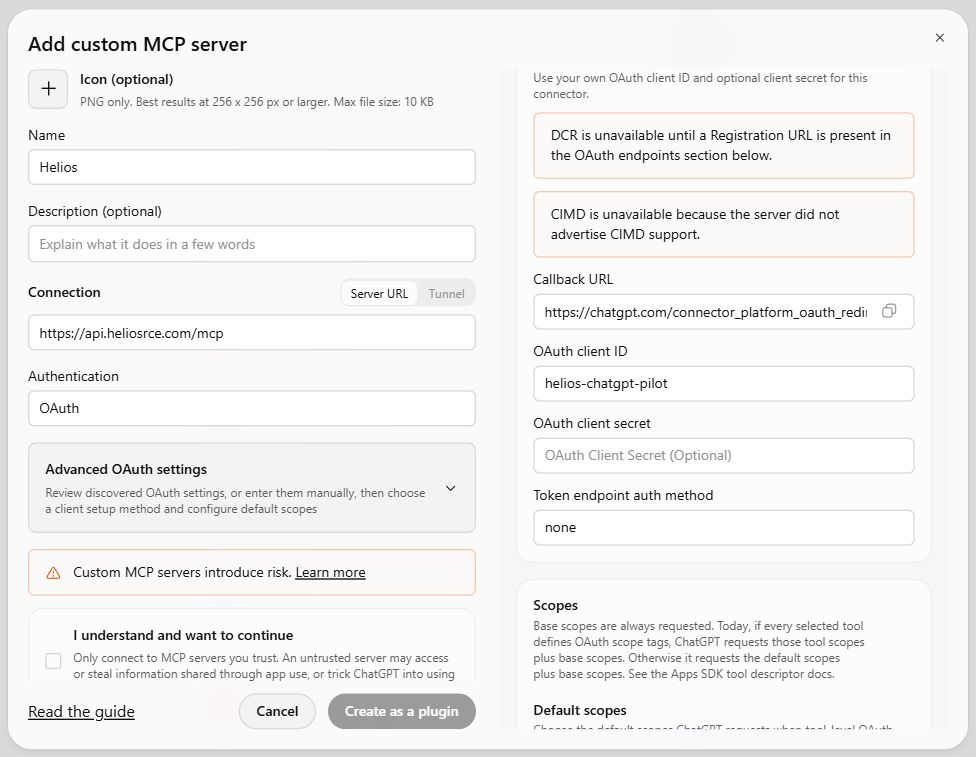
The client ID includes pilot; use it exactly as shown for the Premium beta. It is a public client identifier, not your API key. Helios uses this configured OAuth client rather than automatic client registration.
Review the connection warning, select I understand and want to continue, then Create as a plugin. Find the resulting Helios plugin and install it if prompted. Workspace permissions or security restrictions may prevent custom MCP setup.
2. Connect with your Helios key
- Choose Connect for Helios.
- On the Helios connection page, paste the API key you created in the dashboard.
- Complete the connection, then return to ChatGPT.
Keep the key out of chat messages and the client-secret field. The key selects your server and grants; you do not need another dashboard sign-in during this connection step.
3. Test a read-only request
In a new chat, type @ and select the installed Helios plugin. Send:
Use Helios to show the connected server name and list its kits.
Do not make any changes.
Check the server name before asking for writes. If your key has View kits access, ChatGPT can inspect the kit list; create/edit/delete permissions are separate.
Make changes after review
Ask for a preview first, for example:
Use Helios to prepare a new starter kit with 100 wood in the main inventory.
Show me the proposed kit and connected server before applying it.
Enable the corresponding key permissions only when needed. Review the exact proposal and approve it in the same chat. Shop, Battle Pass, and economy settings can affect the whole Discord community; see AI permissions and scope.
If the connection fails
- Authentication fails: check the server URL, client ID, blank secret, and none token endpoint method. Use a valid Helios key on the Helios connection page.
- The plugin is missing in chat: check that it is installed and selected with @. Your workspace may restrict custom plugins.
- A tool is denied: review key permissions, active Premium, server enabled status, and your Discord management permissions in the AI dashboard.
- The key expired or was revoked: create a replacement on the intended server and reconnect. Do not retry an uncertain write until you have checked its result.
See OpenAI's custom MCP setup guide for current ChatGPT menus and workspace restrictions, or Claude setup to connect another assistant.