Helios Rust Console Bot Documentation
AI & MCP: Premium Setup
Connect ChatGPT or Claude to your Premium server, choose API-key permissions, and review AI changes.
- Last reviewed
- Applies to
- Helios AI Premium beta
- Maintained by
- Helios RCE
Helios AI connects ChatGPT or Claude to your server through MCP (Model Context Protocol). Ask your assistant to inspect your setup, build kits, or prepare changes to supported Helios features. You choose its access with an API key, then review proposed changes in your chat.
What you need
- An enabled, connected game server with active Premium.
- Discord server ownership, Manage Server, or Administrator permission.
- A ChatGPT or Claude account that allows custom MCP connections. Your AI provider's account and workspace restrictions still apply; Helios Premium does not include an AI-provider subscription.
The module is a Premium beta. The visual kit builder, item guidance, and emote catalog can also be used without Premium; live server tools require the access above.
Open the dashboard, choose your game server, then open Manage Server → AI. Check the server name at the top before creating a key.
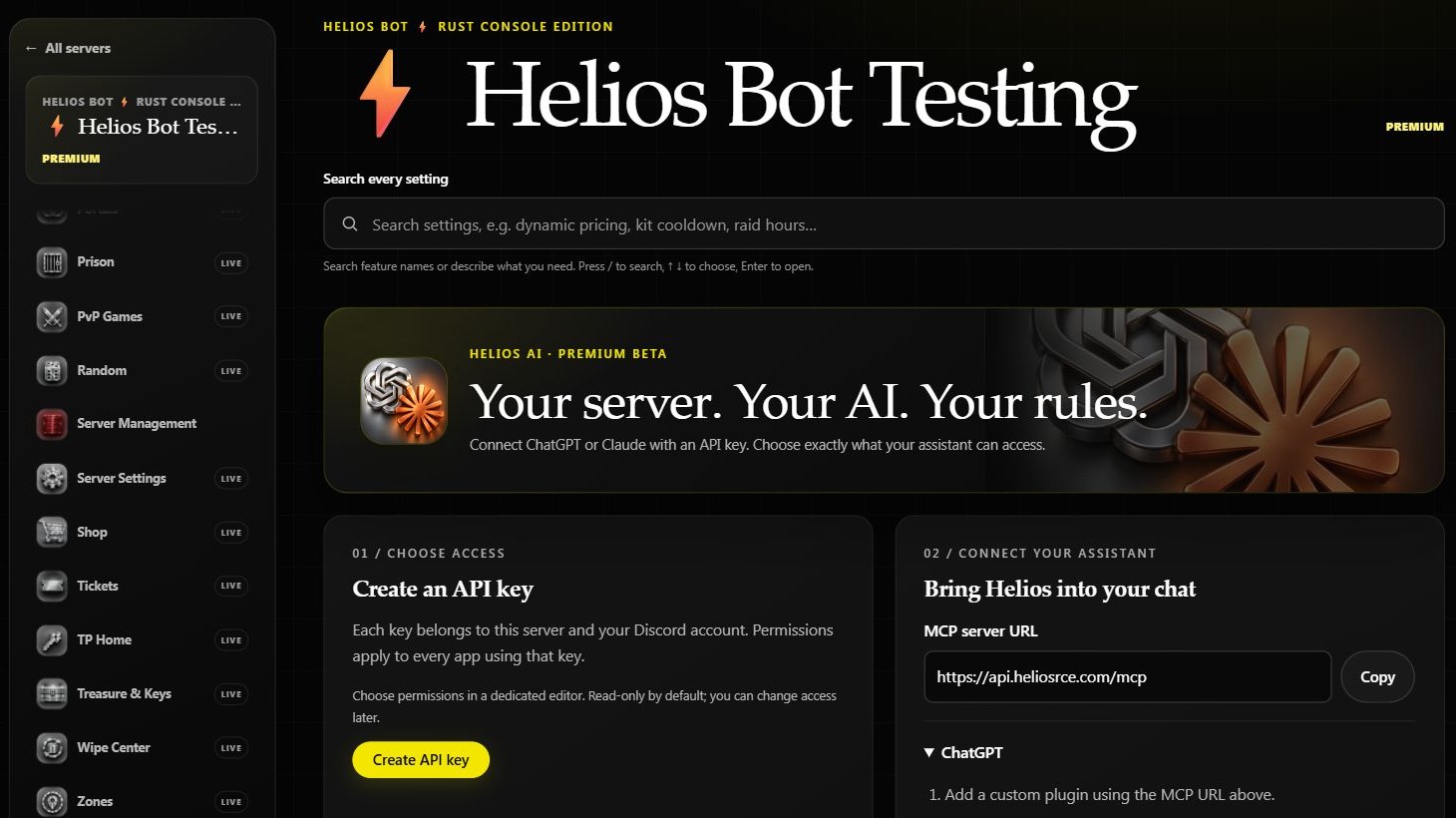
Screenshots use Helios Bot Testing. Choose your own connected server when following the guide.
1. Create an API key
- Choose Create API key.
- Give it a name, such as My ChatGPT or My Claude.
- Choose an expiry: 30, 90, or 365 days.
- Start with View server status and View kits. Enable additional permissions only for the features you want to manage.
- Choose Create API key, then save the full key somewhere private. Helios shows it once.
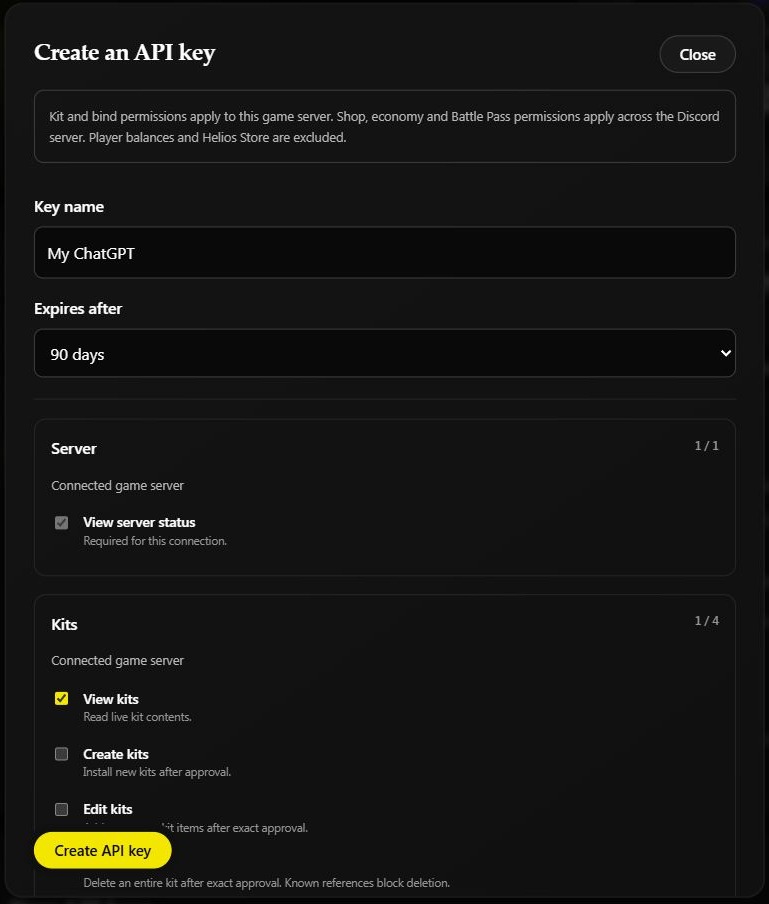
Use a separate key for each assistant so you can change or revoke one connection independently. Never paste your key into a chat message. For the OAuth setup below, paste it only into the Helios connection page opened by your AI provider.
2. Connect your assistant
Both assistants use this MCP server URL:
https://api.heliosrce.com/mcp
- ChatGPT setup: create a custom MCP plugin and configure Helios OAuth.
- Claude setup: add a custom connector and configure Helios OAuth.
The API key determines the connected server and permissions. Connecting an assistant does not expand those permissions.
What the assistant can access
| Feature | Available access | Applies to |
|---|---|---|
| Server status | Read server context and status. | The connected game server. |
| Players | Read linked Discord IDs/gamertags and timestamped online players; no positions or balances. | Links across the Discord community; online players on the connected game server. |
| Player wipes | Preview and, with separate grants and exact approval, clear product/emote cooldowns or remove TP Homes/ORP zones for a player or everyone. | Product cooldowns are shared across the Discord community; the other wipes apply to the connected game server. |
| Kits | Read, create, edit, or delete kits. | The connected game server. |
| Emote binds | Read, create, edit, pause, or delete kit, item, spawn, and teleport binds, depending on the grants selected. | The connected game server. |
| My position | Read the position of your own linked game account for teleport setup. | Your linked player on the connected game server. |
| Bot shop | Read products, categories, and recorded purchase history; create, edit, or delete supported content. | Shared across the Discord community; separate from Helios Store. |
| Battle Pass | Read and manage rewards and challenges. | Configuration shared across the Discord community. |
| Economy | Read and edit supported casino limits, cooldowns, starting balances, and reward settings. | Settings shared across the Discord community; no player balance access. |
WARNCheck the scope before approving
Shop, Battle Pass, and economy settings are shared across the Discord community. An approved change through a permitted key affects every connected game server in that community. Kit and bind permissions apply to the connected game server.
Write permissions include the reads they depend on. A read-only key cannot make changes. Kit deletion is blocked when Helios finds known references. Deleting Battle Pass reward configuration does not take back rewards already delivered to players.
Player wipes require separate permissions; existing keys do not gain them automatically. Check the target and affected counts in the preview. Removing ORP zones ends their protection. Product cooldown wipes keep products and purchase history, and do not refund purchases. If a wipe is still applying or its outcome is uncertain, inspect its saved operation rather than creating another draft to retry it.
3. Check the connection with a read
Start with:
Use Helios to show the connected server name and list its kits.
Do not make any changes.
Confirm the returned server is the one you intended to connect. If it is wrong, reconnect using a key created on the correct server before requesting changes.
For a first write, ask the assistant to prepare a preview. Check the server, names, item quantities, permissions, and any shared settings before approving the exact proposal in the original chat. Giving a key write permission does not replace the change-approval step.
Review activity and manage access
The AI module shows Pending approval, Completed, and Needs attention activity, plus saved setup progress. Approve a pending proposal in the chat where it was created. Saved setup checklists are optional; you can use individual tools on an existing server.
A completed receipt records that operation; it does not prove nobody changed the configuration afterward. If an operation times out or needs attention, inspect the current server state before retrying, because part of the change may already have applied.
Under Your API keys, use Edit permissions to adjust access or Revoke key to remove it. These changes affect every app using that key. Expired or revoked keys need a replacement key and reconnection; revocation cannot be undone.
If access is missing, check the key's expiry and permissions, the selected server's enabled/Premium status, and your current Discord management permissions. Follow Premium Setup for subscription access.