Helios Rust Console Bot Documentation
Ban and Unban Boom
Choose explosive items, apply a ban, and restore their normal rules from the dashboard or Discord.
- Last reviewed
- Maintained by
- Helios RCE
Temporarily restrict explosive items on one game server, then restore them when you are ready. You need Administrator permission or Discord server ownership, and Premium on the selected game server.
From the dashboard
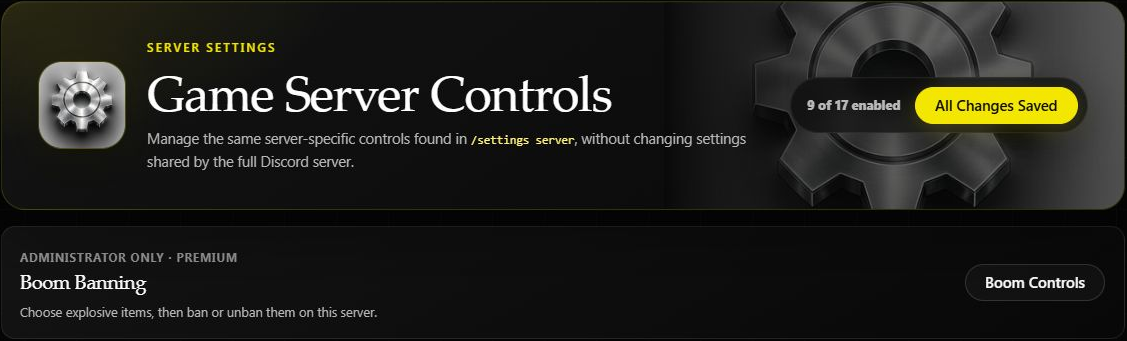
Open the dashboard, choose Manage Server → Server Settings, then select Boom Controls in the Boom Banning section.
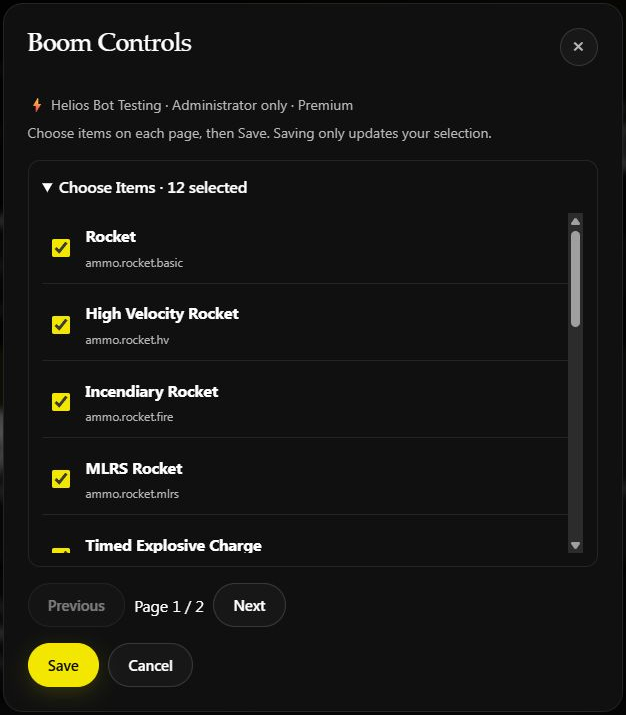
- Choose Choose Items.
- Tick the items you want to restrict. Use Next to check the other page.
- Choose Save and review the bulleted list.
- Choose Ban Boom to apply the restrictions to that server.
Save only updates your selection. It does not ban or unban anything.
For example, select Rocket, Timed Explosive Charge, and Satchel Charge, then save. Check that all three appear in your list before choosing Ban Boom.
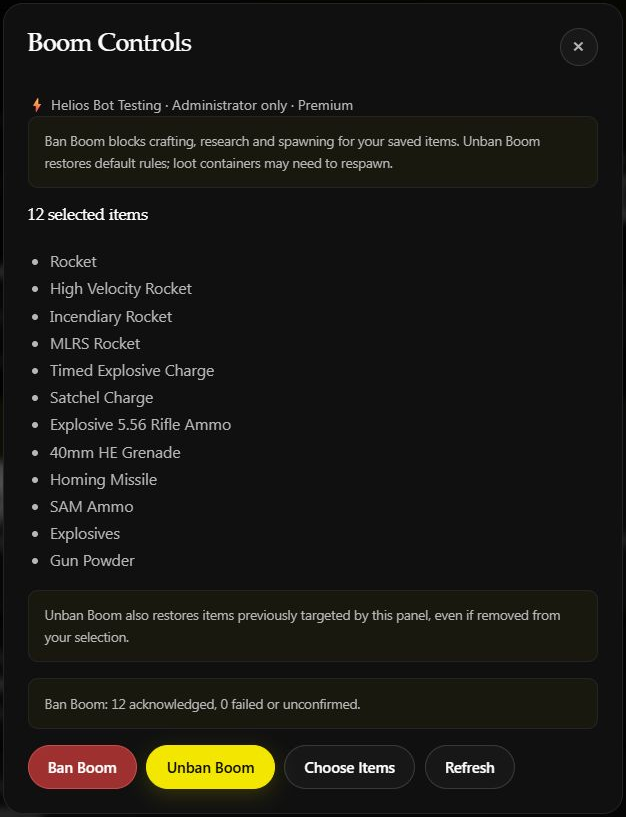
The saved panel shows 12 selected items and its previous result. Saving a selection does not run the commands.
From Discord
- Run
/server ban-boomin your admin channel and select the game server. - Choose Choose Items to open the dropdown. Item names appear above their shortnames, such as Rocket and
ammo.rocket.basic. - Select items on each page, then choose Save. Use Back to leave the picker without saving your changes.
- Choose Ban Boom. The panel changes to Banning Boom while the commands run.
- Read the result, then choose Back to return to the controls.
Your saved selection is shared between Discord and the dashboard. There are 21 supported items to choose from, including rockets, charges, grenades, fire ammunition, explosives, and gun powder.
Unban the items
Choose Unban Boom when you want to restore the normal item rules. It also includes items previously targeted by these controls, even if you have since removed them from your selection.
In Discord, the panel shows Unbanning Boom while it runs, followed by a result such as:
Unban Boom: 21 Commands Executed
The count depends on how many items were targeted. Loot containers may need to respawn before the restored items appear again.
Check the result
A ban result reports how many commands were acknowledged and how many failed or could not be confirmed. For a three-item selection, a successful result looks like:
Ban Boom: 3 acknowledged, 0 failed or unconfirmed.
If the connection drops or the result is unconfirmed, check the server and refresh the panel before trying again. Some commands may already have applied. The unban command count reports execution; check the item behavior in-game if anything still looks restricted.