Helios Rust Console Bot Documentation
Discord Autofeeds
Schedule recurring Discord announcements with a first-send time, repeat interval, and optional role ping.
- Last reviewed
- Tested on
- Helios Bot Testing dashboard; paused example draft cancelled without saving or sending a test.
- Maintained by
- Helios RCE
Open Discord → Automation → Autofeeds → Create Autofeed in the dashboard. Autofeeds post recurring messages to Discord. For Rust chat reminders, use Auto Messages instead.
Choose the destination and first delivery
- Enter an Autofeed Name.
- Choose the Discord Channel. Helios needs permission to view and send messages there, plus Embed Links for rich messages.
- Set Repeat Every (Hours):
24for daily, or168for weekly. - Choose First Send Date & Time and its Time Zone.
- Leave Role to Ping at No role ping, or choose the one role you intentionally want notified.
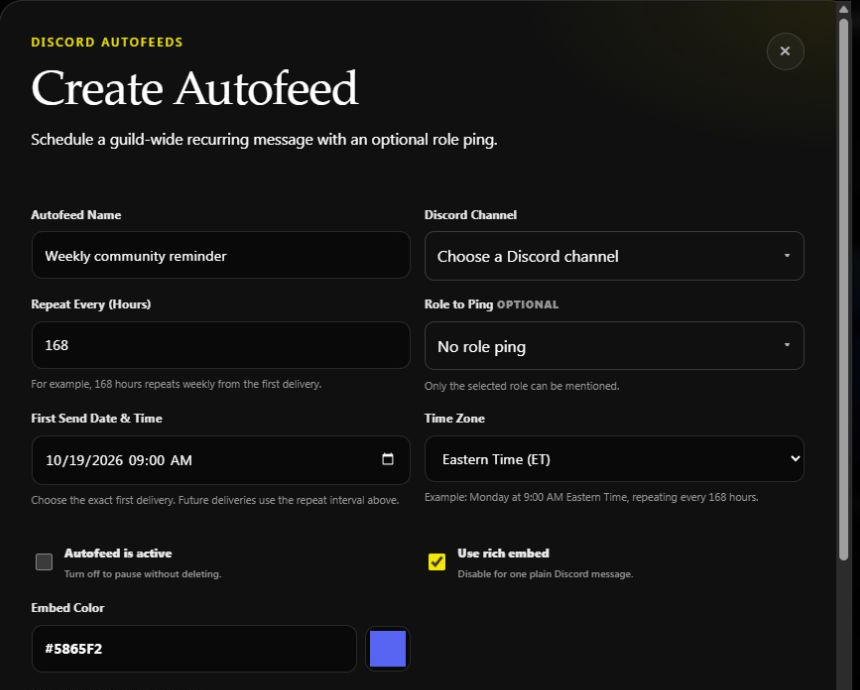
Example: October 19, 2026 at 9 AM Eastern, repeating every 168 hours. Choose a future date for your own setup. This draft was not saved and has no destination selected.
The first-send field establishes the initial delivery; later sends use the repeat interval. Do not enter minutes into the hours field. Review the saved next-run time, especially around time-zone or daylight-saving changes.
Write the announcement
Choose Use rich embed for a title, color, and optional direct HTTPS image. Disable it for a plain message. Text Above Embed is separate from the embed's Message.
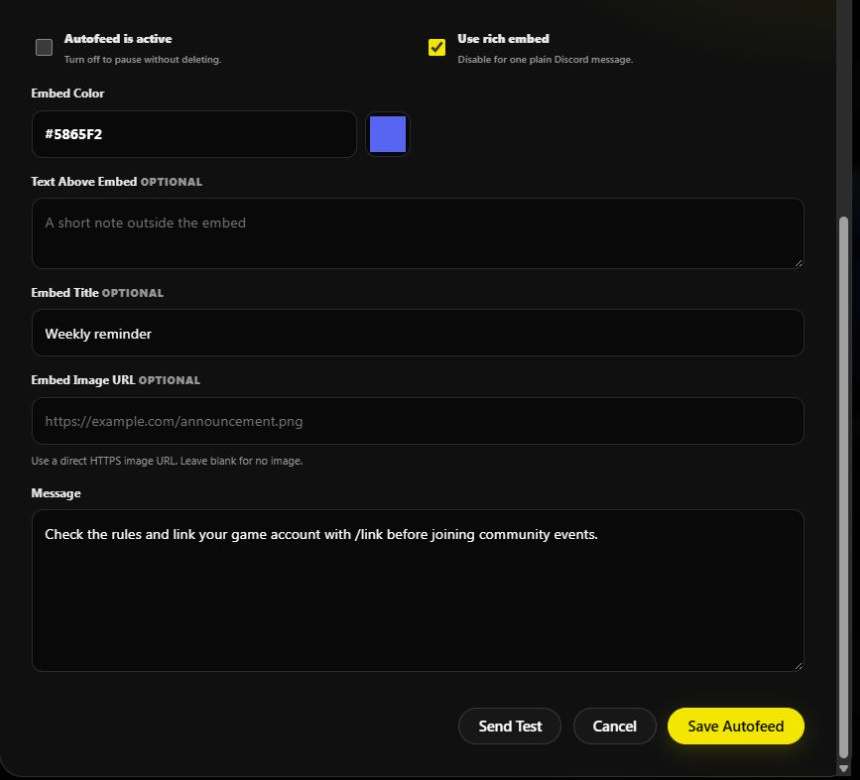
Only the selected Role to Ping can be mentioned. Keep it at No role ping while preparing a routine example.
Save, test, and pause
Check Autofeed is active when ready to run, then choose Save Autofeed. You can keep the active switch off while preparing a saved setup. The configuration is shared across your Discord community.
Send Test posts a real message to the selected Discord channel. It is separate from saving the schedule. A successful test does not establish that the future timing is correct; inspect the saved schedule and next-run information too.
To change a saved feed, open Edit, review its channel, interval, first delivery, and status, then save. Turn its active switch off to pause future scheduled messages without deleting the setup.
If a message does not arrive, check the active switch, first delivery and time zone, channel permissions, and whether it is the Discord Autofeed you configured rather than an in-game Auto Message. Avoid creating a duplicate schedule while investigating.
For replies activated by member messages, use Triggers. Return to Discord Tools.