Helios Rust Console Bot Documentation
Reaction Roles
Publish an emoji-to-role menu and choose standard, one-choice, or verification behavior.
- Last reviewed
- Tested on
- Helios Bot Testing dashboard; example draft cancelled without publishing or assigning roles.
- Maintained by
- Helios RCE
Reaction Roles let Discord members choose their own roles by reacting to a message. Open Discord → General → Reaction Roles → Create Reaction Role in the dashboard.
Prepare the roles and channel
Create the ordinary roles you want members to choose. Helios needs Manage Roles, and its highest role must be above each selectable role. It also needs permission to view the destination channel, send messages, embed links, and add reactions.
The setup belongs to the whole Discord community. Use roles meant for self-service, such as alert preferences. Do not offer a staff or privileged role just because it appears in a picker.
Name the menu and choose its behavior
- Enter a Setup Name so staff can recognize it later.
- Choose the Discord Channel where members should find it.
- Select the Behavior below.
- Write the Message, with an optional embed title, color, and direct HTTPS image URL.
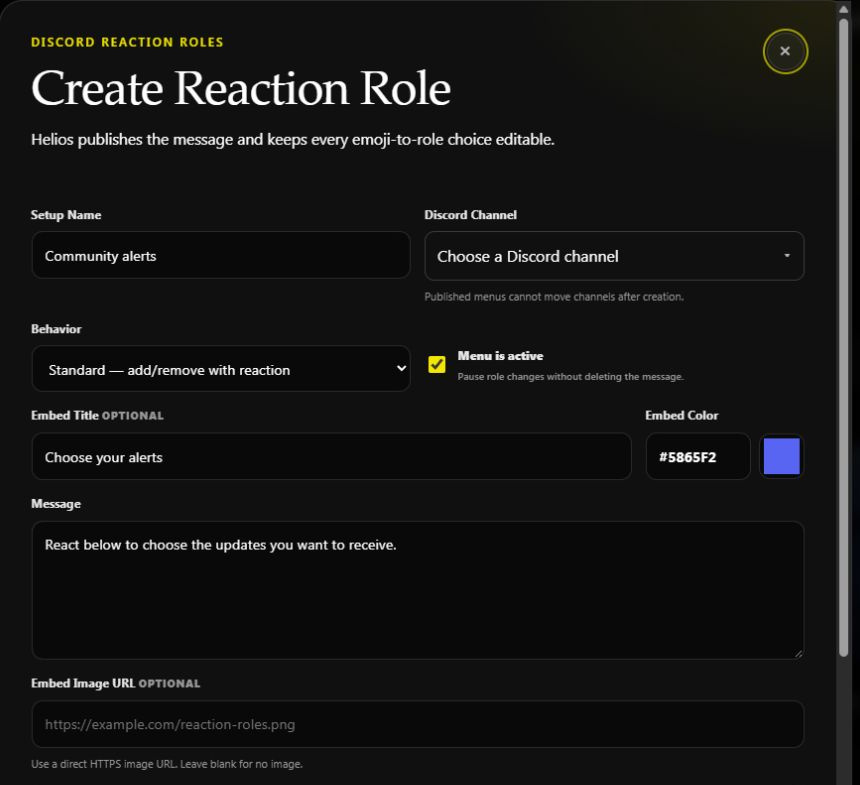
This draft has no destination selected and was cancelled. Choose your real channel before publishing.
| Behavior | What happens |
|---|---|
| Standard | Adding the reaction gives the role; removing it removes the role. |
| One choice | A member keeps only one choice from this menu at a time. |
| Verify | Reacting gives the role; removing the reaction does not take it away. |
Use Standard for independent alert preferences. Use One choice for alternatives, and Verify when reacting represents a one-time acknowledgement.
Map each emoji to a role
Under Emoji & Role Choices, enter a Unicode emoji or a custom server emoji, choose the Discord Role, and add a useful Label. Choose Add Choice for another mapping, up to 20 choices per menu.
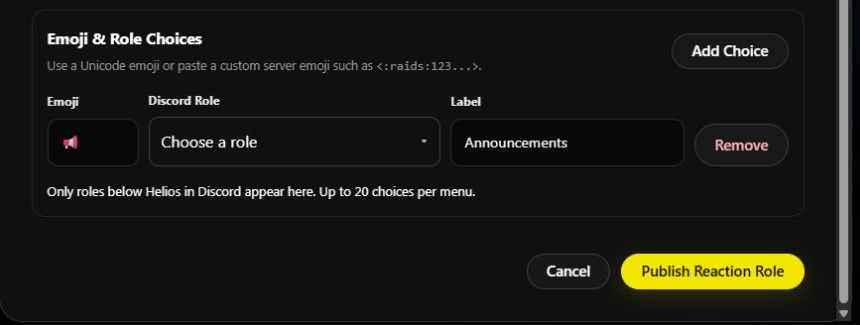
The role picker is intentionally unselected. A label does not select or create a role; choose an eligible existing role for every mapping.
Keep Menu is active on when members should be able to use it, then choose Publish Reaction Role. This creates a real Discord message. Open that message and test with an ordinary member account to check the selected behavior and role hierarchy.
Edit or pause a menu
Return to the saved menu to edit its content and mappings. Turn Menu is active off to pause role changes while keeping the message. Published menus cannot change channels; make a new menu if you need a different destination.
If a role is missing from the picker, check its position below Helios and whether Discord manages it. If reactions do nothing, check the active switch, the actual mapping, and Helios's channel and role permissions.
For join-time roles instead, use Auto & Sticky Roles. Return to Discord Tools.