Helios Rust Console Bot Documentation
Discord Live Alerts
Announce a creator's live stream in your Discord server.
- Last reviewed
- Maintained by
- Helios RCE
Use Live in the dashboard's Discord section to announce a creator's stream. Helios can watch a TikTok or YouTube creator and post a message with a Watch Live button. A role ping is optional.
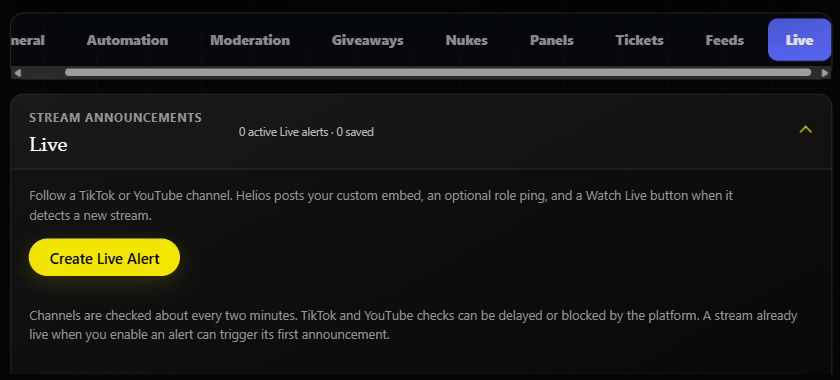
Create an alert
- Choose a connected game server in the dashboard, then open Discord → Live.
- Click Create Live Alert. Give it a name you will recognize later.
- Choose TikTok or YouTube and enter the creator or channel.
- Pick the Discord channel for announcements and, if you want, a role to mention.
- Adjust the message, title, color, or image. Check the preview, then save.
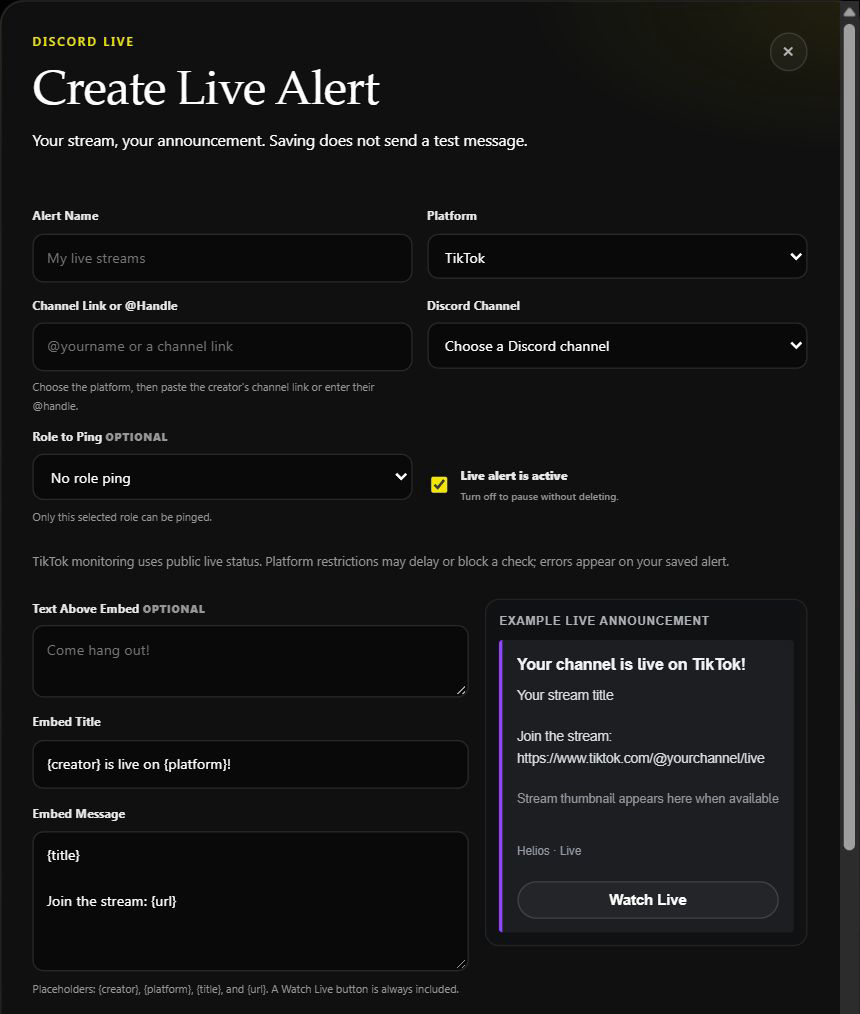
Use the stream thumbnail option if you want the current stream image when one is available. A custom image can be used instead. The preview shows the announcement's appearance; it does not prove that the creator is live.
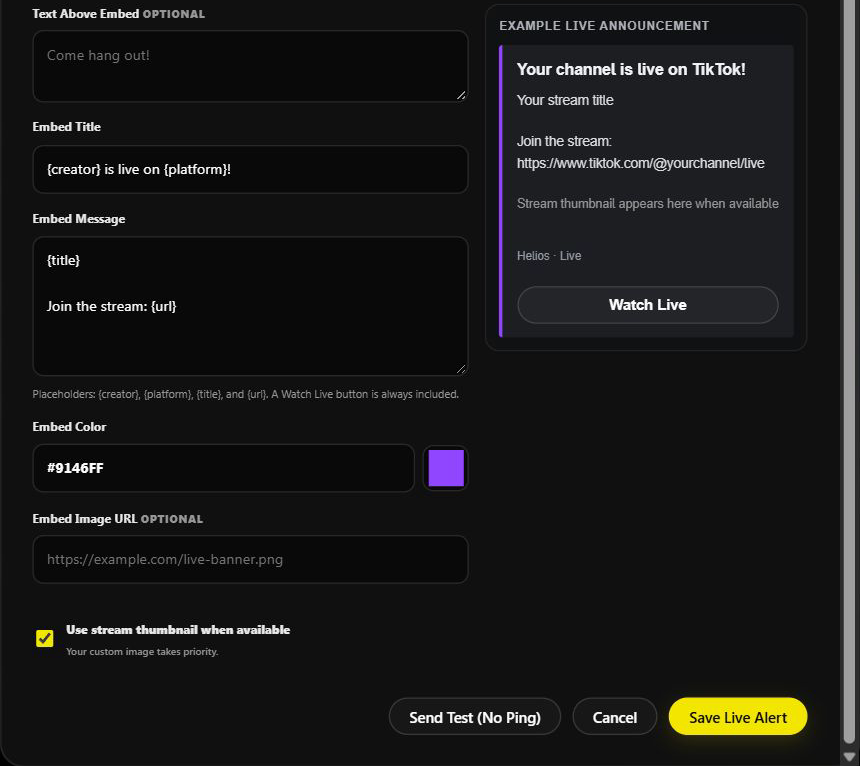
Test and manage it
Send Test posts a sample without pinging the role. It checks the message and chosen channel, not live detection. Once saved, the alert shows whether it is waiting, live, offline, paused, or needs attention. Use Edit to change it or Pause to stop new posts without losing the setup.
Helios checks channels about every two minutes. TikTok and YouTube may delay or block a check, so a post is not guaranteed at the exact moment a stream starts. A stream already live when you turn an alert on can trigger its first announcement. If the alert shows an error, open it and check the creator name and platform before relying on it.
Related: Discord Tools and Staff Permissions.