Helios Rust Console Bot Documentation
Dynamic Shop Pricing
Let demand change shop prices within limits you choose for each game server.
- Last reviewed
- Maintained by
- Helios RCE
Dynamic Pricing makes popular /shop products gradually more expensive and quiet products cheaper. You choose the highest increase and lowest discount. This is a Premium feature for the selected game server, not a price rule for every server in your Discord.
Open the controls
- Open the dashboard and choose the correct game server.
- Open Server Settings and find Dynamic Pricing.
- Set Max increase % and Max decrease %.
- Decide whether Include Easy Shop should be on.
- Turn Dynamic Pricing on when ready, then use Save Changes.
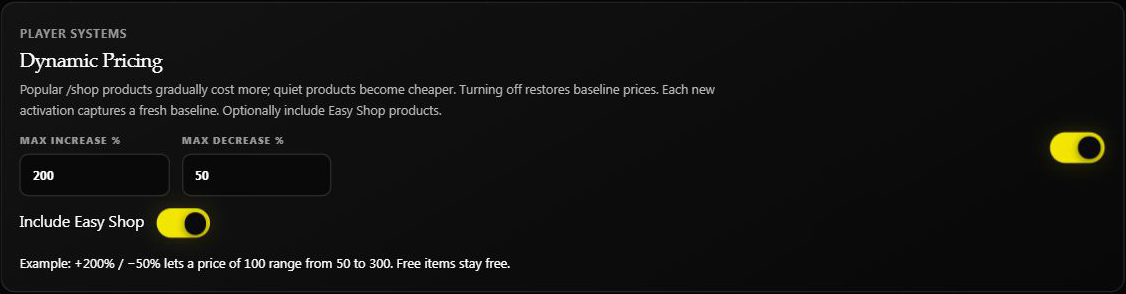
This screenshot shows the testing server's existing settings. Nothing was changed to create it. Yellow switches are on.
Understand the limits
Limits are measured from the product's saved starting price, not from its most recent higher price. They are caps, not instant price changes.
| Starting price | Max increase | Max decrease | Allowed range |
|---|---|---|---|
| 100 | 200% | 50% | 50–300 |
| 100 | 50% | 20% | 80–150 |
| 100 | 0% | 0% | 100 |
The increase can be a whole number from 0 to 1000%. The decrease can be 0 to 100%. Free products stay free. A product with a paid starting price does not become free, even with a 100% decrease limit; its minimum is 1 unit of currency.
Helios keeps price changes separate for each game server. A product sold on All Servers can therefore have different current prices depending on the server chosen in /shop. Changing these limits does not change Wallet balances, market asking prices, or real-money Helios Store prices.
How prices move
Qualifying purchases raise the adjustment by up to 2 percentage points, with no more than 10 percentage points of growth per hour for a product on that server. Repeated purchases by the same buyer within 15 minutes do not each add another increase.
After four hours without qualifying demand, the adjustment falls by about 1 percentage point per hour, down to your discount limit. These are percentages of the starting price; the displayed whole-number price can stay the same until rounding produces a change.
Include Easy Shop decides whether products in Easy Shop categories participate. Leave it off to keep those products outside the demand-based pricing rule.
What buyers see
Players see the current price in /shop. If it increases after they opened the page, Helios refreshes the shop and asks them to review the new price before buying again. If it falls, the purchase uses the lower price. Buyer-chosen quantities still multiply the current per-item price by the amount requested.
For bag rewards bought under Dynamic Pricing, the trader's sell-back value is capped at half the amount paid and can be lower. A later shop price increase does not turn an old purchase into a higher-value trader payout.
See Buying from the In-Game Shop and Your Bag and Items.
Turn it off or change the starting price
Turning Dynamic Pricing off returns affected shop prices to their saved starting prices. It does not rewrite the product catalog or pay buyers back for previous purchases.
If you want to replace a starting price, turn the feature off and save, edit the product price, then re-enable and save when ready. A new activation starts fresh demand tracking. Avoid repeatedly switching it off and on as a price-preview tool; those saves change the pricing cycle.
If prices look wrong
- Check the game server selected in
/shop, not just the server whose dashboard is open. - Check Include Easy Shop if only preset products appear unchanged.
- A product's stored catalog price is not necessarily its current Dynamic Pricing price.
- If saving says the settings changed, reopen them and review the latest values before saving again.
- If prices cannot be checked, wait and reopen the shop. Do not grant a replacement or promise the old price without checking the purchase history.
For wider feature controls, see Server Settings.