Helios Rust Console Bot Documentation
/product Commands
Step-by-step guide for creating, editing, testing, and managing Helios shop products.
- Last reviewed
- Maintained by
- Helios RCE
Overview
The /product commands are how server owners and admins build the Helios shop catalog.
Products are what players buy from /shop. A product can be a normal item, a command reward, a teleport-style product, or a product with role restrictions and cooldowns.
Use this page when you want to:
- Add products to a shop category
- Sell Rust Console items
- Sell command-group rewards
- Add products that use teleport destinations
- Edit product prices, names, roles, cooldowns, and details
- Remove old products
- Look up product information and product IDs
- Reset product cooldowns when needed
Recommended Setup Order
Build the shop in this order so you do not have to redo work later.
- Configure your economy and currency
- Create shop categories with
/category add - Add most products with
/product add - Use
/product add-cmdonly when the product should sell a saved command group - Use
/product add-tponly when the product is tied to a teleport flow - Use
/product infoto verify product details - Test purchases with one controlled player
- Edit pricing, cooldowns, roles, or delivery behavior if needed
- Open
/shoppublicly after testing
Commands Covered
| Command | What It Does |
|---|---|
/product add | Creates a command, role, collectible, bag-space, key, or chest product |
/product add-item | Adds a Rust item product |
/product add-kit | Sells a saved Helios kit as a product |
/product add-xp | Sells a timed personal XP multiplier (like 2x for 7 days) |
/product add-cmd | Sells a saved command group so one product purchase can run multiple commands |
/product add-tp | Adds a teleport-style product or destination when available |
/product edit | Edits the main product settings |
/product edit-item | Edits an item product (item, price, quantity, cooldowns) |
/product edit-xp | Edits an XP boost product (multiplier, length, price) |
/product edit-cmd | Changes the command group attached to a command-group product |
/product edit-tp | Edits teleport product settings when available |
/product remove | Deletes a product from the shop |
/product remove-tp | Removes teleport product data when available |
/product info | Shows product details and IDs |
/product cooldown-reset | Resets cooldowns for products or product purchases |
Product Types
Choose the product command based on what the player should receive.
| Product Type | Use This | Best For |
|---|---|---|
| General shop product | /product add | Command, role, collectible, bag-space, key, or chest rewards |
| Rust item product | /product add-item | Resources, weapons, ammo, meds, components, and other Rust items |
| Kit product | /product add-kit | Selling a saved Helios kit directly as a shop product |
| XP boost product | /product add-xp | Selling a timed personal XP multiplier for battle pass progression |
| Command group product | /product add-cmd | Selling a saved command group so the purchase can run multiple commands |
| Teleport product | /product add-tp | Products that send a player to a configured destination when that feature is available |
If you are not sure which one to use, start with this rule:
- Use
/product add-itemfor Rust items. - Use
/product addfor a command, role, collectible, bag space, key, or chest. - Use
/product add-cmdonly when you want to sell a command group. - Use
/product add-tpwhen the reward is tied to a teleport destination. - Use
/product editwhen the product already exists and you only need to change its shop details.
Step 1: Create A Category First
Products should be organized into categories so players can browse the shop easily.
Create categories with:
/category add
Good category examples:
WeaponsAmmoResourcesKitsVehiclesEvent RewardsVIP
After the category exists, you can add products to it.
Step 2: Plan The Product
Before creating the product, decide:
- Product name
- Category
- Price
- Product type
- Cooldown, if it should not be bought repeatedly
- Required role, if only certain players should see or buy it
- Grant role, if a Role product should award a Discord role when used
- Server, if the command asks you to choose one
- Delivery method: normal product, command group, or teleport
Example plan:
Category: Resources
Product name: 10k Wood
Type: normal product
Price: 250
Cooldown: 10 minutes
Another example:
Category: Kits
Product name: PvP Kit
Type: command group product
Price: 1500
Command: kit givetoplayer "pvp" "{PlayerName}"
Cooldown: 24 hours
Step 3: Add A General Product With /product add
Use /product add when the reward is a command, role, collectible, bag space, key, or chest.
/product add
Use this for products like a Discord role, a chest, a key, extra bag space, or a saved RCON command.
Example:
/product add
category:"VIP"
name:"VIP Role"
type:Role
price:250
After creating it, open /shop and confirm the product appears in the right category.
Step 4: When To Use /product add-item
Use /product add-item when you want to sell a Rust item, like wood.
/product add-item
Item settings in plain language
- quantity — how many items the buyer receives by default.
- server — where the item is delivered.
- server-cooldown — a shared wait for everybody on that server.
- cooldown — each buyer's own wait before they can buy again.
- role — the Discord role a player must have to buy it.
- can-specify-quantity — lets the buyer choose how many to buy.
- bypass_bag — delivers the item right away instead of placing it in
/bag.
Use bypass_bag only after a test purchase. Leaving it off is safer because the player can claim the item when they are online and have space.
Fixed bundle or buyer-chosen quantity?
With can-specify-quantity off, quantity:10000 price:250 sells the whole bundle for 250. With it on, price is per item, multiplied by the buyer's amount. Do not use a whole-bundle price for a per-item listing.
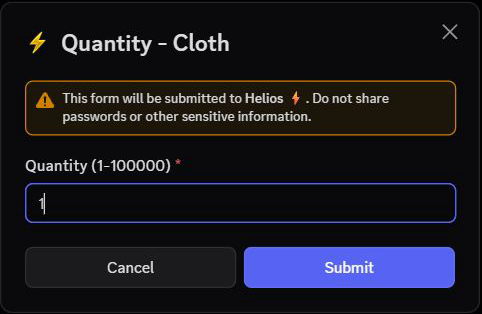
Buyers enter a whole number from 1 to 100000. Submit buys it; Cancel does not. A fixed-bundle button can buy immediately without this form.
Use the dashboard instead
Open your server's Shop, expand a category, and choose Edit beside a product. For a new item, choose Quick Add → Rust Item.
The editor includes Default quantity, Let the buyer choose a quantity, Price, Trader value, user and server cooldowns in minutes, Sell on, and Required Discord role. Required role controls buying access; it is not a role awarded by an item. Trader value is the later sell-back value, not the buying price.
Use immediately from /shop instead of adding to /bag controls product-level delivery. Also check bypass settings on the category and server: either can enable immediate use even when the product's option is off. Save and check /shop server:"<SERVER>" category:"<CATEGORY>".
See Buying from the In-Game Shop and Your Bag and Items for player steps.
Sell A Kit With /product add-kit
Use /product add-kit to sell a saved Helios kit directly, without building a command group first.
/product add-kit category:"Kits" name:"PvP Kit" kit:"pvp" price:1500 cooldown:720
Optional settings include server, player and server cooldowns, required role, bypass bag, and trader value.
Sell A Timed XP Boost With /product add-xp
Use /product add-xp to sell a timed personal XP multiplier. While the boost is active, the buyer earns multiplied battle pass XP.
/product add-xp category:"Boosts" name:"2x XP - 7 Days" multiplier:2x expires_after:7d price:5000
Required parameters:
multiplier= XP multiplier, like2x,2.5x, or3x(must be greater than 1x)expires_after= boost length, like12h,1d,7d, or30d
Optional parameters work the same as other product commands (server, cooldown, required role, trader value). Set bypass_bag:True to activate the boost immediately on purchase instead of adding it to /bag.
- The boost timer starts when the player uses the product, not when they buy it.
- Boosts expire automatically when the time runs out.
- Edit an existing boost with
/product edit-xp— change the multiplier, length, price, category, or any other setting.
Step 5: Sell A Command Group With /product add-cmd
Use /product add-cmd only when the product should run a saved command group.
A command group can contain multiple commands. That is the reason to use /product add-cmd: one product purchase can trigger a full command group instead of one normal product action.
/product add-cmd
Command group products are useful for:
- Kits
- VIP rewards
- Event rewards
- Custom item bundles
- Multiple commands in one purchase
- Rewards that need several server actions
- Anything that should reuse a command group you already built
Before using /product add-cmd, build the command group first:
/cmd group add
/cmd add
Example command group:
Group name: pvp_kit
Command 1: kit givetoplayer "pvp" "{PlayerName}"
Command 2: inventory.giveto "{PlayerName}" "syringe.medical" 3
Then use /product add-cmd to sell that command group as a product.
See Sell a Command Group in the Shop for a complete command example, editing existing groups, and checking partially completed delivery.
With normal bag delivery, the player buys a saved reward and runs its command group later through /bag. With immediate use enabled, the group runs at purchase instead.
Step 6: Add A Teleport Product
Use /product add-tp when the product is tied to a teleport destination or teleport-style shop flow.
/product add-tp
Use this when your product should send the player to a specific location instead of giving an item or kit.
After creating a teleport product, test it with one controlled player before announcing it public.
- Choose Custom Position to add your in game position
- Choose Monument for quick monument coordinates

Step 7: Use Roles Carefully
Some product options control who can buy the product; a Role product can also award a role when used. These are separate settings.
Common role uses:
- Required role: only players with that Discord role can access or buy the product
- Grant role: using a Role product grants its selected Discord role; applicable immediate-use settings can make this happen at purchase instead
Examples:
- A
VIP Kitproduct that only VIP players can buy - A
Raid PassRole product that grants an event role when used - A staff-only test product hidden from normal players
Use role-gated products carefully. Always test with a linked player account that has the expected role.
Both category and product requirements must be met. A standard Role reward does not expire automatically. See Shop Role Requirements and Role Rewards before advertising an immediate or temporary pass.
Step 8: Add Cooldowns
Cooldowns stop players from buying the same product too often.
Use cooldowns for:
- Kits
- High-value resources
- Explosives
- Teleports
- Event rewards
- Anything that can be abused if bought repeatedly
Examples:
- Starter kit: 24 hours
- PvP kit: 12 hours
- 10k wood: 10 minutes
- Teleport product: 5 minutes
After setting a cooldown, buy the product once on a test account and confirm the cooldown behaves the way you expect.
Step 9: Review Product Info
Use /product info to inspect a product after you create or edit it.
/product info
Use this to confirm:
- Product name
- Product category
- Price
- Product ID
- Cooldown
- Required role
- Grant role
- Delivery type
- Command or teleport settings, when applicable
Product IDs are especially useful when resetting cooldowns or troubleshooting a specific product.
Step 10: Edit Products Later
Use /product edit when the main shop listing needs to change.
/product edit
Common edits:
- Name
- Price
- Category
- Description
- Cooldown
- Availability delay (pause a product for a chosen number of minutes)
- Required role
- Grant role
Use /product edit-item when an item product needs a different item, price, quantity, or cooldown.
/product edit-item
Use /product edit-xp when an XP boost product needs a different multiplier, length, or price.
/product edit-xp
Use /product edit-cmd when a command-group product needs to point at a different command group.
/product edit-cmd
Use /product edit-tp when teleport product settings need to change.
/product edit-tp
After any edit, use /product info and then test the product in /shop.
Step 11: Remove Products
Use /product remove when a product should no longer be sold.
/product remove
Use /product remove-tp when removing teleport product data or teleport-specific product setup.
/product remove-tp
Before removing a product, check whether players still expect it to exist, especially if it is part of an event, VIP perk, or wipe setup.
Step 12: Reset Product Cooldowns
Use /product cooldown-reset when a product cooldown needs to be cleared.
/product cooldown-reset
Common reasons to reset cooldowns:
- You tested a product and need to clear the test cooldown
- You changed a product's cooldown policy
- A player purchase failed and staff needs to retry it
- A wipe or event reset should clear old cooldowns
Use /product info first if you need the product ID for a specific product.
Complete Walkthrough: Add A Wood Product
This example creates a normal product players can buy from /shop.
- Create or confirm the category:
/category add
Category name:
Resources
- Add the product with
/product add-item:
/product add-item category:"Resources" name:"10k Wood" item:"wood" quantity:10000 price:250 server:"US Main"
- Review it:
/product info
- Test it:
/shop
- Buy the product with one controlled player and confirm the reward is delivered correctly.
Complete Walkthrough: Add A Kit Product
This example creates a command-group product that gives a kit and extra meds to the player who buys it.
- Create or confirm the category:
/category add
Category name:
Kits
- Create a command group:
/cmd group add
Group name:
pvp_kit
- Add commands to the group:
/cmd add
Example commands:
kit givetoplayer "pvp" "{PlayerName}"
inventory.giveto "{PlayerName}" "syringe.medical" 3
- Add the command group product:
/product add-cmd
Choose the pvp_kit command group when the command asks which group the product should sell.
- Review it:
/product info
- Test it from the player shop:
/shop
- Buy the product with one controlled linked player and confirm the command group runs for the correct player.
Suggested Product Examples
| Category | Product | Type | Notes |
|---|---|---|---|
| Resources | 10k Wood | Item | Good early economy product |
| Ammo | 128 Rifle Ammo | Item | Use cooldowns if ammo is valuable |
| Kits | Starter Kit | Command group | Use /product add-cmd only if the kit is built as a command group |
| Kits | PvP Kit | Command group | Add a longer cooldown |
| Vehicles | Rowboat | Command or teleport-style flow | Test placement before public use |
| VIP | VIP Kit | Command | Use required role if only VIP players should buy it |
Requirements
Before using /product commands, make sure:
- Helios is connected to at least one server in this Discord
- You have permission to run admin commands
- The economy and currency are configured
- Shop is enabled in
/settings server - At least one category exists
- You selected the correct server when using the
server:option - The item shortname or command you enter is valid
- Any role-gated products are tested with linked player accounts
Notes
- Most admin commands require Manage Server permission
- Free tier can still have category or product limits
- Use
/product infoafter creating or editing products - Test expensive products before opening the shop publicly
- Use cooldowns for kits, explosives, teleports, and high-value items
- Use
/product addfor most products - Use
/product add-cmdonly when selling a saved command group - Create the command group before using
/product add-cmd - Use
/product add-tpfor teleport-style products when available - Be careful with role-gated products; test with the same kind of player who will use them
- Remove old products when they are no longer part of the current wipe or shop economy