Helios Rust Console Bot Documentation
Your Bag and Items
Find, use, sell, gift, and move saved rewards in your Helios bag.
- Last reviewed
- Maintained by
- Helios RCE
Open your bag
Run /bag in your community's Discord. This is your saved Helios reward bag, not the inventory you carry inside Rust.
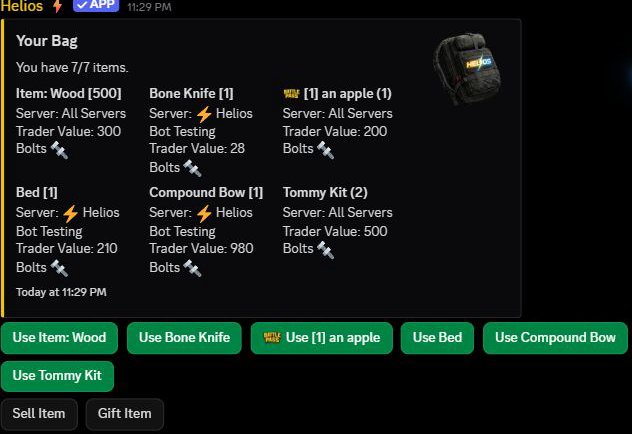
7/7 items means all seven bag spaces are occupied. A saved bundle of 500 wood uses one space, not 500. Matching entries can be grouped: Tommy Kit (2) shows two saved kits, so visible listings can be fewer than occupied spaces.
Check each reward's Server and Trader Value. Open your own bag to use its controls. Larger bags have page controls.
Use a reward
Select its Use button when ready. This can claim it immediately; it is not just a preview.
- For in-game items and kits, link your game account and be online on the reward's server.
- All Servers rewards can ask where to redeem. Choosing a server starts redemption; it does not make copies on every server.
- Server-specific rewards are used there unless you first move them with Swap Item, where available.
- A role reward grants its Discord role. A bag-space reward increases capacity. A personal XP boost starts its timer when used.
- For chests and keys, follow Treasure & Keys.

This example stops at server selection, not completed in-game delivery. Read the reply after claiming. If delivery is unclear, check your bag and ask staff before trying again.
Sell a reward
- Choose Sell Item.
- Select the saved item.
- Read the trader's offer and choose how to sell.
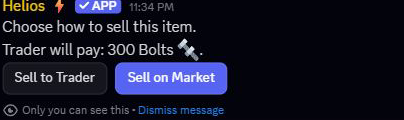
Sell to Trader removes that saved item and pays its trader value into your wallet immediately. The offer can be lower than the shop price, or even zero, so read it first.
Sell on Market opens a price form for a player listing instead. Listing is not an instant trader sale. Market access and rules depend on your community's setup; open /market to check.
Submitting the market price form removes that saved item from your bag while it is listed. Payment arrives only if another player buys it. Listings expire after 24 hours; leave bag space for returns. Read Buying and Selling on the Player Market for purchase buttons, cancellation, and return checks.
For items bought under Dynamic Pricing, the trader payout is capped at half the amount paid and can be lower. A higher shop price later does not raise an old item's sell-back value. Always read the current trader offer before accepting it.
The screenshot shows choices before a sale, not a completed transaction.
Gift a reward
- Choose Gift Item, then select the saved item.
- Mention the recipient in the same channel within 60 seconds, as Helios asks.
- Wait for Gift sent. A successful gift is also announced in the channel.
The recipient must belong to this Discord community and have bag space. Gifting moves the item out of your bag; it does not make a copy or change its server. Check the recipient before sending the mention. If you do not respond in time, the request expires without gifting.
Move an item to another game server
If Swap Item is available, choose an eligible item and its new server. Both source and destination must have Item Swapping enabled and belong to this same Discord community.
Only items already assigned to a server need swapping. All Servers rewards do not appear as swap choices. Swapping changes the saved item's server; it does not claim it, duplicate it, or move items already inside your Rust inventory.
Ask staff to check Server Settings if no choices are eligible.
Command-group rewards
A saved command-group reward runs several commands when used. Check its Successful, Failed, and Failure Details result. If only part succeeded, do not use a second reward or ask staff to repeat the whole group without checking what arrived; it can duplicate the successful part. Staff can use Sell a Command Group in the Shop to check its setup.
When your bag is full
Use, sell, or gift a reward to make room, or ask staff about extra spaces. Capacity is shared across the community, not a separate allowance for each game server. Staff can set individual limits with Bag Capacity.
For buying rewards, see Buying from the In-Game Shop.