Helios Rust Console Bot Documentation
Buying from the In-Game Shop
Browse categories, choose a quantity, and find your purchased rewards in Helios.
- Last reviewed
- Maintained by
- Helios RCE
Open your own shop
This shop uses your community's in-game currency, not a card payment. For real-money purchases, see Helios Store.
Run /shop, then choose both server and category from Discord's suggestions:
/shop server:"<SERVER>" category:"<CATEGORY>"
Use your own command. Another player's shop buttons are not yours to use.
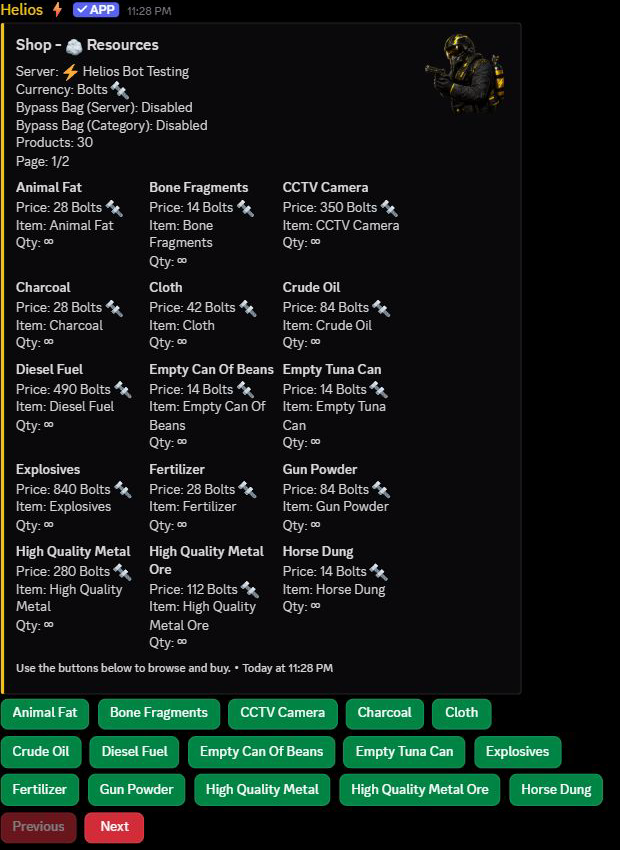
Read the listing before buying
Check the server, currency, price, and quantity. Next and Previous browse larger categories; a page shows up to 15 products.
- A fixed quantity is a bundle. Its displayed price buys that whole bundle.
- Qty: ∞ means you can choose the quantity. It does not mean unlimited free items.
- For a choose-your-quantity item, the price is for one item. A price of 42 and a quantity of 10 costs 420.
- With Dynamic Pricing, prices can change. If a price increased after you opened the shop, Helios asks you to review the updated price before trying again.
If the current price fell, Helios uses the lower price at purchase. A product available on several servers can show different demand-based prices on each one. See Dynamic Shop Pricing for the owner's limits and starting-price rules.
Buy a product
Select its button. A fixed-quantity product can buy immediately; do not expect a separate confirmation screen.
For products that let you choose a quantity, enter a whole number from 1 to 100000. Submit buys that amount; Cancel leaves without buying.
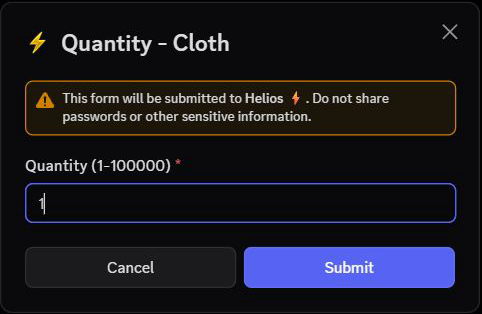
This screenshot shows the form, not a completed purchase.
Where does my reward go?
Usually, open /bag after buying and select Use when you are ready. Read Your Bag and Items for claiming, selling, and gifting.
If immediate delivery is enabled for the server, category, or eligible product, the reward is used at purchase instead of saved. Link your game account and be online on the correct server before buying an in-game reward this way.
If you cannot buy
| What you see | What to check |
|---|---|
| Not enough currency | Check your wallet, not just your bank balance. |
| Bag is full | Make room or ask staff about bag capacity. |
| Missing category or product | Check the selected server and required Discord roles. |
| Cooldown or availability delay | Wait for the time shown. A server cooldown can be shared by all buyers. |
| Shop disabled | Ask staff whether Shop is enabled for that game server. |
| Combat restriction | Wait until the restriction ends. |
| Reward did not arrive | Read the reply and check /bag before buying again. Ask staff to check unclear delivery results. |
For owner setup, see Shop & Market Setup.
To buy another player's saved reward instead of a shop product, use Player Market. Market item buttons can also buy immediately; they are not detail previews.