Helios Rust Console Bot Documentation
Custom Auth Roles
Match dedicated Discord roles to in-game auth levels, with optional VIP restoration on join.
- Last reviewed
- Tested on
- Helios Bot Testing dashboard; forms inspected without saving
- Maintained by
- Helios RCE
Automatically give linked players dedicated Discord roles that match their confirmed in-game VIP, Moderator, Admin, or Owner level.
Open your game server in the dashboard, then choose Overview → Custom Auth Roles → Configure.
Requirements
- You are the Discord server owner or have Administrator. Manage Server alone is not enough.
- The selected game server has Premium.
- Players have linked their accounts in this Discord community.
- Helios has Manage Roles, with its highest role above the roles it will assign.
Choose ordinary, dedicated roles. Roles managed by Discord or an integration, roles at or above Helios, and roles with Administrator, Manage Server, Manage Roles, or Manage Webhooks cannot be selected.
An in-game Admin or Owner label must not automatically grant control over your Discord server.
Set the matching roles
- Open Configure and review Enable automatic role syncing.
- Choose Choose Roles beside the auth level you want to configure.
- Search for and select up to 10 roles for that level.
- Choose Back to review another level.
- Check the overall choices and choose Save Settings.
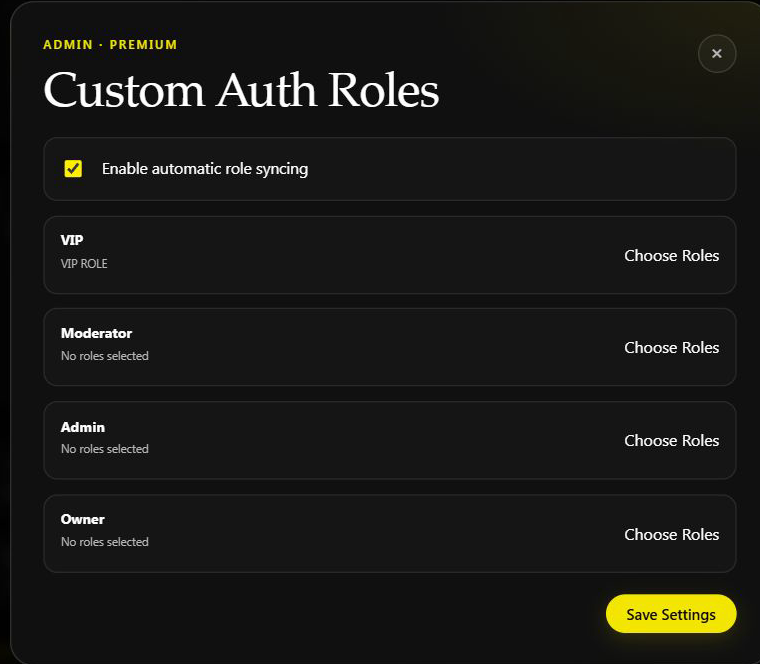
Existing Helios Bot Testing settings, closed without saving. No role or in-game auth level was changed.
Selections are for the player's exact auth level. An in-game Admin uses the Admin mapping; they do not automatically receive every role selected under VIP and Moderator.
The mappings belong to the selected game server. If multiple connected servers require the same Discord role, Helios considers those requirements together before removing a role it added.
Optional: restore in-game VIP from a Discord role
Inside VIP → Choose Roles, there is a separate switch:
Restore in-game VIP from Discord roles on join
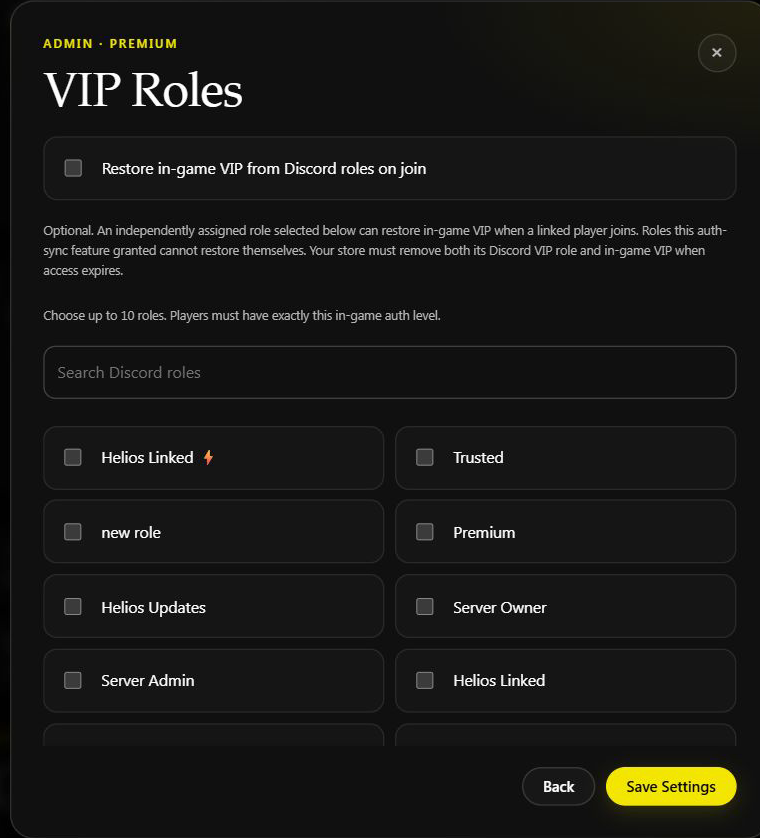
The switch was left off. The list is scrollable; not every role is visible in this screenshot.
Leave this off if you only want in-game auth to determine Discord roles.
When enabled, an independently assigned role selected in the VIP list can restore in-game VIP for a linked player when they join. A role this auth-sync feature gave them cannot restore itself. Helios also checks the player's game auth before acting rather than replacing a newly acquired staff level.
This option can change game access. Use a dedicated VIP role, not your general linked-player role. Confirm your store or expiry workflow removes both its Discord VIP role and in-game VIP when access ends; otherwise the role can restore access on a later join.
This is VIP restoration, not an automatic grant of in-game Moderator, Admin, or Owner from Discord roles.
Saving and timing
Changes are saved with Save Settings and applied by background checks. A saved message is not proof that a Discord role or in-game VIP changed immediately.
A failed or unavailable game-server check is not treated as proof that a player lost auth. Do not promise instant role removal during an outage.
For matching-role cleanup, Helios removes roles it added itself. It does not take ownership of every role already assigned by an admin or another system. Use dedicated roles to make the behavior easier to follow.
Turning syncing off stops the mapping being used and can lead to removal of roles Helios owns. Do not use it as a promise to freeze all existing role assignments.
If settings or roles do not update
- Administrator required: ask the Discord owner or an Administrator to configure it.
- Role not listed: check its position, integration-managed status, and permissions.
- Missing player role: confirm the player's link, actual in-game auth level, and selected game server.
- Settings changed elsewhere: close and reopen the panel before saving again.
- Roles syncing: wait, reopen if needed, and retry the save.
- Connection unavailable: restore the game-server connection, then allow background checks to run.
Check the actual member and game auth before repeating actions. See Link Roles, Staff Permissions, and Premium Battle Pass Role for the other role systems.