Helios Rust Console Bot Documentation
Helios Store Setup
Connect Stripe, name your store, choose a currency, and open your free Helios Store storefront.
- Last updated
- Maintained by
- Helios RCE
Setting up a store is three things: connect Stripe, fill in your store details, and flip the storefront on. This page covers all three.
Open the module
- Go to the Helios dashboard and sign in with Discord.
- Find your server under Connected game servers and click Manage Server.
- In the Modules sidebar, choose Helios Store.
Step 1 — Connect Stripe
Until Stripe is connected, everything else in the module stays locked. This is deliberate: there is no point building a catalog you cannot take money for.
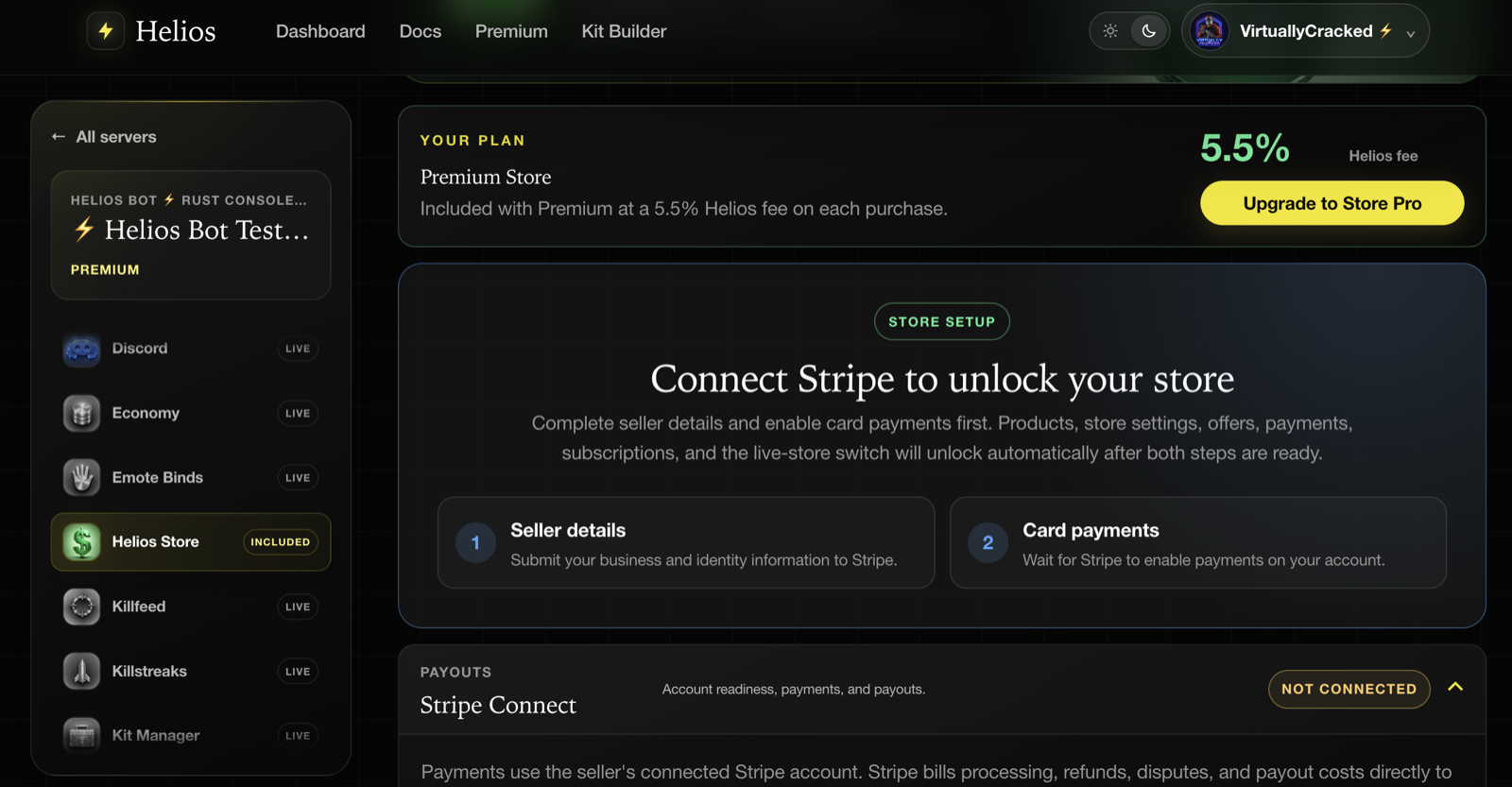
Click Connect with Stripe and complete onboarding. Two things have to be true before the rest of the module unlocks:
- Seller details — you submit your business and identity information to Stripe.
- Card payments — Stripe finishes its checks and enables payments on your account.
Products, store settings, offers, payments, subscriptions, and the live-store switch all unlock automatically once both are ready.
INFONote
Payouts can stay pending after card payments are enabled. That is normal — Stripe holds the balance while it finishes bank or identity verification, and you can still sell in the meantime. The Stripe Connect row under Settings always shows the current state.
WARNImportant
Payments run on your connected Stripe account. Stripe bills processing fees, refunds, disputes, and payout costs directly to you, and you are the merchant of record for every sale. Set this up with an account and legal entity you actually control.
Step 2 — Store details
Open Settings, then expand Store details.
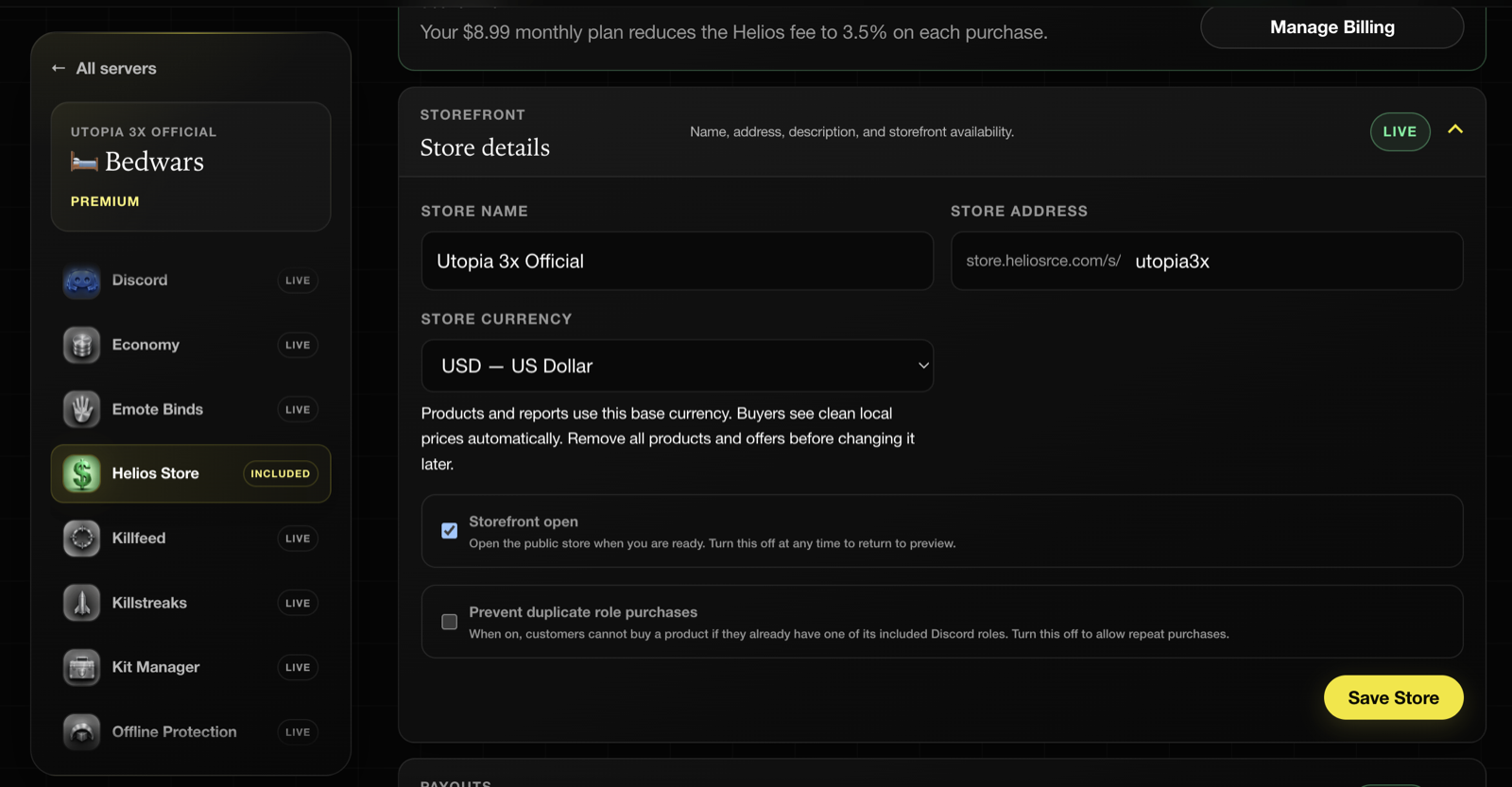
- Store name — what buyers see in the header and in link previews.
- Store address — the slug in
store.heliosrce.com/s/…. Keep it short and recognisable. - Store currency — the base currency your products are priced in and your reports are totalled in. Buyers elsewhere are shown clean local prices automatically.
- Storefront open — the public switch. Leave it off while you build.
- Prevent duplicate role purchases — when on, a buyer cannot purchase a product containing a Discord role they already have. On by default.
WARNImportant
Base currency is not a display setting — it is what every product price and every report is denominated in. Changing it later means removing all products and offers first, so pick it before you build the catalog.
Step 3 — Build before you open
Add at least a few products before you open the storefront. See Products & Categories for the full reward list.
While Storefront open is off, you can still visit your own store with View Store in the module header. You get a preview banner, and checkout stays disabled.
Step 4 — Open the storefront
Tick Storefront open and click Save Store. The status pill on the Store details row turns LIVE and the public address starts serving.
You can turn it off again at any time, which returns the store to preview without deleting anything.
Everything else in the module
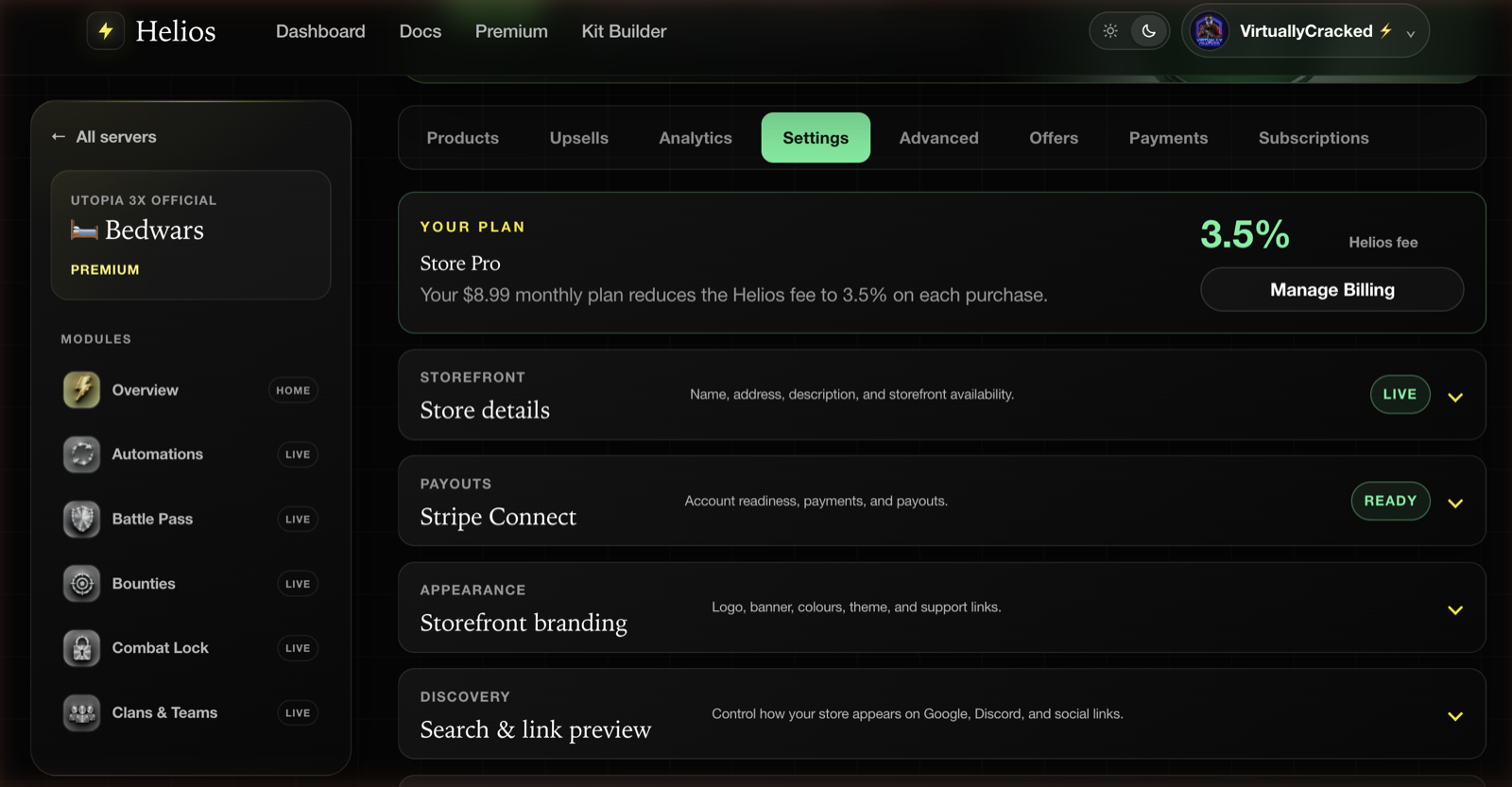
The module header has eight sections:
| Section | What it does |
|---|---|
| Products | Your catalog and category tree |
| Upsells | Offer more /bag space when a buyer runs out of room |
| Analytics | Revenue, conversion, customers, and top products |
| Settings | Store details, Stripe Connect, branding, link previews, home page copy |
| Advanced | Automatic tax, and the Store Pro custom domain |
| Offers | Discounts, coupon codes, and gift cards |
| Payments | Every checkout, its fulfillment result, and refunds |
| Subscriptions | Customer subscriptions, status, and next renewal |
Common issues
The module only shows the Stripe card
Stripe onboarding is not finished. Check the Seller details and Card payments steps — both have to be complete before anything else appears.
The storefront switch is missing
The switch only appears once Stripe reports seller details submitted and card payments enabled. It lives on the Store details row under Settings.
The store closed on its own
Helios closes a storefront immediately if card payments become disabled, the connected account is disconnected, or seller details are no longer submitted. Open the Stripe Connect row to see the current account status.
My store address is taken
Store addresses are unique across every Helios Store. Pick another slug, or use a custom domain if you are on Store Pro.