Helios Rust Console Bot Documentation
Prison
Save prison cells from your in-game position, assign timed sentences, and release players from the Helios dashboard.
- Last reviewed
- Tested on
- Helios Bot Testing dashboard; setup screen inspected
- Maintained by
- Helios RCE
Prison assigns a player to a saved cell and returns them there when they respawn. Choose a timed sentence or keep the assignment until staff release them.
Add your first cell
- Link your account, join the game server, and stand inside the cell you want to use.
- Open the dashboard, choose Manage Server, then Prison.
- Expand Cell Locations and choose Add Cell at My Position.
- Wait for the success message and check that the cell appears under Saved Cells.
- Choose Turn On so Prison shows Active.
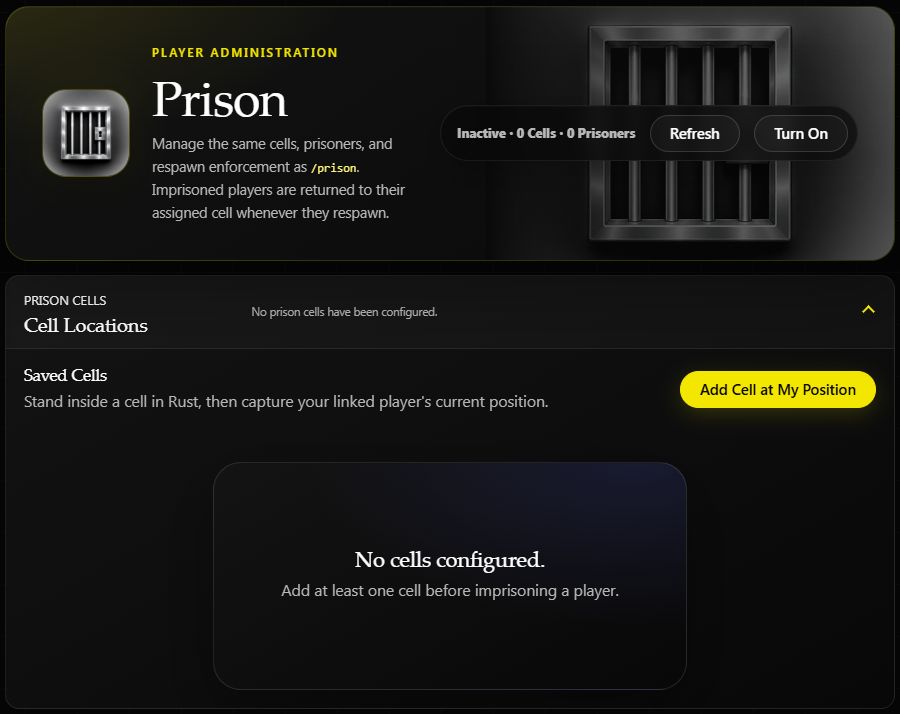
Starting state on Helios Bot Testing. Build the room in Rust first; this button saves your position, not a prison building.
Repeat from another room to add more cells. Each imprisoned player needs an available cell; Helios assigns the first available one.
Example: a 30-minute sentence
- Expand Imprison Player.
- Pick someone under Online Player and choose Select Player. For an offline player, enter their exact Gamertag and choose Use Gamertag.
- Open Settings, set Prison Time (In Minutes) to
30, and choose Save Settings. - Check the selected name and Prison Time: 30 minutes.
- Choose Imprison Player, review the confirmation, then choose Yes, Imprison Player.
| Prison Time | Result |
|---|---|
30 | Release the assignment after 30 minutes |
120 | Release after two hours |
0 | Forever — staff must release the player |
The timer starts when you confirm the assignment, including for offline players. It is elapsed time, not time spent online. Check it before confirming: the initial setting is Forever.
Online players are sent to their assigned cell. An offline assignment takes effect when that player enters the server, while their sentence is still active and Prison enforcement is on.
Release a player
Expand Imprisoned Players, find the player, choose Release, and confirm Yes, Release Player. Their cell becomes available again.
Release stops the respawn restriction; it does not teleport the player out of a locked room. Let them out or help them leave if needed.
Pause or remove cells
- Turn Off pauses respawn enforcement and keeps saved cells and assignments. Timed sentences still expire.
- To remove a cell, release its occupant first, then use the cell's Remove action and confirm.
- After a map wipe, check that saved cell positions still point to rooms you want to use.
If a control will not work
| Problem | Check |
|---|---|
| Your position cannot be read | Your dashboard account is linked and that player is online on the selected server |
| Player selection is disabled | Add a cell or release an occupied one |
| An offline player is not moved | Check their exact gamertag, remaining sentence, Prison status, and server connection |
| A respawn does not return the player | Check Active, their assignment, Premium, and the saved cell |
In Discord
/prison server:"<SERVER>"
Prison requires Premium on the selected server. Dashboard admins need Manage Server. In Discord, staff can also use a moderator role with /prison enabled.
For a temporary game ban instead, see Tempban. To block teleports and other actions after damage, use Combat Lock.