Helios Rust Console Bot Documentation
Wipe Center
Choose the right Helios reset, understand its scope, and confirm it from the dashboard without clearing more than you intend.
- Last reviewed
- Tested on
- Helios Bot Testing dashboard; confirmation preview only
- Maintained by
- Helios RCE
Wipe Center resets Helios player data from the dashboard. It does not wipe your Rust map or blueprints.
Open the dashboard, choose Manage Server, then Wipe Center.
Check what the reset affects
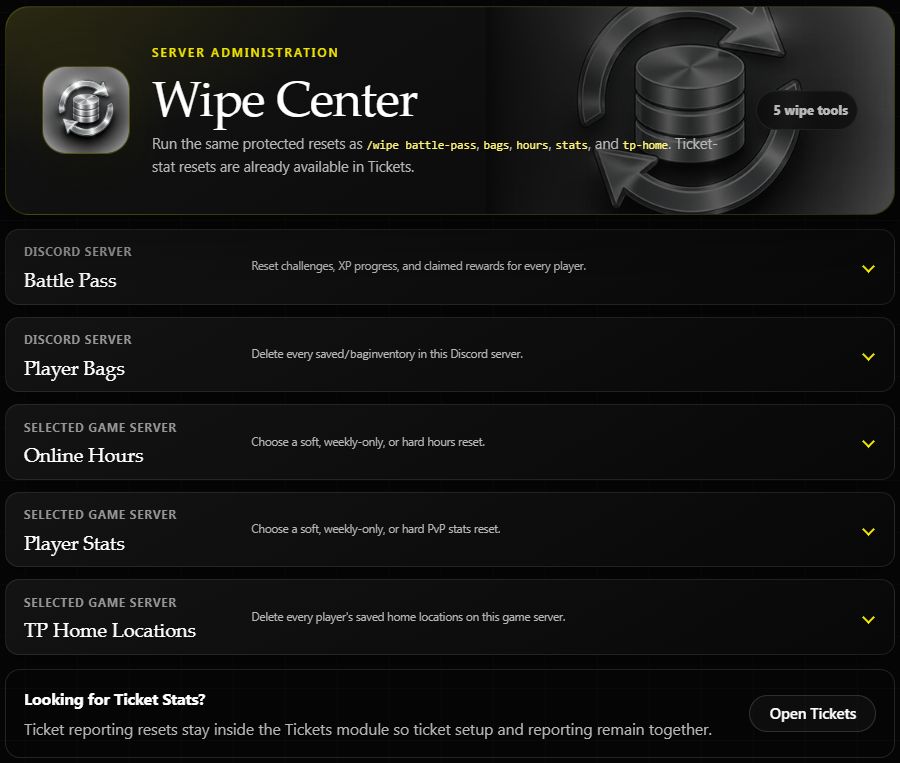
| Tool | What it resets | Scope |
|---|---|---|
| Battle Pass | Player progress, challenges, and claimed rewards | Entire Discord server |
| Player Bags | All saved Helios /bag inventories | Entire Discord server |
| Online Hours | Tracked hours or Hours panel history, depending on the mode | Selected game server |
| Player Stats | Tracked stats or PvP panel history, depending on the mode | Selected game server |
| TP Home Locations | Players' saved home locations | Selected game server |
Battle Pass and Player Bags are shared across your Discord server. Opening Wipe Center through one Rust server does not limit those two resets to that Rust server.
Ticket reporting resets are in Tickets. Use the individual Battle Pass, Bag, or TP Home command guides when you need their Discord targeting options.
Choose a reset mode
Online Hours and Player Stats each offer three choices:
| Choice | Use it when… | What stays |
|---|---|---|
| Soft Wipe | You want tracked hours or stats to start fresh | Saved panel history |
| Soft Weekly Wipe → Wipe Weekly | You want only the current Weekly panel column to restart | Tracked data, Daily, and All Time |
| Hard Wipe | You want tracked data and saved panel history reset together | Other game servers' data |
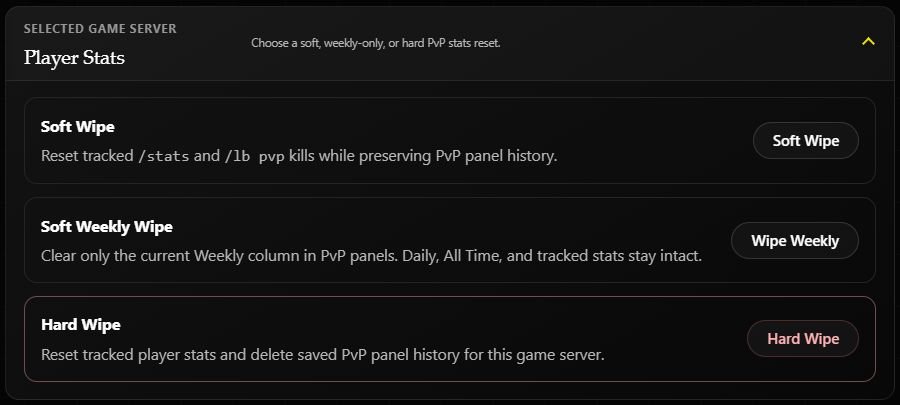
Player Stats also affects playtime: its Soft Wipe and Hard Wipe clear tracked online time and saved Hours panel history. The Stats Soft Wipe preserves PvP panel history only. Choose Wipe Weekly to keep tracked data and other panel history.
Example: restart this week's PvP competition
To clear the Weekly PvP panel column while keeping players' tracked stats and All Time results:
- Confirm the game server shown at the top of the dashboard.
- Expand Player Stats and choose Wipe Weekly.
- Check that the dialog says Reset the Weekly PvP column? and names the selected-game-server scope.
- When you are ready to perform the reset, check I understand this cannot be undone, then choose Yes, Run Wipe.
- Wait for the success message and check the panel after its next update.
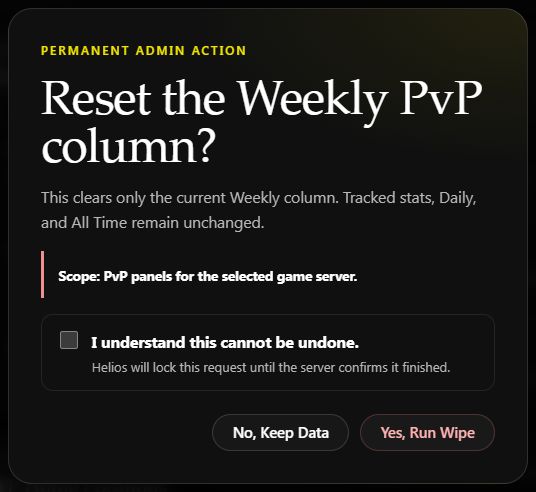
Confirmation preview on Helios Bot Testing. No wipe was run for this example.
Choose No, Keep Data to cancel. Resetting a Weekly column does not change the panel's weekly schedule or timezone.
After a reset
Check the result that matches your choice: the Weekly column for a weekly reset, or the relevant player stats and panel history for a soft or hard reset. Panels refresh on their normal update cycle.
If Helios says it could not confirm the reset, check the data before submitting again. The dashboard does not automatically retry an uncertain wipe.
Wipe Center requires Manage Server, Premium on the selected game server, and an enabled server connected to Helios. There is no undo button for these resets.
See the focused guides for resetting Stats and resetting Hours.