Helios Rust Console Bot Documentation
Manage Connected Servers
Connect a Rust server, update its connection, pause Helios, and copy settings from the dashboard or Discord.
- Last reviewed
- Maintained by
- Helios RCE
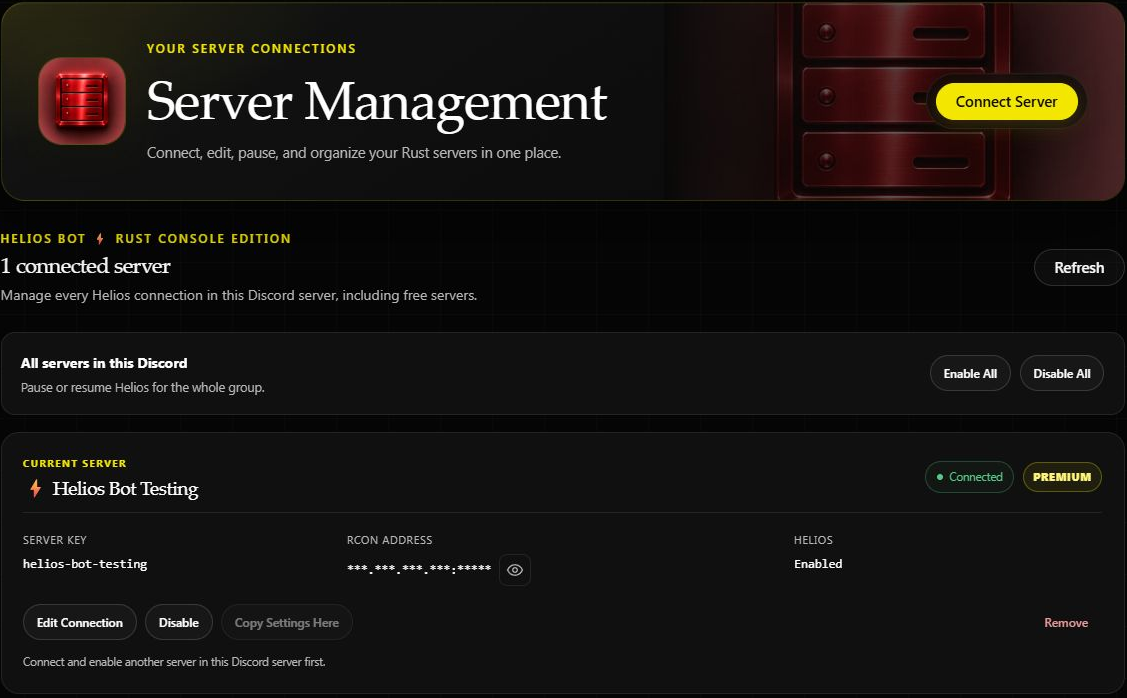
Open the dashboard, choose Manage Server on your game server, then open Server Management in the sidebar.
You need to own the Discord server or have Manage Server or Administrator permission. Copying settings requires Administrator permission or ownership, plus Premium on the destination game server.
Connect another server
Choose Connect Server on the main dashboard. You can also choose Add Server on the Premium page.
Select your Discord server, enter your hosting panel's RCON details, and tick any channels you want Helios to create. Follow Connect your first server for the full walkthrough.
Edit a connection
- Find the correct game server and choose Edit Connection.
- Change only the fields you need.
- Leave the replacement password blank to keep the current RCON password.
- Save and wait for the result. Changed connection details are checked before they are saved.
Enter the IP address only in Host; enter the RCON port separately. Use your RCON password, not your hosting-account or Discord password.
The server card hides the RCON address by default. Use the eye button when you need to check it, then hide it again before sharing a screenshot.
Pause or resume Helios
Choose Disable on a server and review the confirmation. Choose Enable when you want Helios to reconnect.
Disabling a connection pauses Helios for that server. It does not shut down your Rust server or cancel Premium. The all-server controls affect every connected game server in the selected Discord community, so check the scope before confirming.
Copy settings to another server
Open the server that should receive the settings, then choose Copy Settings Here.
- Choose a different source server from the same Discord community.
- Choose Merge or Overwrite.
- Enter the destination server key shown in the confirmation.
- Start the copy and follow its progress until it completes.
| Option | What happens |
|---|---|
| Merge | Adds missing entries and preserves matching entries already on the destination. |
| Overwrite | Deletes the destination's kits and replaces the copied settings. This cannot be undone. |
Both connections must be enabled, and the destination needs Premium. For example, to bring your main server's setup onto a new server, open the new server first and select your main server as the source.
If a copy stops with an error, contact support before starting it again.
Remove an old connection
Choose Remove, read the Premium notice, and confirm the server key.
This permanently deletes the connection and its server-specific Helios data. The confirmation explains whether Premium will be returned as a token, removed, or scheduled to cancel. Use Disable instead if you only want a temporary pause.
Prefer Discord?
Run these in your private admin channel and choose the correct game server:
| Command | Use it to |
|---|---|
/server add | Connect a game server. |
/server list | Review your connected servers. |
/server edit | Update a connection. |
/server enable | Pause or resume Helios. |
/server copy | Copy kits and settings to another server. |
/server remove | Permanently remove a connection. |
/setup | Create setup channels and configure feeds. |
For feature toggles and explosive item restrictions, open Server Settings. See Ban and Unban Boom for the item controls.