Helios Rust Console Bot Documentation
Discord Roles & Channels
Prepare private command channels, player roles, staff access, and feed destinations.
- Last reviewed
- Maintained by
- Helios RCE
Set up who can manage Helios and where its messages appear. Start with Start Here.
Prepare your channels
Names below are suggestions, not required channel names.
| Channel | Purpose | Suggested audience |
|---|---|---|
#helios-cmd | Setup commands, kit exports, and staff work | Trusted staff |
#killfeed | Game-server kill messages | Community or staff |
#player-feed | Player join and leave messages | Your chosen audience |
#admin-feed | Supported game-server staff action logs | Trusted staff |
#raid-alerts | RaidLink notifications | Your chosen alert audience |
#link-account | Player account-linking panel | Community |
Check channel permissions before posting panels or enabling feeds. Helios must be able to view and send messages in the destination, embed links for rich messages, and attach files for image or export output.
Keep setup, kit backups, and sensitive staff work in restricted channels. Some commands post public output even when an earlier response was private.
Choose staff access
Most dashboard management requires Manage Server. Creating or changing Discord roles and channels also needs the relevant Discord permissions.
Use Moderator Roles to delegate supported command groups. Adding a moderator role does not automatically enable every command or give dashboard access.
Custom Auth Roles requires the Discord owner or Administrator, not only Manage Server. Do not grant Administrator simply to make routine staff work easier.
Ticket staff access is configured separately in Tickets. A mention role controls pings; it is not the same as permission to read private tickets.
Choose player roles
| Role setup | What it means |
|---|---|
| Link roles | Base role plus optional PlayStation/Xbox role after linking |
| Premium Battle Pass role | Role needed for Premium-only reward claims |
| Custom Auth Roles | Dedicated Discord roles matching a player's in-game VIP/Moderator/Admin/Owner level |
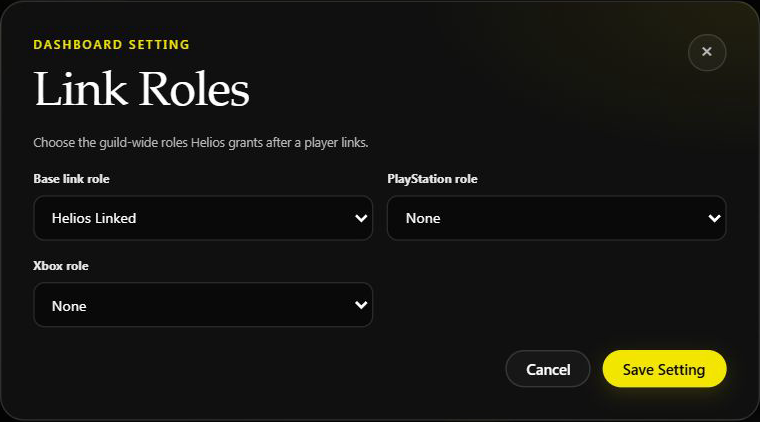
Use separate ordinary roles for player access. Keep Helios above roles it must assign and give it Manage Roles. Naming a role Admin or Owner does not itself grant Discord permissions.
Saving link-role choices does not update every existing member. Read the Sync Link Roles steps and removal warning in the link-role guide before running a community-wide sync.
Choose feed destinations
Use the current walkthroughs for each system:
Feeds can have different server scope and delivery settings. Do not assume selecting one channel configures every feed. An Admin Feed is not a complete audit of every Discord and dashboard action.
Before opening to players
Check that staff have only the access they need, public panels are in the correct channels, linked players receive the right roles, and private channels really are restricted.
Confirm each feed's selected game server and whether Discord delivery is enabled. Verify genuine result messages when the relevant activity happens; a saved form alone is not a delivery test.
Finish Server Connection and the individual module guides before running changes on a live server.