Helios Rust Console Bot Documentation
/set link-role
Choose linked-player and platform roles, then safely sync existing members.
- Last reviewed
- Maintained by
- Helios RCE
Choose the Discord roles Helios gives players after they link their game account. These settings apply to the whole Discord community, not just the game server open in the dashboard.
Before you start
You need Manage Server in Discord. The Discord setup command is free; the dashboard controls require Premium on the open game server.
Create ordinary linked-player roles first. Helios needs Manage Roles, and its highest role must sit above the roles it assigns. Use dedicated link roles, not staff roles or roles with unrelated purposes.
Setting roles does not link anyone, grant in-game VIP, or activate a Premium subscription.
Use the dashboard
- Open your game server in the dashboard.
- Choose Overview → Shared setup and admin tools → Link Roles → Configure.
- Choose a Base link role.
- Optionally choose separate PlayStation and Xbox roles, or None.
- Choose Save Setting.
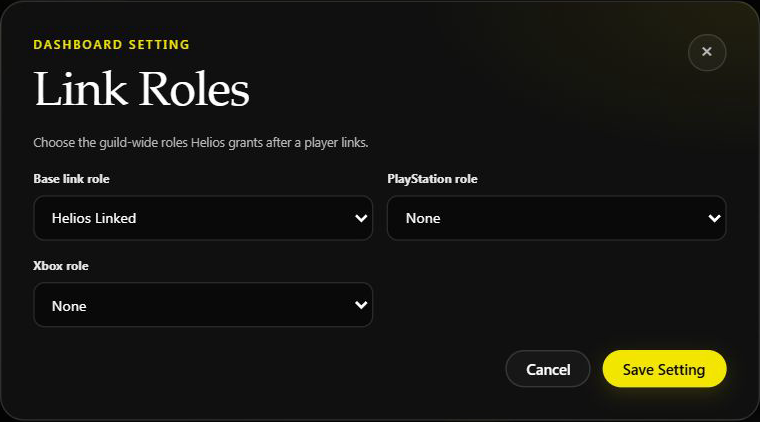
The unchanged form on Helios Bot Testing. It was closed without saving.
A linked player receives the base role plus the role for the console recorded on their link. With no console recorded, only the base role is expected.
Use Discord
/set link-role role:@Linked
With platform roles:
/set link-role role:@Linked playstation:@PlayStation xbox:@Xbox
Include every platform role you want to keep when you rerun this command. Omitted platform options clear their saved selections; they do not preserve the previous choices.
Update members who are already linked
Saving the role choices does not itself update every existing member.
- Review your saved choices.
- In Overview → Shared Helios systems → Role Syncing, choose Sync Link Roles.
- Wait for the result showing members updated, roles added, and roles removed.
- Check a few actual Discord members afterward.
Sync Link Roles changes member roles immediately. It adds the expected configured roles, removes the wrong configured platform role, and removes currently configured link roles from members who are no longer linked.
It manages the roles currently selected in your link settings. Do not assume it cleans up every old role you previously used. Review obsolete roles separately.
A completed summary does not guarantee every member was updated: deleted roles, missing members, or Discord permission failures can prevent individual updates.
If roles are missing
- Check the player's link and recorded console.
- Check that the chosen roles still exist.
- Move Helios above the assigned roles and give it Manage Roles.
- Save the role choices, then sync existing members.
- Check the actual member before rerunning a failed operation.
See Player Link, Staff Permissions, and Custom Auth Roles for the separate player and staff systems.