Helios Rust Console Bot Documentation
Find Settings on the Dashboard
Find the right Helios dashboard module in seconds, with a kit cooldown example.
- Last reviewed
- Tested on
- Helios Bot Testing dashboard
- Maintained by
- Helios RCE
Looking for a setting? Use Search every setting at the top of your server dashboard.
1. Open your server
Open the Helios dashboard, sign in with Discord, and choose Manage Server on your Rust server. Check the server name at the top before continuing.
Use a Discord account with Manage Server permission. Some modules require Premium on the selected server.
2. Search for what you need
Type kit cooldown into Search every setting. Choose Emote Binds, the first result.
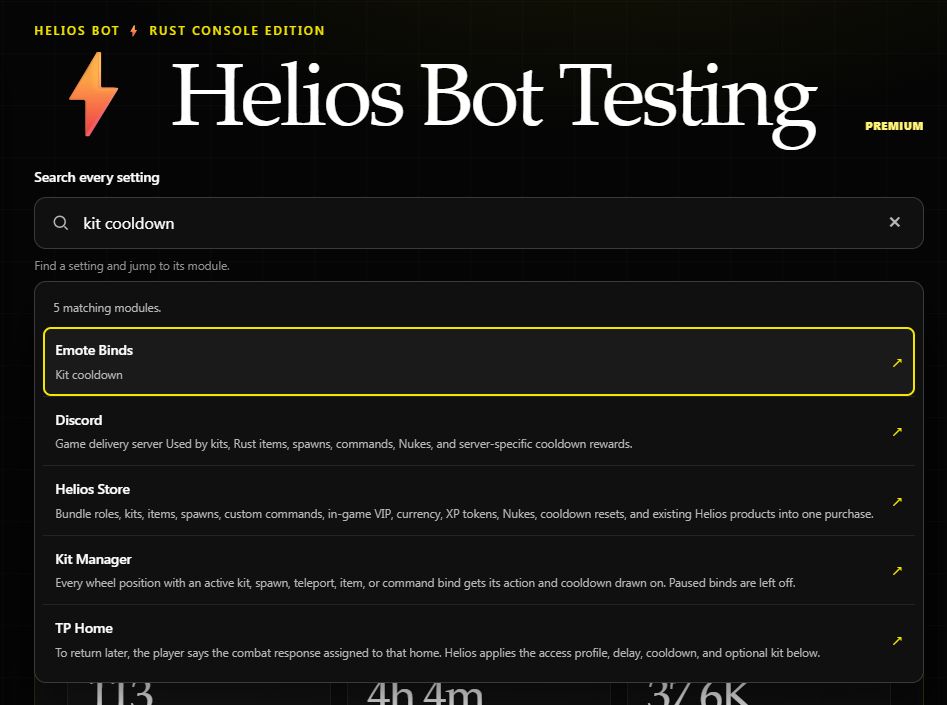
Search in everyday words. Click either screenshot to view it full size.
3. Find your bind
Helios opens Emote Binds for the same server. Find your kit's quick-chat phrase and check its Cooldown column.
In this example, I need Stones gives the builder kit with a 30 min cooldown. Your server will show your own binds.
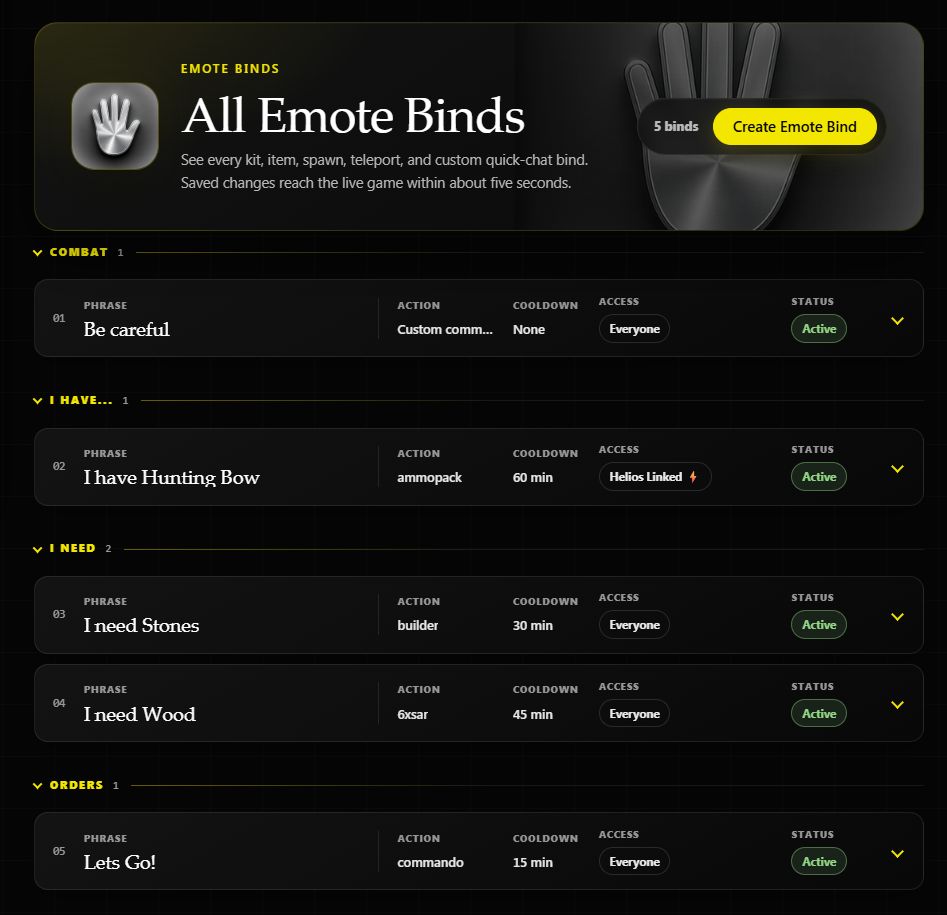
To change it, expand the bind and choose Edit. Follow the Emote Binds guide for the editor and saving steps.
Try another search
| Search | Look for |
|---|---|
raid hours | Offline Protection |
kill rewards | Economy |
welcome message | Discord |
Tip: Press Enter to open the first result, or Esc to close the results. Search opens the relevant module; choose the setting inside it.