Helios Rust Console Bot Documentation
Inspecting and Removing Player Bag Items
Check a player's stored Helios rewards and remove one item safely when a support correction is necessary.
- Last reviewed
- Maintained by
- Helios RCE
The Helios bag stores rewards for later use. It is not the player's live Rust backpack, hotbar, or base storage.
Check the item, remaining uses, and server label before deciding anything is missing or should be removed.
Inspect on the dashboard
- Open Manage Server → Player Tools → Linked Players.
- Find the player and verify their linked account.
- Expand Bag.
- Check the item name, type, server label, and remaining uses.
- Use Next or Previous when the list has multiple pages.
The dashboard shows ten items per page and loads the full bag. It does not stop after the first 100 items.
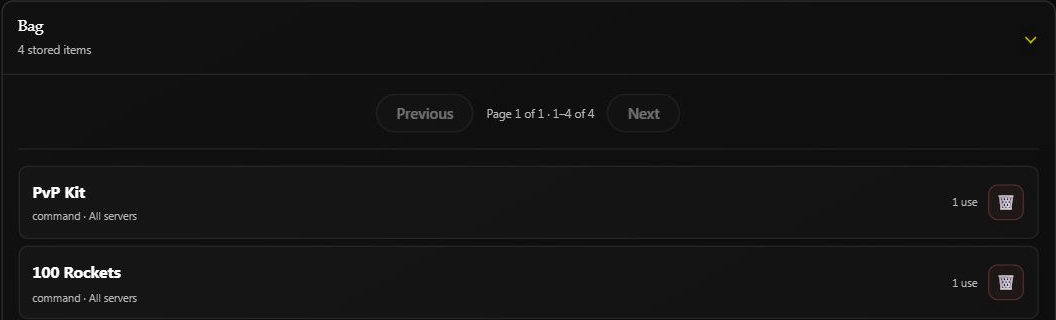
An existing bag on Helios Bot Testing. The crop shows two of its four stored entries. Nothing was used or removed.
Bag storage is shared across the Discord community. Opening another Rust server's dashboard does not create a separate bag, although individual rewards can be tied to a particular server.
Inspect in Discord
Staff with Manage Server permission, or a moderator role allowed to use /player, can run:
/player inventory user:@Player
This command is available without Premium. Dashboard Player Tools requires Premium.
The response is visible in the command channel, not a private reply. Use a staff channel when discussing another player's rewards.
Only the staff member who opened the inventory can use its controls. Another moderator should run their own command.
Remove one stored item in Discord
Do this only after confirming a support correction is needed:
- Open
/player inventoryfor the correct member. - Click Remove.
- Choose the item from the list. Check its server label; repeated item names can be separate stored entries.
- Review Remove Item?.
- Choose Yes to delete that entry, or No to cancel.
The removal picker has its own Previous and Next controls when needed. A timed-out confirmation asks you to reopen the command.
Yes deletes the selected stored entry, including its remaining uses. It does not remove one use, reverse a purchase, refund currency, or take items out of Rust.
Dashboard removal
Click the trash button beside the correct bag entry. Review the player and item in the confirmation before choosing Confirm Action.
There is no undo control for bag deletion. If you only need to check the item, leave the trash button alone. If the bag changed while loading or the item is already gone, reopen the player's record instead of repeatedly submitting the action.
Missing-reward checklist
- Check every bag page and the item's server label.
- Review the player's balance logs and the original reward response.
- Ask whether the item was already used, gifted, sold, or opened.
- Remember that a live kit grant is not a stored bag reward.
- Check delivery requirements before issuing another copy.
For the player's own use, sale, gift, and redemption steps, see Your Bag and Items. For replacement rewards, see Giving Rewards.