Helios Rust Console Bot Documentation
Player Actions
Use one private Discord menu for emote kits, Offline Protection, TP Home, and Dial & Ride.
- Last reviewed
- Tested on
- Helios Bot Testing Discord menu
- Maintained by
- Helios RCE
/actions puts four in-game shortcuts in one private Discord menu. You need a linked game account, and the game server you choose must have Helios Premium. Other people in the channel cannot see your menu.
- In your Discord server, run
/actions server:"<SERVER>". - Choose the game server where you play.
- Pick Emote Kits, ORP, TP Home, or Dial & Ride.
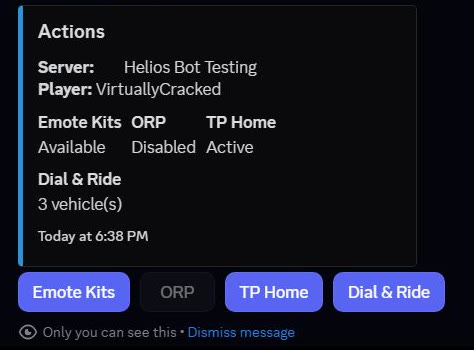
The test server's ORP is off, so its button is unavailable. Your server's choices depend on what its owner has enabled.
Claim an emote kit
Choose Emote Kits to see the kits your linked player can use, the quick-chat phrase for each kit, and whether it is ready or on cooldown. Open Choose an emote kit and select the one you want to claim. The same kit access and cooldown rules apply as when you use its in-game phrase.
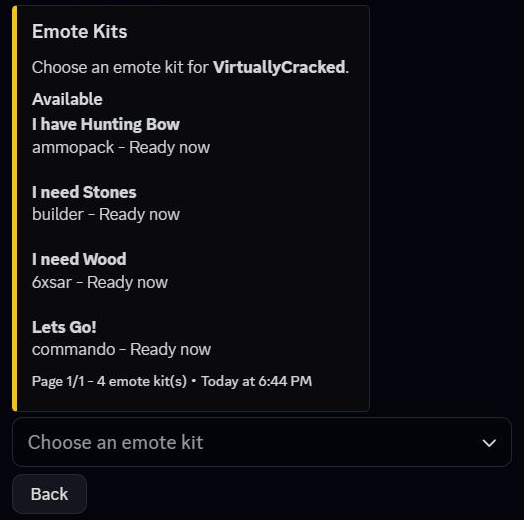
The list only includes enabled kit actions your player can access. It does not list every emote bind or every kit on the server. If a kit is missing, ask an admin to check its Emote Bind settings, required Discord role, and in-game access level.
Set or remove Offline Protection
Choose ORP to check your current zone. If the server allows it, Set ORP sends a zone request from your current in-game position. You must be online, eligible to create the zone, and connected to the game server. Team rules still apply; see Offline Raid Protection.
Remove ORP asks you to confirm before removing your matching player or team zones. Use it only when you mean to give up that protection. If ORP is turned off or the server connection is down, the relevant controls may be unavailable.
Save or visit a home
Choose TP Home to see your profile, delay, cooldown, and saved home slots. A home button becomes usable after that slot has been saved and your profile allows it.
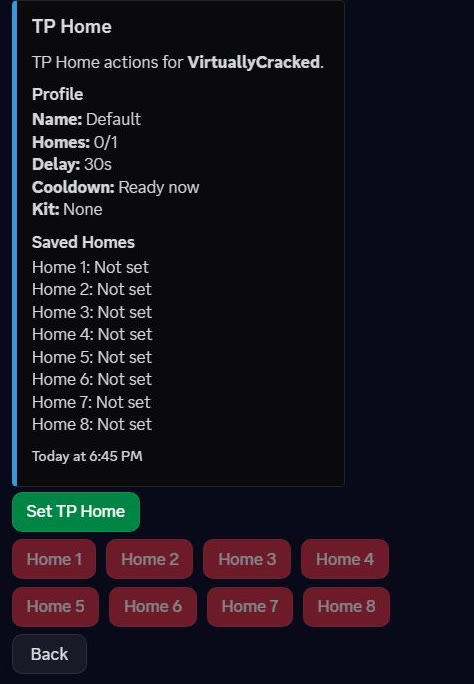
Set TP Home starts the normal bed-spawn capture for the slot you choose. This kills your in-game player so Helios can save the spawn location; put away anything you cannot afford to lose first. The test screenshot has no saved homes, so its travel buttons are unavailable. Your profile may allow fewer than the eight slots shown. See TP Home setup and player rules for the full flow.
Request a vehicle
Choose Dial & Ride to see the vehicles you are allowed to request and their current cooldowns. Open Choose a vehicle and select a ready ride. Helios requests it for your linked in-game player using the same vehicle settings as the quick-chat menu.
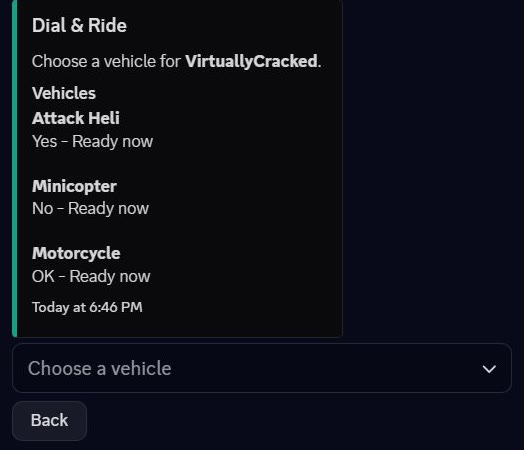
The words Yes, No, and OK beside vehicles are their in-game quick-chat responses. In Discord, select the vehicle by name instead. A required role, cooldown, or Combat Lock can still prevent delivery. Server owners can change the available rides under Dial & Ride.
If the menu does not work
| What you see | What to check |
|---|---|
| Link your in-game name first | Run /link before opening /actions. |
| Only available on premium servers | Ask the owner to check Premium on the game server selected in the command. |
| A choice is greyed out | The owner has not enabled that feature, or no eligible items are set up. |
| A kit or vehicle is missing | Check the required role, access level, and saved server setup. |
| This actions panel expired | Run /actions again. Menus expire after about 30 minutes. |
The menu is a shortcut for your own linked player. It does not change the server's settings or let you act as another player.