Helios Rust Console Bot Documentation
Killfeeds & Alerts
Send kills, player activity, admin logs, raid alerts, and server status to Discord.
- Last reviewed
- Maintained by
- Helios RCE
Use this hub when you want activity visibility first: killfeed for day-to-day awareness, then alerts for staff response.
Video Tutorial
Start Here
Choose the output you want; setting up one does not automatically set up the others.
| What you want | Where to start |
|---|---|
| Kills in a Discord channel | Discord killfeed — dashboard Killfeed → Discord Channels, or /dcfeed. |
| Kill messages inside Rust | In-game killfeed — dashboard Killfeed → In-game Feed, or /gamefeed. |
| Player joins and leaves | Player feed — dashboard Discord → Feeds, or /dcplayerfeed. |
| Staff actions in a private channel | Admin Feed — Premium /adminfeed. |
| Raid notifications | Raid Alerts. |
| Current online-player count | Live player counter. |
Check the scope first
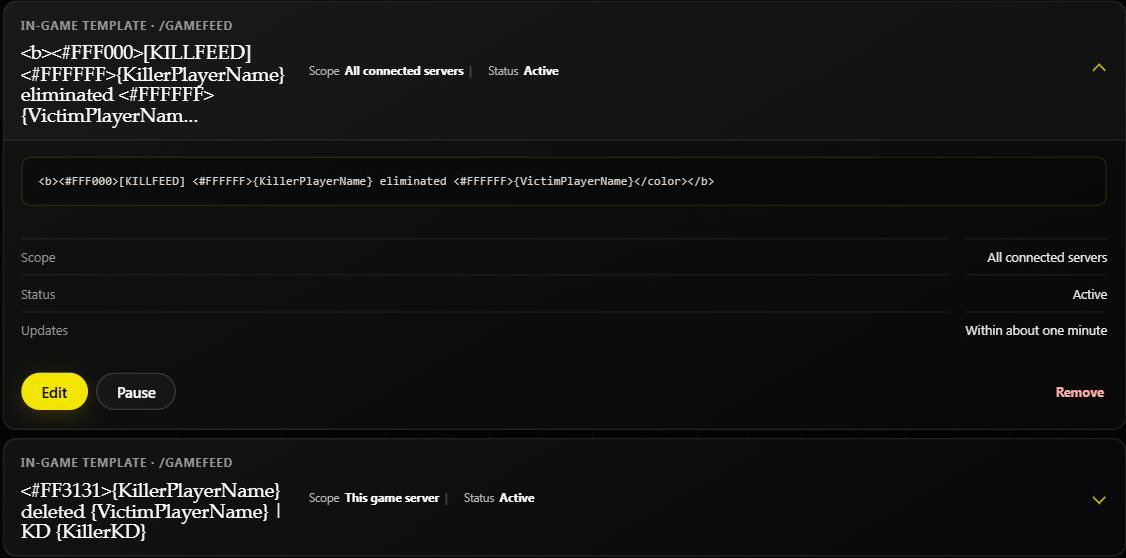
All connected servers means every connected game server in this Discord community, not just the server currently open. This game server keeps the entry local. Shared and local in-game templates can both be chosen.
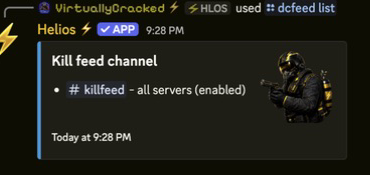
Use /dcfeed list, /dcplayerfeed list, and /gamefeed list to review existing entries before changing them. These commands require Manage Server. The dashboard also provides Pause and Resume for temporary stops.
WARNBe specific when removing a killfeed
/dcfeed remove without a server removes every killfeed configuration for the selected channel. Include the server to remove only that server's destination. See safe command examples.
For missing animal or environmental deaths, check both PvE in Feed and EvE in Feed using the in-game guide. Do not add duplicate feed destinations to solve a filtering setting.
If Something Is Not Working
- Use Troubleshooting for fast issue triage.
- Use Killfeed Troubleshooting Guide for feed-specific fixes.
- Re-check connection health in Server Connection Troubleshooting.