Helios Rust Console Bot Documentation
Helios Storefront Design
Brand your Helios Store with a logo, banner, colours, animated background, home page copy, and link previews.
- Last updated
- Maintained by
- Helios RCE
A default Helios Store already looks finished. This page is about making it look like yours — everything here lives under Settings in the Helios Store module.
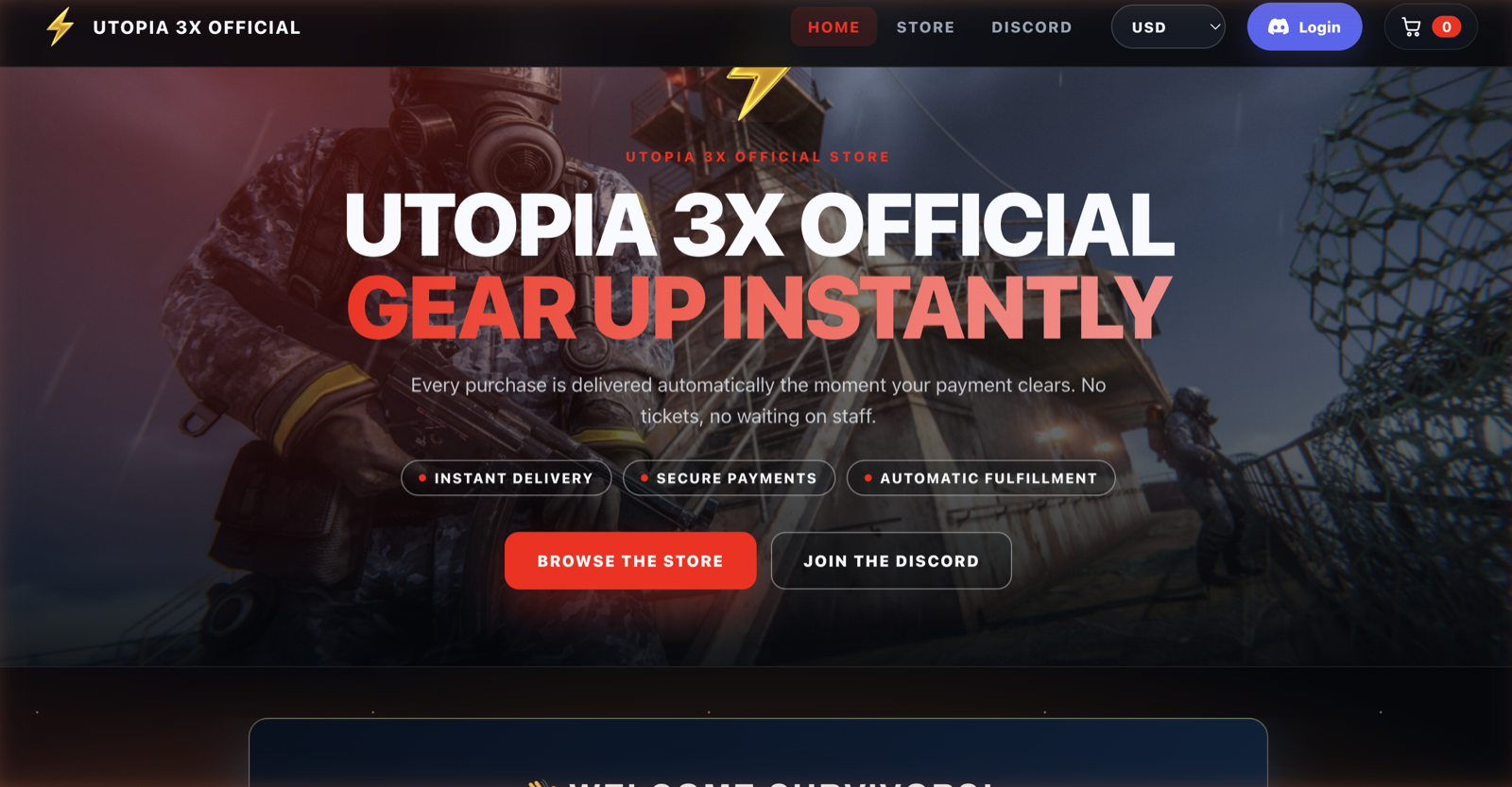
Storefront branding
Expand Storefront branding under Settings.
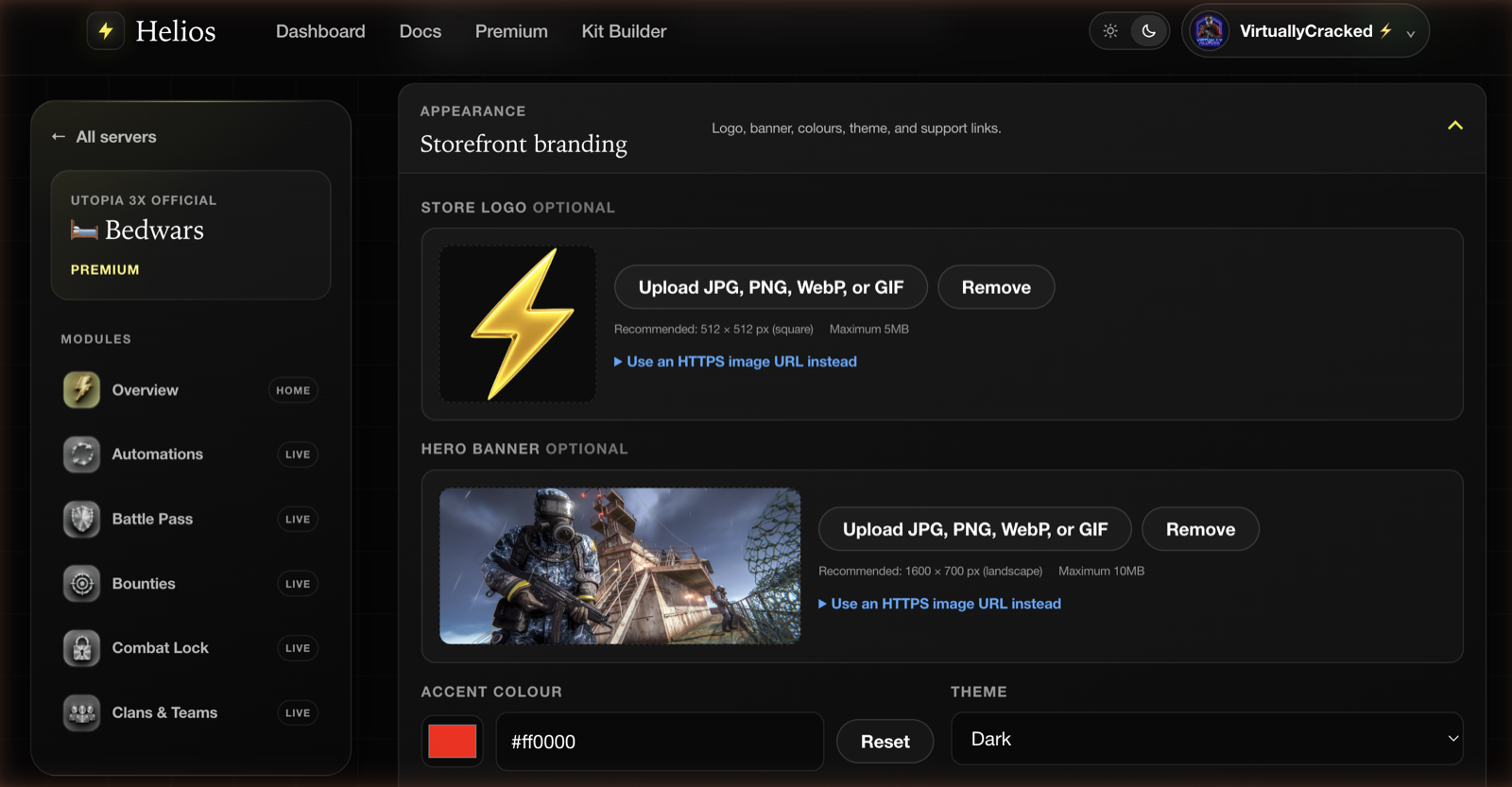
- Store logo — square, 512 × 512 px recommended, 5MB max. Appears in the header next to your store name.
- Hero banner — landscape, 1600 × 700 px recommended, 10MB max. The image behind your hero copy.
- Accent colour — a six-digit hex value. It drives buttons, badges, prices, and highlights across the whole storefront.
- Theme — dark or light.
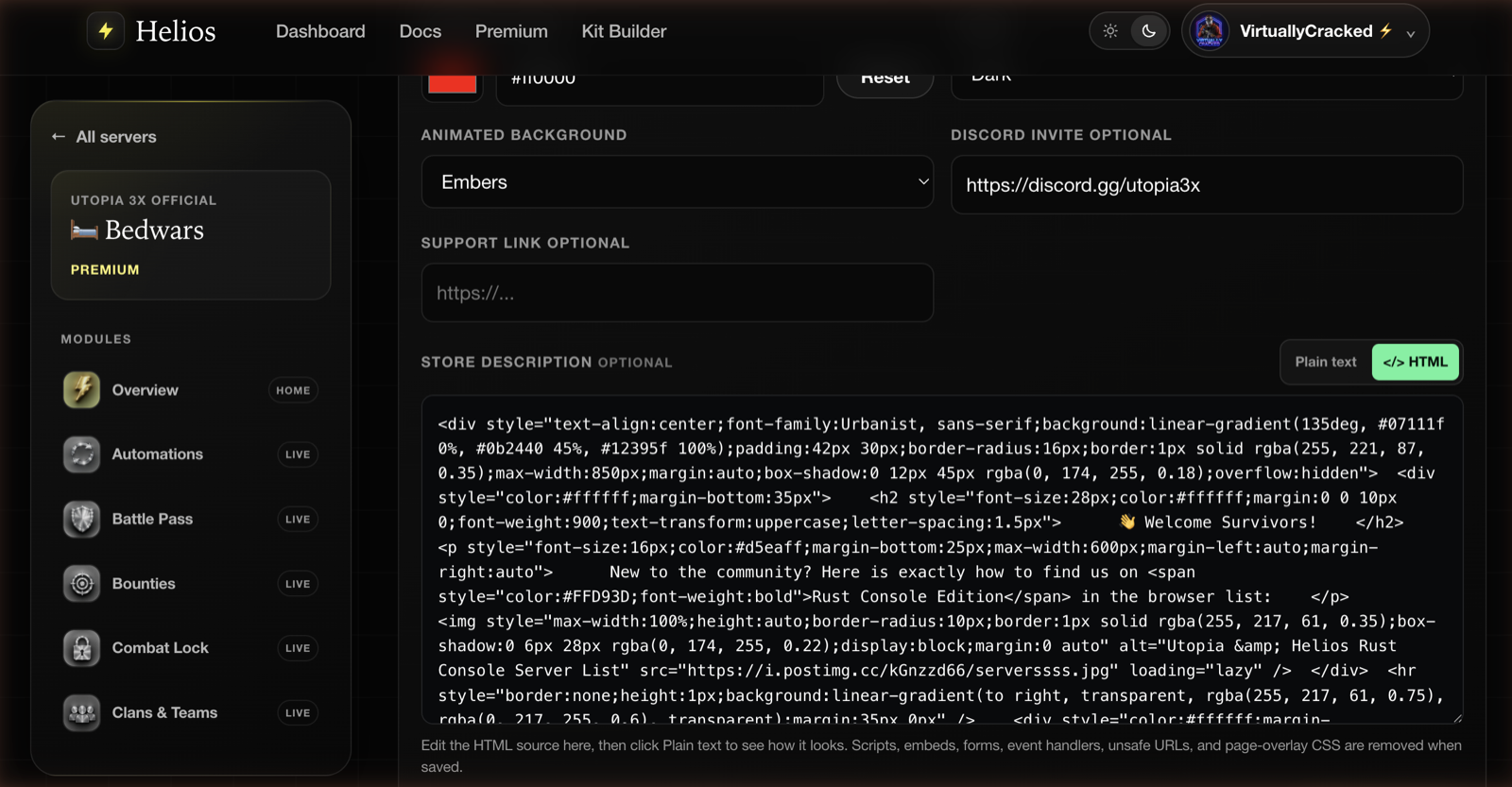
- Animated background — None, Starfield, Aurora, Embers, or Neon Grid.
- Discord invite and Support link — both add a link to the storefront header when filled in.
- Store description — the block on your home page. Plain text with Markdown, or full HTML.
TIPTip
Pick the accent colour from your Discord server's existing branding rather than something new. The storefront, your Discord, and your in-game chat colours reading as one brand is most of what makes a small store look legitimate.
INFONote
HTML descriptions are sanitized on the server before they are saved and again before they are served. Scripts, embeds, forms, event handlers, unsafe URLs, and page-overlay CSS are removed. Layout, images, and inline styling survive.
Home page copy
Expand Storefront copy. Every string on the home page is editable, and anything you leave blank falls back to a sensible default.
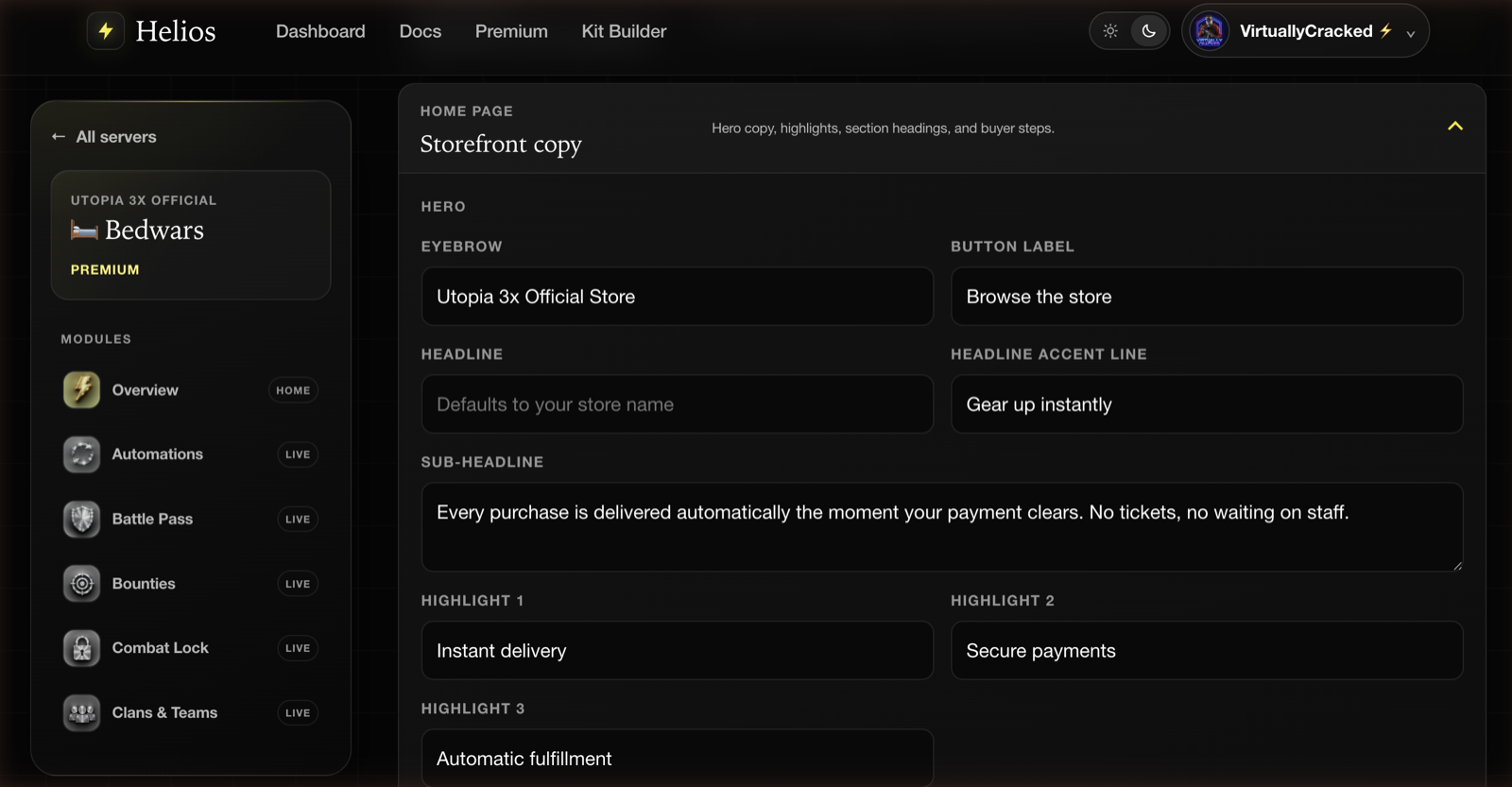
Hero — eyebrow, headline, headline accent line, sub-headline, button label, and three short highlight chips.
Sections — the headings above featured products, categories, the store page, and the how-it-works steps.
How it works — three numbered steps with a title and a line of text each. This is where you explain your own claim flow, not a generic one.
Two switches live here too:
- Show a recent purchases bar — publishes the in-game name each buyer entered at checkout alongside what they bought. It is a strong trust signal on a busy store and dead weight on a quiet one.
- Show reward types on product cards — displays labels like In-game Kit and Discord Role. Best seller, subscription, and stock badges stay visible either way.
WARNImportant
The recent purchases bar makes buyers' in-game names public. It only ever publishes the name typed at checkout and the product bought — never Discord IDs, emails, or amounts — but tell your community it is on before you turn it on.
Search and link previews
Expand Search & link preview. This controls the card people see when your store is pasted into Discord, and the snippet Google shows.
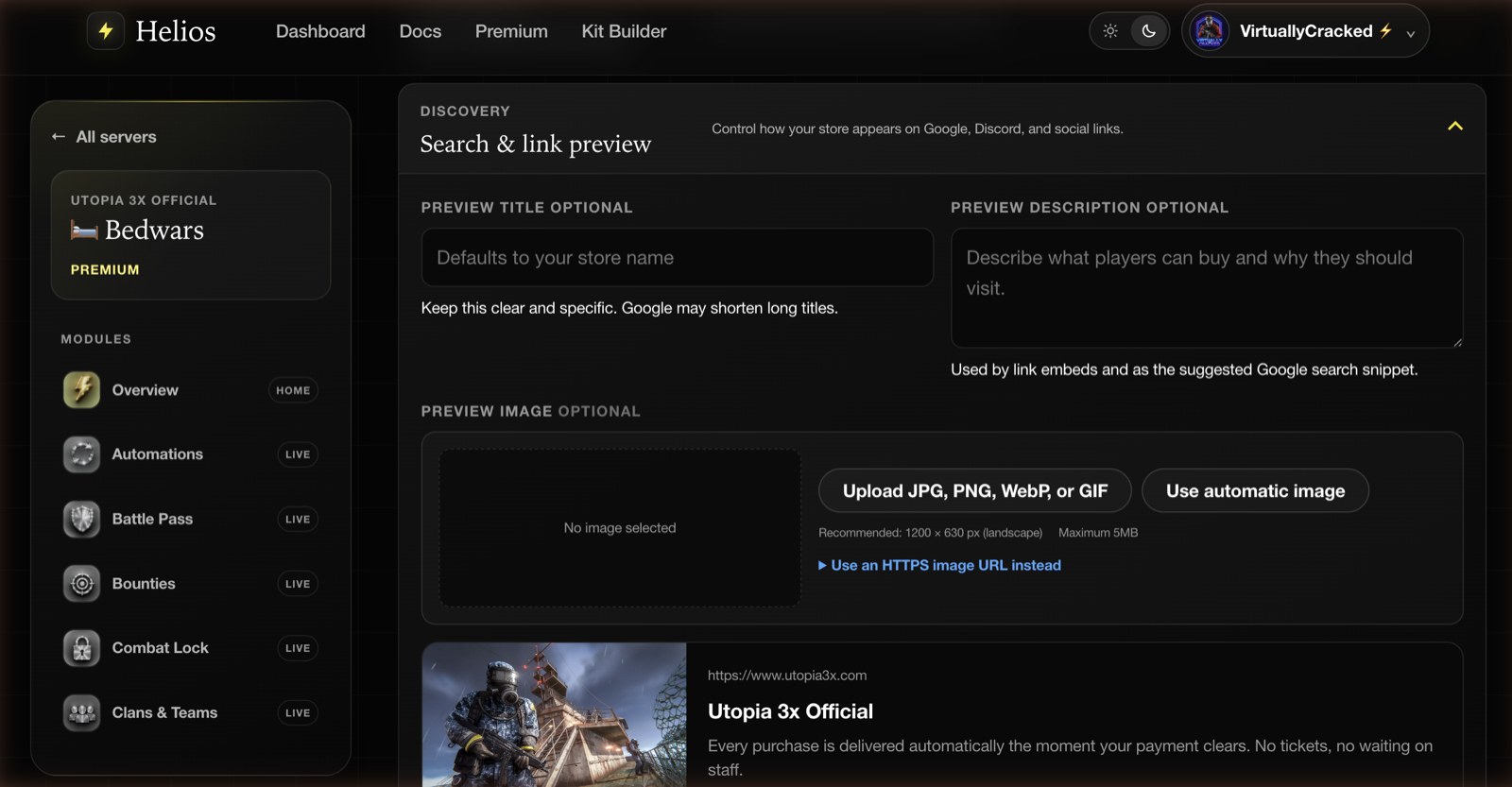
- Preview title — defaults to your store name.
- Preview description — used by link embeds and as the suggested search snippet.
- Preview image — 1200 × 630 px recommended. Use automatic image falls back to your banner.
The live card underneath updates as you type, so you can see the Discord embed before you save it.
INFONote
Google and Discord cache previews. A saved change can take a while to show up on links that were already shared — that is caching on their end, not a Helios delay.
What buyers see
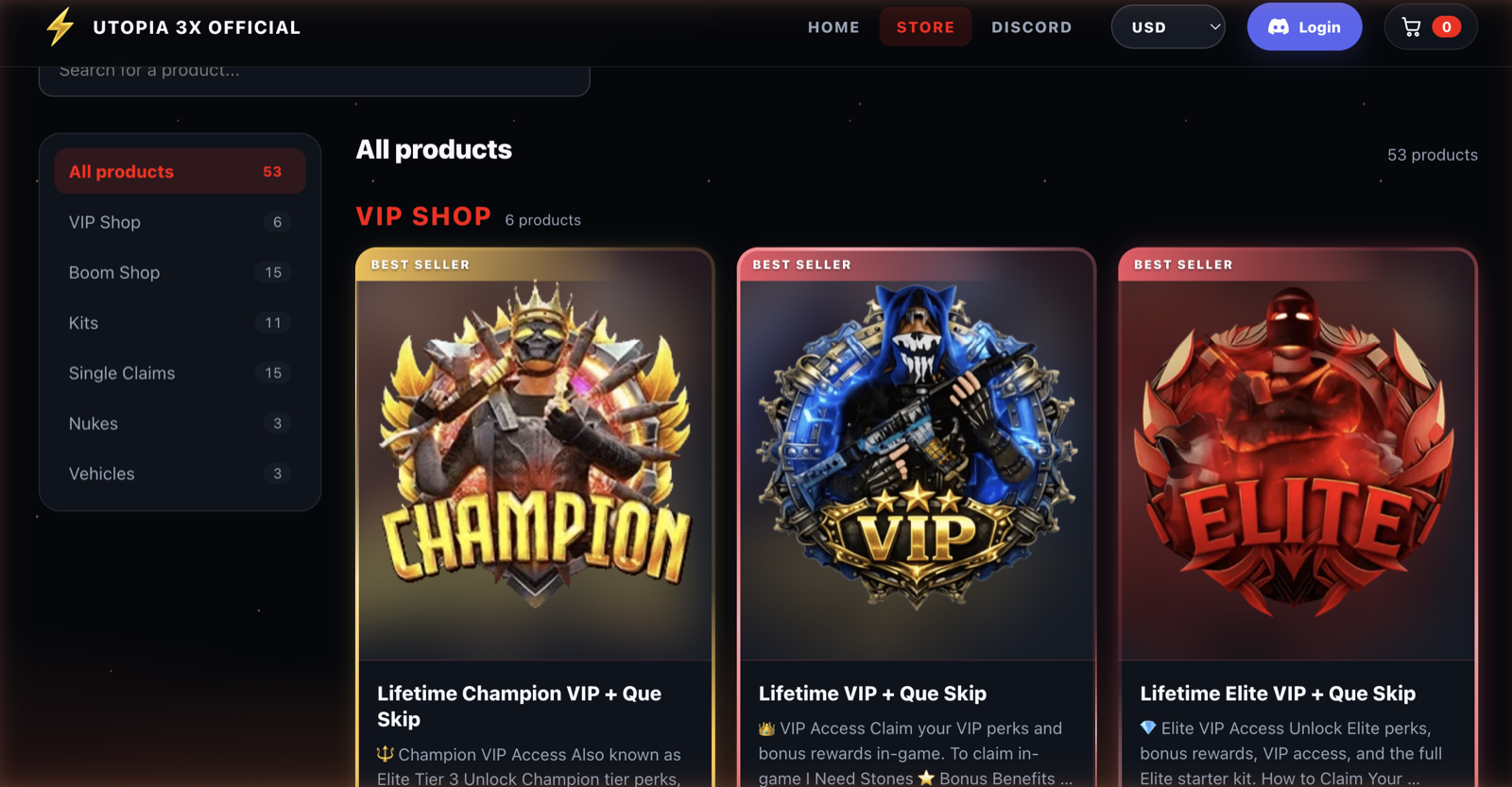
The Store page lays your categories down the side, with search across the top and your products in a grid. Featured products get their own row on the home page.
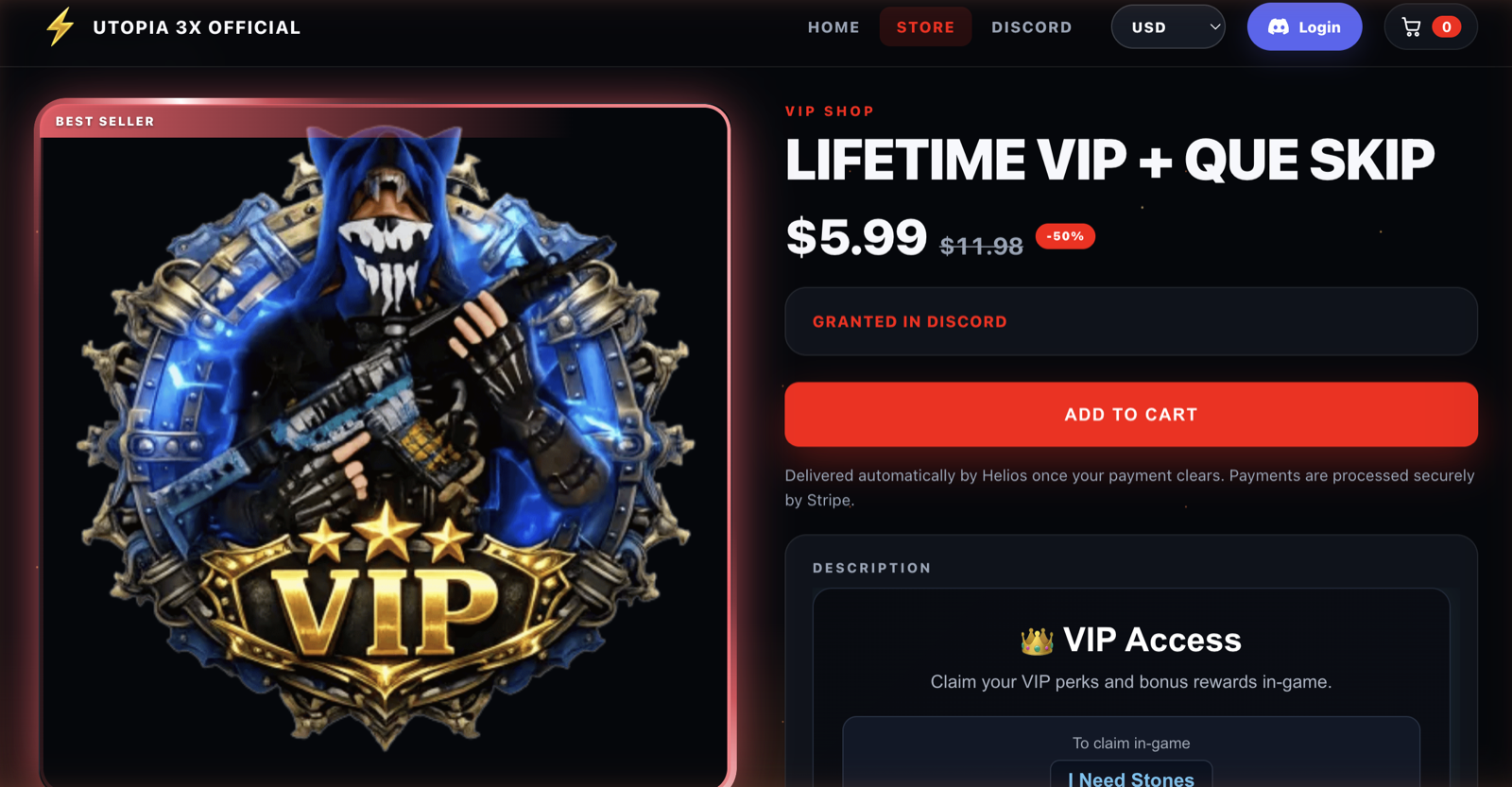
A product page shows the image gallery, the price (with the original struck through when a discount applies), the reward type, and your description exactly as you wrote it.
Tips
- Fill in the hero sub-headline. It is the one line that tells a stranger whether delivery is automatic, and it is the difference between a sale and a support ticket.
- Use the three how-it-works steps to name your actual claim command, not a generic "check your inventory".
- Set the preview image deliberately — most of your traffic arrives through a Discord link, and that card is the first thing anyone sees.
- Preview the store on your phone before opening it. Most players will buy from one.
Common issues
My logo or banner will not upload
Check the format and size: JPG, PNG, WebP, or GIF, 5MB for the logo and 10MB for the banner. You can also point at an HTTPS image URL instead of uploading.
The accent colour is not applying
It has to be a plain six-digit hex value such as #ff0000. Named colours and shorthand are rejected.
The Discord embed still shows the old image
Discord cached it. The change is saved — new links pick it up, and old ones refresh on Discord's own schedule.
My HTML description lost half its formatting
The sanitizer removed something it does not allow. Scripts, iframes, forms, event handlers, and CSS that would cover the page are always stripped; rebuild that part with plain layout and inline styles.