Helios Rust Console Bot Documentation
Buying and Selling on the Player Market
Browse player listings, sell a saved bag item, and understand payments, expiry, and cancellation.
- Last reviewed
- Maintained by
- Helios RCE
The player Market uses your community's in-game currency. It is not a real-money storefront. Players sell saved items from their Helios /bag, not items currently carried inside Rust. Market access requires Premium in the community and the Market feature enabled by staff.
Browse without buying
Run /market to browse the community, or select a game server to filter its listings:
/market server:"<SERVER>"
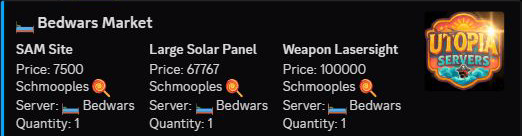
This is a read-only Bedwars example. The image shows part of the listing panel; the account's Wallet balance is deliberately excluded. Prices are player asking prices, not suggested prices for your own server.
Check the item, price, currency, and server. All Servers returns to the community view. My Listings shows your active sales. Use your own /market command; another player's market buttons are not yours to use.

The named item buttons are purchase buttons, not detail previews. Opening the market is read-only; pressing one can spend money immediately.
Buy a listing
Make sure you have enough money in your Wallet and a free space in /bag, then press the item button when ready. There is no separate confirmation screen. The purchased item goes into your bag; buying it does not redeem it in game.
When matching listings are grouped together, the displayed price is the lowest asking price and the item button buys the cheapest listing in that group. Quantity is the number of matching listings, not the amount of wood, ammunition, or other contents inside one saved reward. A purchase buys one listing.
The full asking price goes from the buyer's Wallet to the seller's Wallet. Safe Pocket money is not used automatically. The saved item's server restriction stays with it. Open Your Bag and Items to use the reward later on an eligible server.
You cannot buy your own listing. If another player bought it first or it expired, reopen /market to get the current listings.
List an item for sale
- Open your own
/marketand choose List Item. - Select a saved bag item.
- Enter a price greater than zero in List Item Price.
- Choose Submit only when ready to put it up for sale.
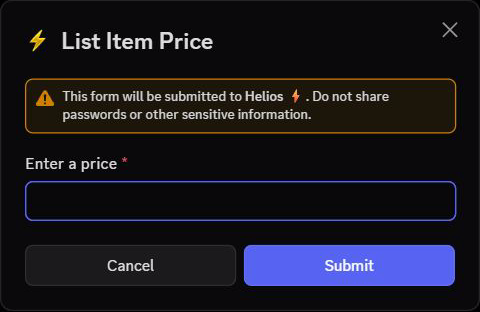
The form above was canceled without submitting. Selecting an item only opens the form; Submit creates the listing and removes that item from your bag while it is for sale. You do not receive money until another player buys it.
You can also start from /bag → Sell Item → Sell on Market. Sell to Trader is different: it accepts the trader's displayed offer and pays immediately rather than waiting for another player.
Items marked untradable cannot be listed. The market holds up to 19 active listings across the community, not 19 per player or game server. The current item picker shows up to the first 25 bag entries; if a large bag item is missing, ask staff to help check it rather than submitting a different item.
Cancel or let a listing expire
Open My Listings and choose Cancel beside one of your own sales. Cancellation returns the item to your bag instead of paying currency. You need a free bag space to cancel successfully. The current panel shows cancel buttons for the first five active listings.
Listings expire after 24 hours. Expired listings stop appearing in the market; Helios's background cleanup attempts to return their items to the seller's bag. Leave room for returns. If an expired item does not come back, ask staff to check the listing and bot logs—do not assume it sold or relist a replacement.
Common problems
- Market disabled: staff must enable the community Market setting; this is separate from a game server's Shop switch.
- Not enough currency: check your Wallet and use
/withdrawif you need to move money out of Safe Pocket. - Bag full: make room before buying or canceling a listing.
- Item cannot be traded: choose a tradable saved item; opening the picker does not remove that restriction.
- Unclear purchase: check your bag and wallet history before buying again. Staff can inspect Player Tools.
For owner setup, see Shop & Market Setup. For balances, see Wallet, Safe Pocket and Payments.