Helios Rust Console Bot Documentation
/treasure add, edit, remove, list
Create, edit, remove, and check Premium treasure rewards in Helios.
- Last updated
- Maintained by
- Helios RCE
/treasure add, edit, remove, list
Overview
Use these commands when you want to manage treasure rewards from Discord instead of the dashboard. A treasure reward can be attached to one chest type or left available for any chest.
Requirements
- Helios bot connected to at least one server in this Discord community.
- Premium active for the Discord community.
- Manage Server permission.
- A chest already created with
/chest addwhen the reward should belong to a specific chest.
Setup Flow
- Run
/treasure addand choose a clear reward name and its trader value. - Optionally choose the chest it belongs to, a description, animation link, command reward, and a drop weight.
- Run
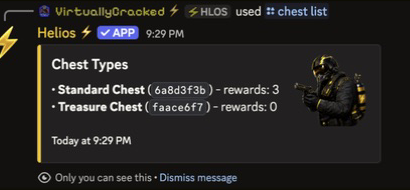
/treasure listand select the chest to see the rewards and their current chances. - Use
/treasure editto change only what needs changing. Usechest:anyif you need to remove a chest assignment. - Use
/treasure removeonly after checking the selected reward; it removes that reward from the chest.
Commands Covered
/treasure add/treasure edit/treasure remove/treasure list
Example
/treasure add name:"50 Rockets" value:5000 chest:"Standard Chest" weight:2
In the example, value:5000 is the trader value. weight:2 is the relative drop chance, not a 2% chance. When a chest has rewards with weights 7, 2, and 1, their displayed chances are 70%, 20%, and 10%.
Notes
/treasure listshows the selected chest’s rewards in highest-chance order.- Use the autocomplete choices for chest and reward names so you do not edit or remove the wrong one.
- For the visual setup flow, see Treasure & Keys.