Helios Rust Console Bot Documentation
/auto message panel
Schedule recurring in-game messages in minutes from the Helios dashboard, with a start time, color, and timezone.
- Last reviewed
- Tested on
- Helios Bot Testing dashboard
- Maintained by
- Helios RCE
Overview
Auto Messages keep players informed with recurring Discord invites, server rules, and event reminders. Manage them in Automations → Auto Messages or with /auto message in Discord.
Setup Flow
- Open the dashboard, choose Manage Server, then Automations.
- Expand Auto Messages and choose Create Auto Message.
- Enter your message and choose a color.
- Choose Repeat from a start time, then set Repeat Every (Minutes), the first message date and time, and time zone.
- Check Auto Message is active when ready, then choose Create and wait for the success message.
Example: a Discord reminder every 15 minutes
Copy this message and replace the invite with your own:
Need help? Join our Discord: discord.gg/heliosbot
| Setting | Example |
|---|---|
| Message color | #FFF000 — yellow |
| Schedule Type | Repeat from a start time |
| Repeat Every (Minutes) | 15 |
| First Message Date & Time | Your next suitable date at 6:00 PM |
| Time Zone | America/New_York, or your server community's time zone |
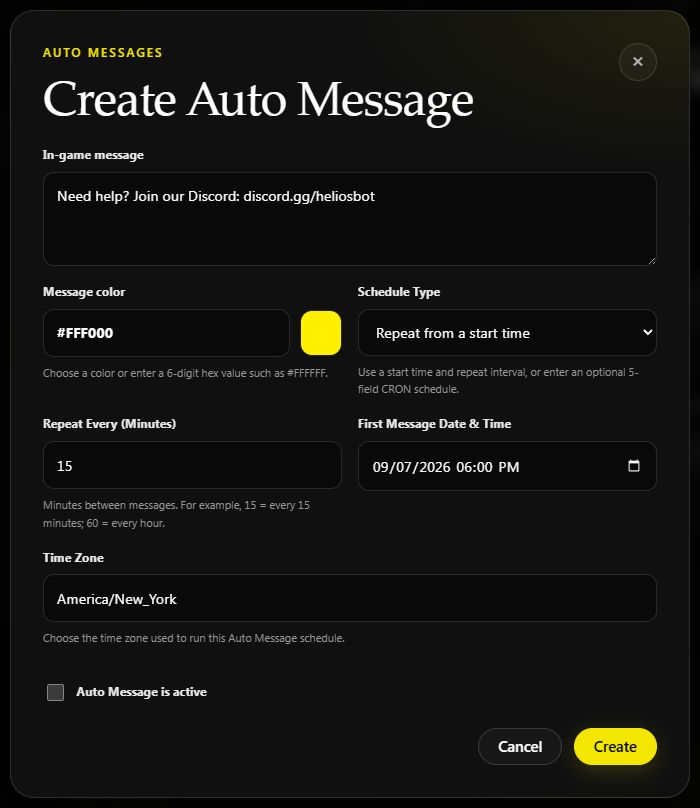
Example draft on Helios Bot Testing. The active box is unchecked so the example stays paused if saved. Choose a future date of your own.
With the message active, the expected result is a reminder at 6:00 PM, 6:15 PM, 6:30 PM, and every 15 minutes after that.
Enter 2 for every two minutes, 15 for every fifteen minutes, or 60 for every hour. The minimum is one minute. Existing hourly schedules keep their timing and display as minutes when edited.
Check, edit, or pause
Expand the saved message to check Full message and Next message, including its time zone. The row shows its schedule, color, and Active or Paused status.
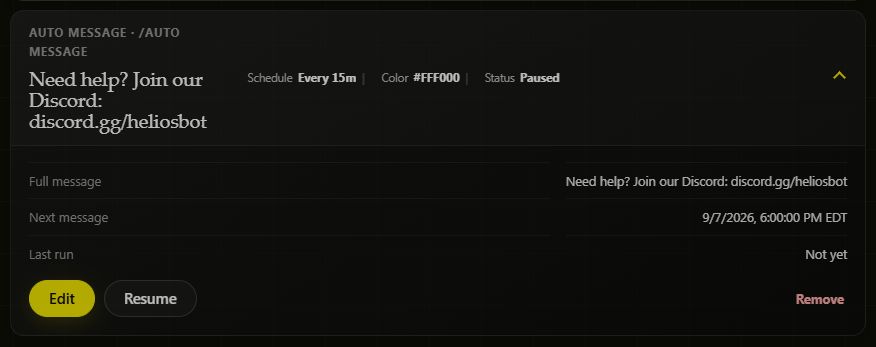
This example was saved paused. Choose Resume when you want your message to start running.
Use Edit to change it, Pause to stop future sends, and Resume when ready to bring it back. Remove deletes the message.
More schedule examples
For a specific calendar schedule, choose Advanced CRON schedule and enter five fields:
| When to send | CRON Schedule |
|---|---|
| Every 15 minutes | */15 * * * * |
| Daily at 6 PM | 0 18 * * * |
| Fridays at 7:50 PM | 50 19 * * 5 |
These times use the Time Zone you select. For a simple repeat interval, use Repeat Every (Minutes) instead. CRON is useful when you want particular clock times or weekdays. See cron examples for more.
In Discord
/auto message server:"<SERVER>"
Choose Create, enter the message, set its frequency and color, then save. The Discord panel and dashboard manage the same messages. Open your own panel session when managing messages alongside another admin.
The Discord panel also has Edit, List, Pause, and Remove. Pause keeps the message and its timing so you can turn it back on later; Remove deletes it. Keep your first message short and test it once in a quiet channel before scheduling a frequent announcement.
Requirements
You need access to manage the selected server, and Helios must be connected for messages to reach in-game chat.
If a message does not appear, check Active, Next message, the selected time zone, and the server connection. For commands that should run on a schedule, use Timed Commands.