Helios Rust Console Bot Documentation
Auto Countdowns
Schedule in-game countdowns from the Helios dashboard with a message, duration, weekday, start time, and timezone.
- Last reviewed
- Tested on
- Helios Bot Testing dashboard
- Maintained by
- Helios RCE
Auto Countdowns post the remaining time in Rust game chat. Use them before community events, restarts, or wipes.
A countdown sends messages only. Schedule the actual event or server action separately.
Create
- Open the dashboard, choose Manage Server, then Automations.
- Expand Countdowns and choose Create Countdown.
- Enter a message containing
{Countdown}and set the countdown length and message frequency. - Choose the day, start time, and timezone.
- Check Countdown is active when ready, then choose Create and wait for the success message.
Example: ten minutes before a Friday event
For an event starting at 8 PM, start the countdown at 7:50 PM. Copy this message:
Community event starts in {Countdown}. Meet us at the arena!
| Field | Value |
|---|---|
| Countdown length in seconds | 600 — ten minutes |
| Message frequency | 30 seconds |
| Run every | Friday |
| Choose time | 7:50 PM |
| Timezone | America/New_York |
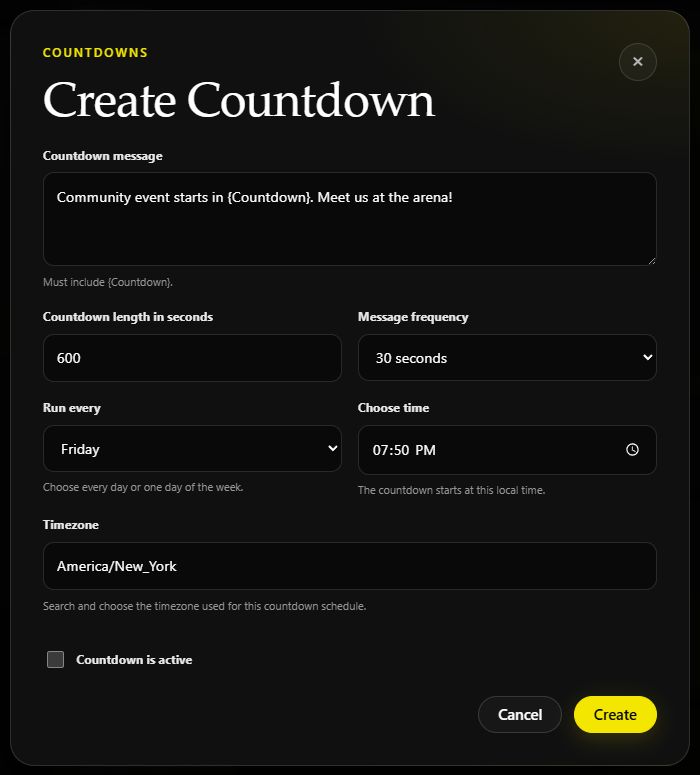
Example on Helios Bot Testing, with the active box unchecked to save it paused.
When active, Helios starts the countdown at the chosen time and replaces {Countdown} with the time remaining. It updates the message about every 30 seconds until the ten minutes are up.
The time field is the countdown's start time, not the event's start time. For a five-minute countdown before the same event, use 300 seconds and 7:55 PM.
List
Expand the saved countdown to check its Message frequency, Schedule, and Next run. The row also shows its length and Active or Paused status.
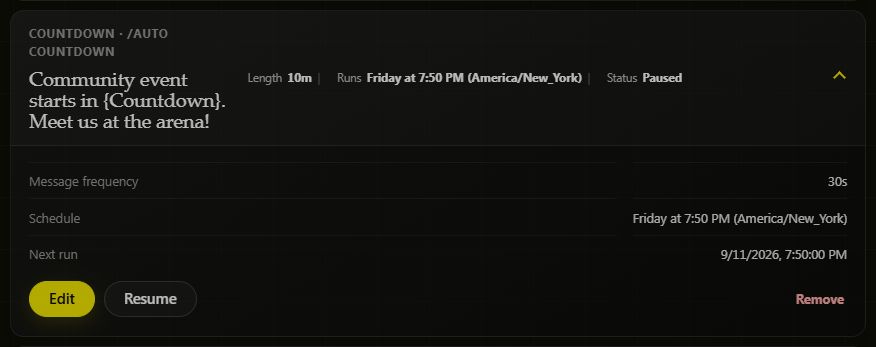
This example was saved paused. Choose Resume when you want your countdown to run.
Use Edit to change the message or schedule, Pause to stop it, and Resume to enable it again.
TIPTip
The dashboard saves a day-and-time schedule. When editing an older countdown created in Discord with a repeat interval, review Run every, Choose time, and Timezone before saving.
Remove
Expand the countdown, choose Remove, and confirm the message shown in the removal prompt. This deletes that countdown.
In Discord
The Discord command supports a start delay and repeat interval. For example, start a five-minute countdown now and repeat it hourly:
/auto countdown server:"<SERVER>" minutes:5 msg_frequency:"5 seconds" start:"Now" run_every:"1 hour" message:"Event starts in {Countdown}"
Use auto_run:false for a one-time countdown. In Discord, minutes is the countdown length; the dashboard's length field uses seconds.
| Command | Purpose |
|---|---|
/auto countdown | Create a countdown |
/auto countdown-list | Review countdowns for the selected server |
/auto countdown-remove | Remove the selected countdown |
Requirements and limits
- Premium on the selected server and permission to manage it. Discord also supports a moderator role with the
/autocommand family enabled. - Helios connected to the game server for messages to appear.
- Length between one minute and seven days:
60–604800seconds on the dashboard. - Message frequency: 5, 10, 15, 20, or 30 seconds; one or two minutes. It cannot be longer than the countdown.
- Message up to 1,500 characters, including
{Countdown}exactly as shown.
If nothing appears, check Active, Next run, the timezone, and the server connection. For a recurring message without a countdown, use Auto Messages. To spawn an event when the countdown ends, configure Auto Events separately.