Helios Rust Console Bot Documentation
Auto Events
Create a scheduled Rust Console event from the Helios dashboard with a preset, captured locations, announcement, and population requirement.
- Last reviewed
- Tested on
- Helios Bot Testing dashboard
- Maintained by
- Helios RCE
Overview
Auto Events spawn crates, cargo, and other preset events on a schedule. The dashboard and /auto events in Discord manage the same saved events.
Dashboard workflow
Open the dashboard, choose Manage Server, then Automations → Auto Events → Create Auto Event.
Example: a Friday locked crate
1. Name it and choose a preset
Enter Friday Crate Event as the event name and choose 1 Locked Crate.
2. Capture the spawn location
Join the selected game server with your linked player. Stand where the crate should spawn, then choose Set Location on the dashboard.
Check that Location set 1 shows Locked Crate and the captured coordinates.
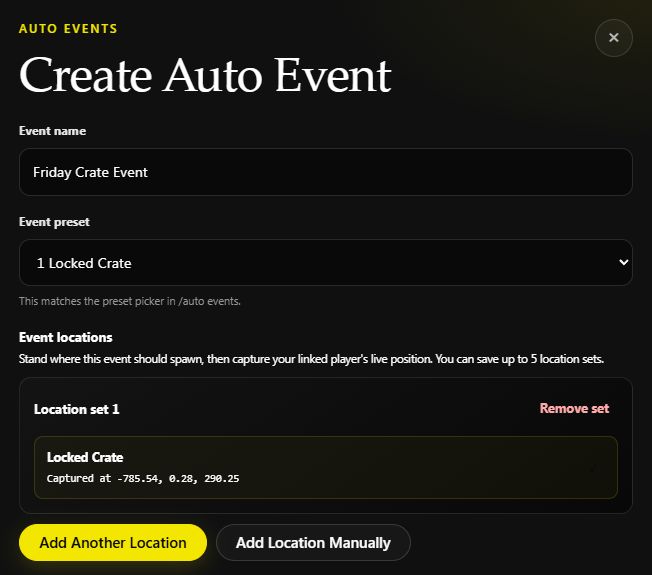
Real position captured on Helios Bot Testing. Capture your own location on clear ground; the example coordinates are not a recommended spawn point for your map.
Use Add Location Manually if you already know the X, Y, and Z coordinates. Add Another Location lets you capture more sets, up to five. For a preset with multiple location slots, complete each requested slot. Helios chooses a complete location set at random when it runs the event.
3. Set the schedule and announcement
| Field | Value |
|---|---|
| Schedule type | Advanced cron schedule |
| 5-field cron | 0 20 * * 5 |
| Timezone | America/New_York |
| Minimum population | 10 |
| Send the event announcement | Checked |
This schedules the event for Fridays at 8 PM New York time, with at least ten players online.
Copy the announcement, or write your own:
Friday crate event is live! Find the locked crate and claim the loot.
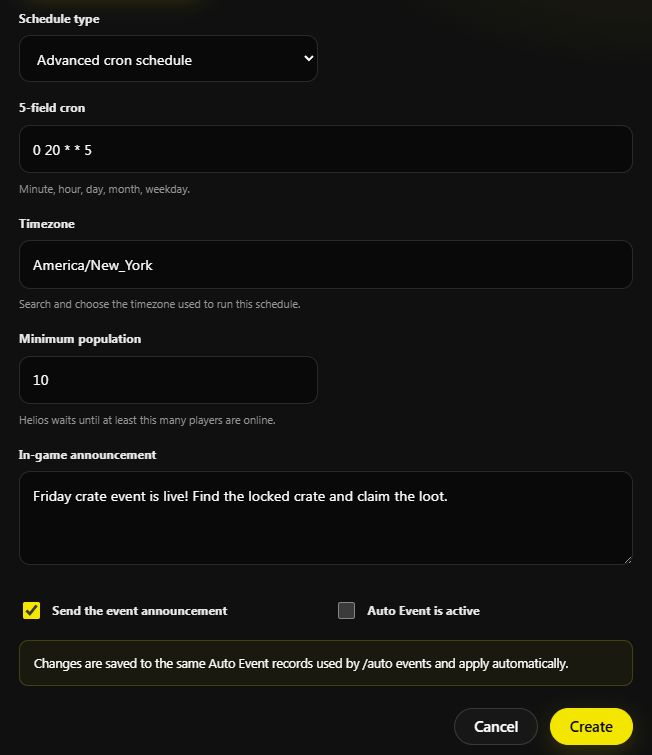
The example has Auto Event is active unchecked so it can be saved paused.
For a simple repeating event, choose Repeat interval and a Repeat every option instead. Custom interval uses seconds; 1800 means thirty minutes. See cron examples for other calendar schedules.
4. Save and check
Choose Create and wait for the success message. Expand the saved event and check its Preset, Minimum population, Announcement, schedule, location-set count, and status.
Use Edit to change the setup. Resume enables a paused schedule; Pause stops future scheduled runs. Remove deletes the saved event.
Run Event requests an immediate run on the selected server. Use it for a controlled test, then check the in-game placement and Helios result before relying on the schedule. The screenshots above show a saved setup; the example was not spawned for this guide.
Minimum population
Set 0 for no population requirement. For the scheduled locked-crate example, a run with fewer than ten players is skipped; it does not wait and spawn later when the population rises. The next opportunity is the next scheduled run.
A separate Countdown does not check this event's population requirement. Keep that in mind before announcing an event that might be skipped.
Custom Preset
On the dashboard, choose Custom Preset in the event editor:
- Enter a Custom preset name, such as
Crate Mix. - Choose Locked Crate and click Add Custom Item.
- Choose Elite Crate and click Add Custom Item again.
- Review the item order, capture the requested location, and set the schedule and announcement.
- Save the event. You can add up to fifteen items.
Other presets reveal their own settings. For example, Docked Cargo has locked-crate count, docked duration, and ship type.
In Discord
/auto events server:"<SERVER>"
Choose Create, pick a preset, capture its locations, set the frequency and minimum population, then save. The Discord panel also has Edit, Remove, List, Pause, and Feed. Feed chooses the Discord channel that receives event execution updates.
Use Run Event for a controlled test. It normally requests the event straight away. If another Cargo event is already out, Helios may queue the request and check again instead of creating a second Cargo event.
Discord's custom preset builder uses Create Preset; build and save that preset, then select it for the event. Custom preset templates are shared across every Rust server in the same Discord community, while the timed event itself belongs to the game server you selected. Each admin should open their own panel session.
Requirements
Use a connected game server with Premium and permission to manage it. Set Location also needs your linked player online on that server.
After a map wipe, recapture event locations before enabling the schedule again. If an event does not run, check Active, the schedule and timezone, population minimum, Premium allocation, connection, and complete location sets.