Helios Rust Console Bot Documentation
/auto events panel
Admin reference for /auto events panel in Helios.
Overview
Use this page to setup auto events on your server(s).
Setup Flow
- Run /auto events and choose a server.
- Create an event from a preset or create your own preset.
- Fill out all Options.
- Save and optionally run the event immediately.
Commands Covered
/auto events server:"<SERVER>"
Related automation panels:
/auto messagefor recurring in-game messages, and/auto giveaway-in-gamefor automated recurring in-game giveaways.
Example
/auto events server:"<SERVER>"
1. Run /auto events

2. Click Create to setup a new Auto Event

3. Select Preset or Custom preset for more customization. Then name the auto event
4. Set the Location with Set Location Button
- Stand where you want the Locked Crate to spawn, and click
Set Location- you only set positions for the locked crate, the bot calculates all other locations
- Set the Frequency for the Auto Event to run
- Examples: 15m = 15 minutes | 3h = 3 Hours
- Also accepts custom CRON for more control
- Set the minimum Pop for the event to run

5. Choose the Announcement & Save
- You can enter a custom event message or leave the default one
- Toggle on or off by typing
onoroff

6. Optionally setup a feed and run the event immediately
- Clicking
Feedon the home page of/auto eventslets you choose which Discord channel top send auto event feeds into - Clicking
ListShows when the auto event is next scheduled - Clicking Run Event lets you run an auto event immediately
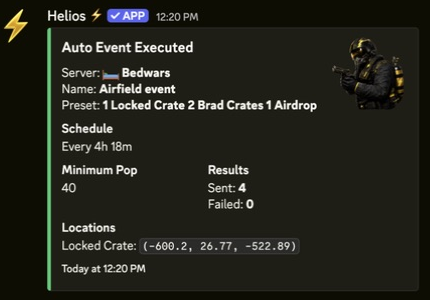
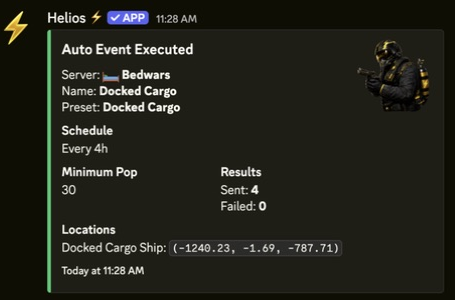
Successful runs show the server, event name, preset, schedule, minimum population, sent/failed results, and captured locations.
Custom Preset
- Custom presets let you create your own preset to use in
/auto events - Click Create Preset to start making a custom preset

1. Name the Preset, and select the 1 button to choose the first spawnable

2. Build out the preset and click save when done

3. Select the custom preset from the dropdown in Preset

Requirements
- Helios bot connected to at least one server in this guild.
- Discord permissions to run admin commands for this category.
- Correct server selected when the command supports
server:.
Notes
- Most admin commands require Manage Server (ManageGuild).
- Panel-based commands are user-scoped; each admin should open their own panel session.
- Some options on this page are premium-gated by server plan.