Helios Rust Console Bot Documentation
Use Images with Helios AI
Prepare, approve, and use images with your AI assistant.
- Last reviewed
- Maintained by
- Helios RCE
Enable View hosted images and image operations and Prepare and host approved images on the key. Then:
- Ask your AI app to create an image, or select an image you already have. Helios does not generate the artwork itself.
- Ask the assistant to prepare that specific image for Helios and show you the preview. The draft is private and does not change a feature.
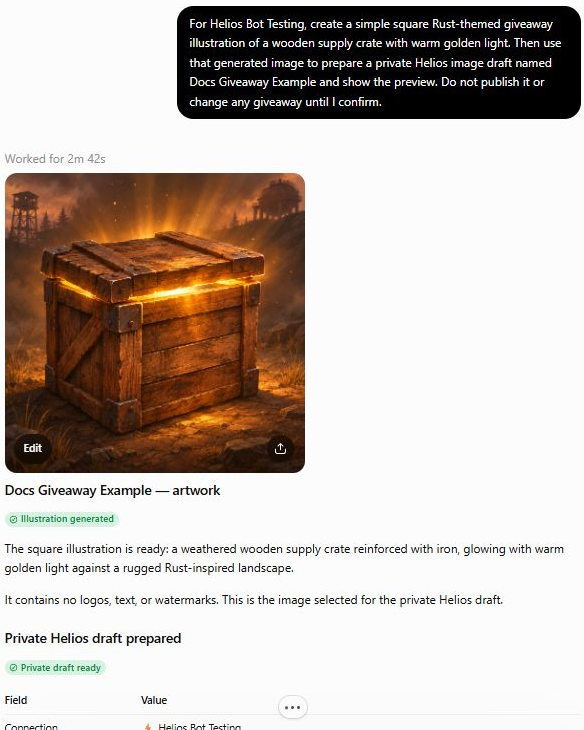
This example uses an AI-generated crate image and a private draft on Helios Bot Testing.
- If the image is right, review and confirm its publication in the Helios card. Once hosted, the image link is public.
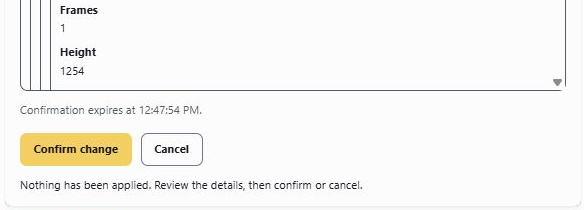
This crop hides the example's IDs and hash. The confirmation card is a separate step: scroll through the full details and confirm only the image and server you intended.
- Ask the assistant to use the hosted image in a supported feature, such as a giveaway or Discord embed. Review and confirm that feature change separately.
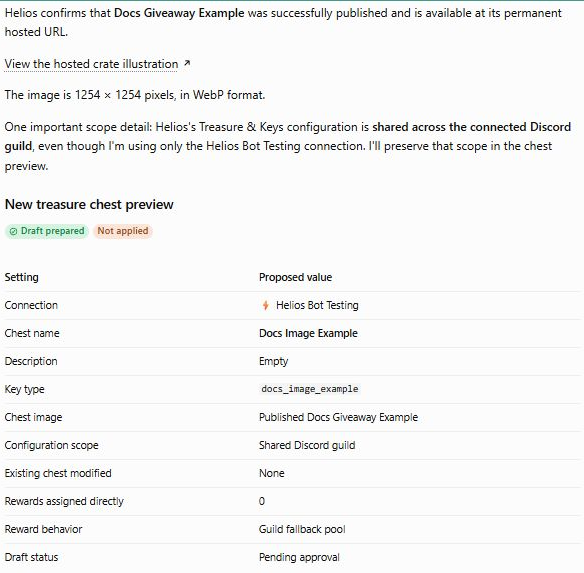
Here the image was published successfully and then added to a treasure chest preview. The chest was left as a draft; no treasure settings were changed. Treasure settings are shared across the Discord server.
Helios accepts PNG, JPG, WebP, and GIF files up to 5 MB. Your AI app must be able to provide the selected file to Helios. If an image or change is still applying or its result is unclear, check its status before attempting it again.