Helios Rust Console Bot Documentation
AI Ticket Support
Choose ticket permissions and set up an assistant to help with support tickets.
- Last reviewed
- Maintained by
- Helios RCE
Helios AI can check open tickets and help you reply. You decide what it can see and whether it needs your approval before replying.
1. Choose ticket permissions
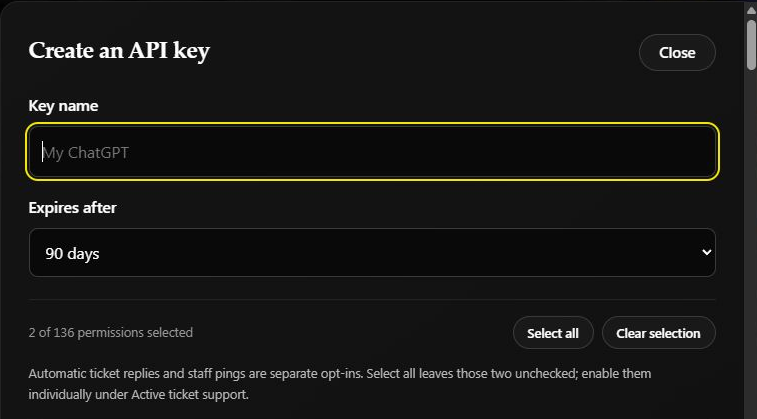
In your server dashboard, open AI, then create a key or edit an existing key. Under Active ticket support, choose the access you need:
- View open tickets and response times: See which tickets are open without reading their messages.
- Read active ticket conversations: Read messages from customers and staff.
- Reply as Helios in active tickets: Prepare replies for you to approve.
- Reply automatically without approval: Let Helios send eligible replies without asking each time.
- Notify staff from an automatic reply: Let Helios notify the owner or a support role when help is needed.
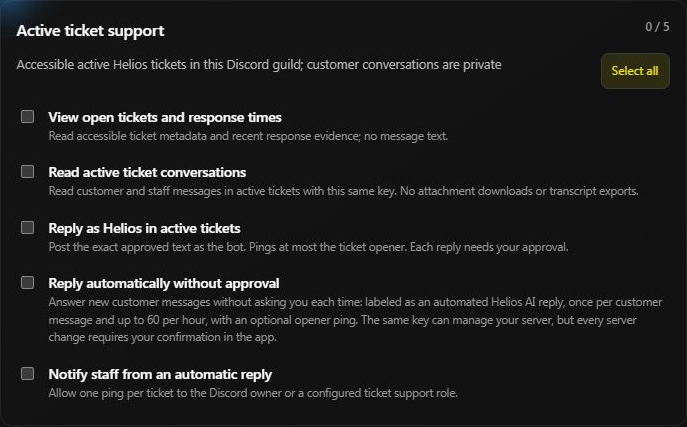
Choose only the permissions you want this assistant to have. Select an image to view it full size.
Automatic replies and staff notifications are separate choices. Even Select all leaves both off. Turn them on individually if you want them.
2. Connect your assistant
Connect ChatGPT, Claude, or Gemini using the key from the correct game server. Ticket access covers available Helios tickets across its Discord server, including tickets from other connected game servers.
3. Try a ticket check
Start by asking your assistant to suggest replies without sending them:
Use Helios to check open tickets waiting for staff and suggest helpful replies.
Do not send replies or change anything.
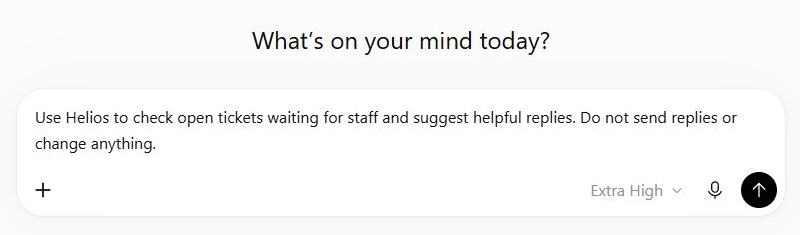
This example shows a prompt before it is sent. Review the replies before sending anything.
4. Set up a ticket watch
If your AI app supports scheduled tasks, ask it to repeat the check on a schedule. For example:
Every hour, use Helios to check open tickets waiting for staff.
Suggest replies for me to review. Do not send them automatically.
Review the schedule and any permissions your AI app asks for. Turning on a key permission does not create a schedule by itself.
If you want the assistant to reply on its own, enable Reply automatically without approval on its Helios key and set up the schedule in your AI app. Check its reports and tickets regularly. Ask staff to handle anything it cannot resolve.
Good to know
- Reading conversations shares ticket messages with your AI provider. It does not download attachments or export transcripts.
- Automatic replies are labeled as AI replies. Helios can reply once to each eligible new customer message, up to 60 times per hour across the Discord server.
- A reply may be blocked if someone already responded, the ticket changed, or access is missing. A draft is not proof that a reply was sent.
- A ticket message cannot give permission to change your server. Automatic replies do not issue refunds, grant items, ban players, or change settings.
- If you are unsure whether a reply was sent, check its status before trying again.