Helios Rust Console Bot Documentation
Killfeed and Alerts Setup
End-to-end setup path for Helios killfeed routing, Discord alert channels, and raid notification workflows.
- Last updated
- Maintained by
- Helios RCE
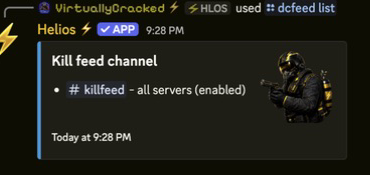
Use this page when you want a clean, reliable setup for server awareness: killfeeds for activity, alerts for staff response, and raid notifications for fast follow-up.
Requirements
- A connected Helios server with Discord routing enabled.
- One or more target Discord channels ready for feeds and alerts.
- Bot permissions to send messages, embed content, and mention users if you want pings.
- A rough plan for what belongs in public feeds versus staff-only alerts.
Recommended setup order
- Decide which channel should receive each type of update: killfeed, player feed, admin alerts, and raid alerts.
- Create or confirm the Discord channels before wiring commands so you can test immediately.
- Add the feed mappings for each source you want to track.
- Set the raid alert channel if you want raiding events routed separately.
- Send one test event and confirm the message format, ping behavior, and permissions.
What each feed is for
- Killfeed — general combat and death activity.
- Player feed — joins, leaves, and player movement/awareness events.
- Admin feed — higher-signal moderation or server administration alerts.
- Game feed — in-game routed updates when you want activity visible inside the server.
- Raid alerts — focused raid notifications that should stand out from routine activity.
Core commands
/dcfeed add,/dcfeed list— configure and review Discord killfeed channels./dcplayerfeed add,/dcplayerfeed list— configure and review player activity feeds./adminfeed add— add admin alerts to Discord, premium feature./gamefeed add,/gamefeed list— route in-game feed messages and check existing entries./set raid-channel,/raid link— connect raid alerts to the right channel.
Suggested rollout flow
- Start with one killfeed channel so you can verify message formatting.
- Add player feed routing next if you want joins/leaves in Discord.
- Turn on admin alerts once you are happy with the basic signal level.
- Finish with raid alerts so high-priority events land somewhere obvious.
- Re-test after each change instead of enabling everything at once.
Validation checklist
- Commands return success and do not error on save.
- Messages appear in the intended Discord channels.
- The bot has permission to send messages, embed content, and mention users if needed.
- Alert volume feels readable instead of spammy.
- Raid alerts are separated from routine killfeed noise.
If something looks off
- Re-check the channel IDs you entered.
- Make sure the bot can send embeds and regular messages in each target channel.
- Confirm the feed you are testing is actually enabled for the server.
- If a channel is too noisy, split admin or raid alerts into their own destination.