Helios Rust Console Bot Documentation
Schedule Shop and Bind Delays
Schedule when Shop products and emote binds become available, then check the result.
- Last reviewed
- Maintained by
- Helios RCE
Use Automated Delay Scripts to pause Shop purchases or emote binds for a set time after a scheduled start. For example, start one delay at wipe time, open a Shop category an hour later, and make a bind available after two hours.
Choose what to delay
Open Manage Server → Wipe Center → Delays → Automated Delay Scripts. Each target has its own delay in minutes.
| Target | What the delay covers | Where it applies |
|---|---|---|
| Entire Shop | Every Shop category present when the script runs | The Discord community |
| Shop Category | Purchases in that category | The Discord community |
| Shop Product | Purchases of that product | The Discord community |
| Emote Bind | The selected bind | The game server you opened |
Shop delays are shared across connected game servers. Check the scope before saving, especially if you only want to change a testing game server.
Create a schedule
- Choose Create Script, then enter a name.
- Choose the First Run Date & Time. The form shows the time zone used for your schedule.
- Choose Once, Every day, or Every week. If it repeats, set how often.
- Choose a target and enter its Delay in minutes. Use Add Delay Target to add others.
- Review the targets, times, and affected servers. Check the authorization box and choose Save Script.
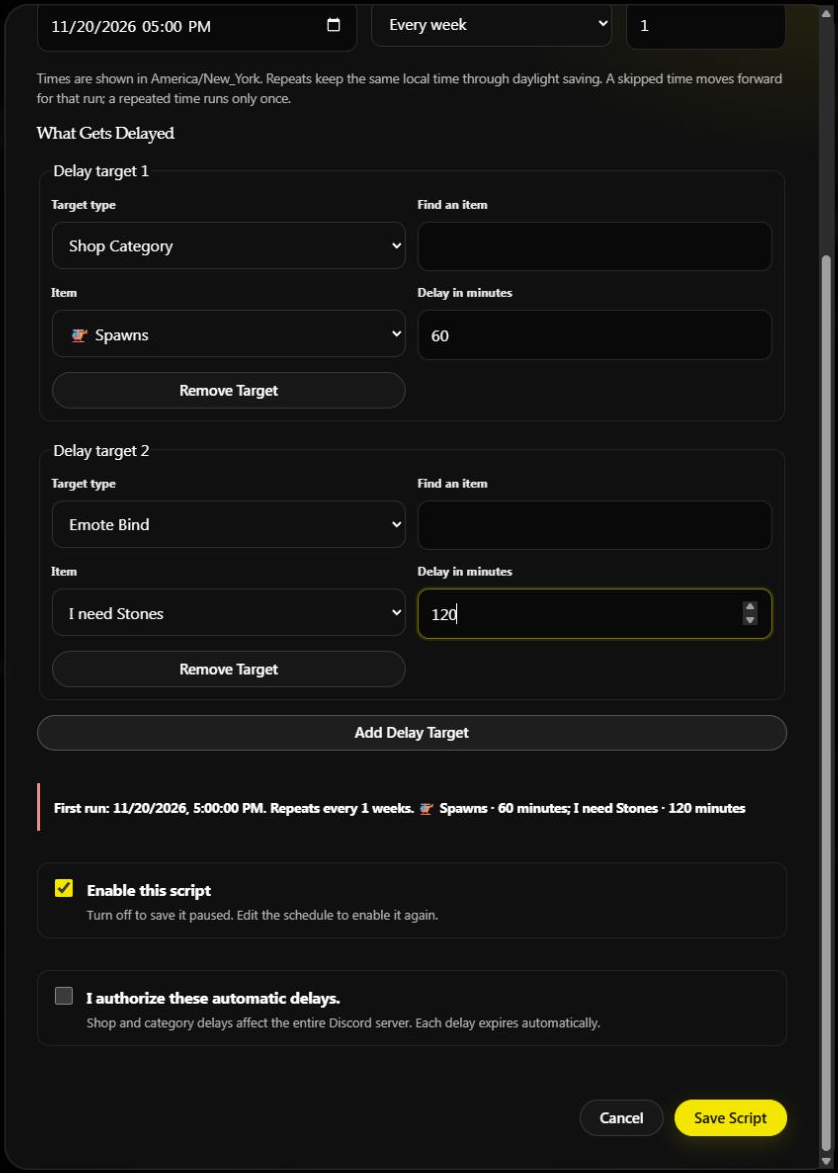
In this unsaved example, Spawns is delayed for 60 minutes and I need Stones for 120 minutes.
If the script starts Friday at 5 PM, the category's delay ends at 6 PM and the bind's delay ends at 7 PM. The repeat controls when the script starts again; each target's minutes control how long that target stays delayed.
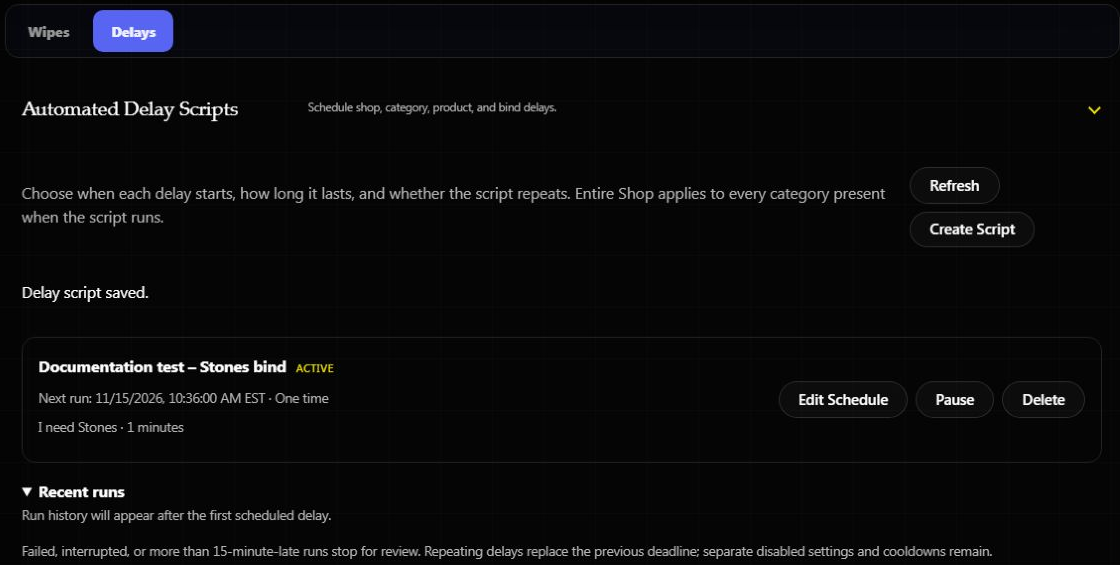
A real one-time test scheduled the I need Stones bind on Helios Bot Testing for one minute. This is a saved schedule before it ran.
Repeating schedules keep their local time in the saved time zone across daylight-saving changes. If the clock skips that time, the affected run moves forward; if the clock repeats it, the script runs once.
Check and manage the result
Open Recent runs and expand a run to see the result for each target. Use Temporary Delays to check a target's current delay. A completed run tells you the delay was applied; check the target's current state and other requirements before expecting a player to use it.
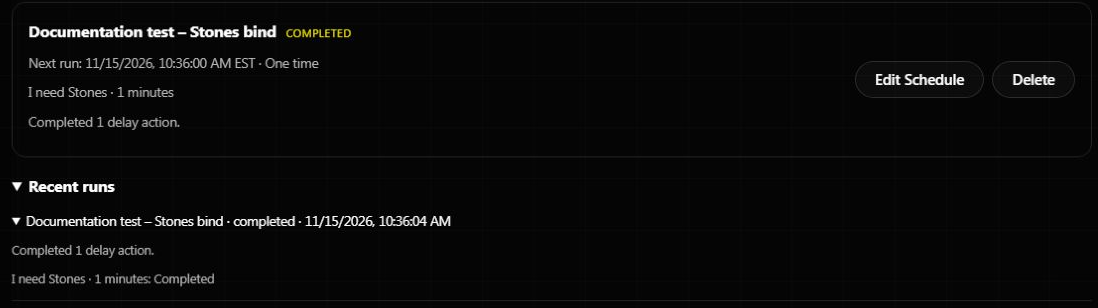
The one-time test completed and applied the one-minute bind delay. The script was removed after the test; its run history remained.
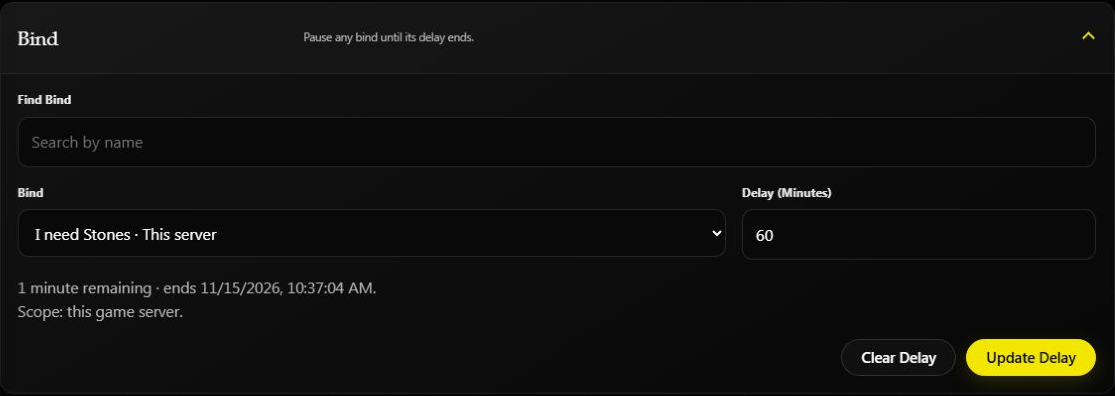
Temporary Delays showed the active countdown on the test server. The 60 in the editable field is the value for a possible update, not the running delay's length.
Use Pause to stop future runs, or Edit Schedule to change the schedule. A new delay for the same target replaces its previous deadline. Failed or interrupted runs, and runs missed by more than 15 minutes, stop for review.
Delay, cooldown, or paused?
| Setting | What it means |
|---|---|
| Delay | Temporarily prevents use until the delay ends. |
| Cooldown | Controls how long a player or server must wait between uses. |
| Paused or disabled | Keeps the item unavailable until staff turn it back on. |
When a delay ends, a separate cooldown, disabled setting, or access requirement can still stop a player. Clearing a delay does not turn a disabled item back on. To start or clear a delay immediately, use Temporary Delays in Wipe Center. See Emote Binds and Shop Setup for the underlying settings.