Helios Rust Console Bot Documentation
/player info
Look up player link status, balance history, and linked-user matches.
- Last reviewed
- Maintained by
- Helios RCE
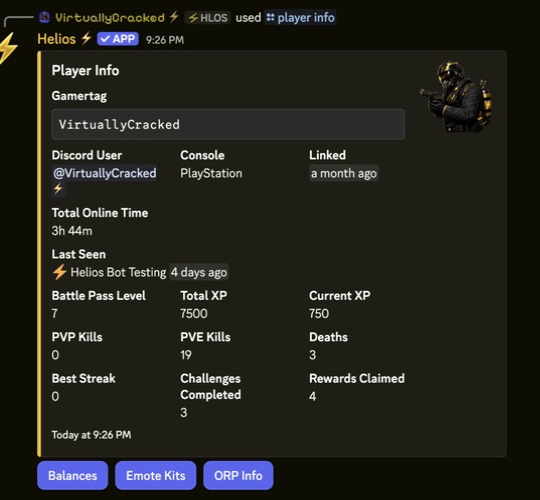
/player info
Use the player lookup commands when you need to confirm who is linked, inspect a user's history, or check whether a gamertag belongs to the correct Discord account.
This page is most useful before or after running /player link or /player unlink.
For a dashboard walkthrough, see Player Tools: inspect account activity, review balance logs, grant rewards, and reset one cooldown.
Commands
| Command | What It Does |
|---|---|
/player info user:@User | View profile info and open Balances, Emote Kits, or ORP Info |
/player logs user:@User | View a user's balance logs and adjustment history |
/player search gamertag: | Find the Discord user linked to a gamertag |
Common Uses
- Confirm a player linked successfully
- Check which Discord user owns a gamertag
- Review money or adjustment history before staff action
- Verify the correct target before unlinking or editing access
Example
/player info user:@User
/player logs user:@User
/player search gamertag:"<NAME>"
Player Info Buttons
- Balances shows the player's balance-change history with pagination.
- Emote Kits shows only claimable kit binds for the selected player. Helios filters by enabled server, required auth group, required Discord role, and current player/server cooldowns.
- ORP Info finds every ORP in the guild where the linked gamertag is a leader or member. It shows status, team, members, activation, protection, expiration, last-online, created, and updated timestamps.
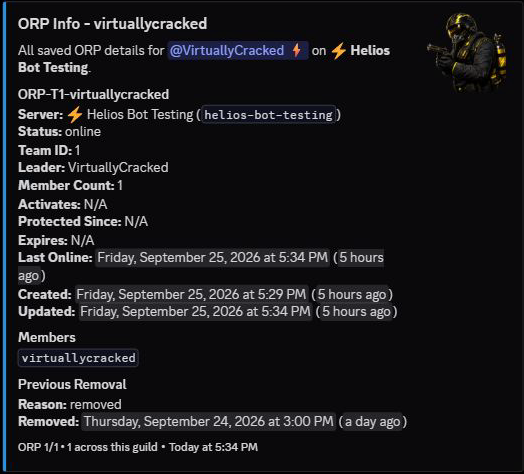
Previous Removal is history for an earlier removal of that zone name. It does not mean the zone shown above it is currently gone. Compare the removal time with the current Created, Updated, and status fields before deciding what happened. N/A for activation or protection times is normal for an Online zone.
This is saved ORP information, not a constantly refreshing game view. Reopen the lookup or run /orp list server:"<SERVER>" for an updated snapshot. In the dashboard, Player Tools → Emote Kits & ORP Info → Load Player Diagnostics also separates active zones from removal and cleanup history.
The buttons use the same staff permission checks as the original /player info response.
Best Practice
If staff are about to unlink a player or change a role-gated system, run a lookup first so you do not remove or edit the wrong account.