Helios Rust Console Bot Documentation
/wipe hours
Reset tracked online time, only the Weekly Hours panel column, or hours and panel history together.
- Last reviewed
- Tested on
- Helios Bot Testing dashboard; reset options inspected
- Maintained by
- Helios RCE
Reset online time for a new competition or season. You can keep panel history, clear only this week's panel column, or start both tracked hours and panel history fresh.
From the dashboard
- Open the dashboard, choose Manage Server, then Wipe Center.
- Expand Online Hours.
- Choose Soft Wipe, Wipe Weekly, or Hard Wipe.
- Check the confirmation's scope and acknowledgment before choosing Yes, Run Wipe.
- Wait for success, then check the Hours panel after its next update.
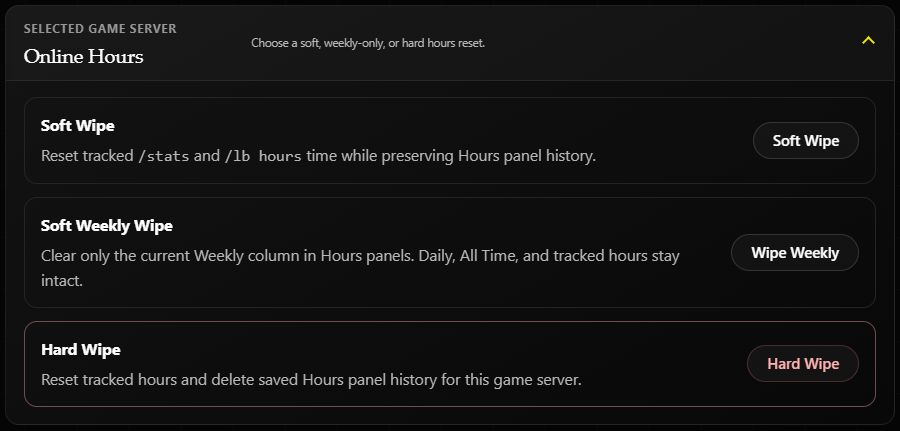
| Choice | Resets | Preserves |
|---|---|---|
| Soft Wipe | Tracked online time shown by /stats and /lb hours | Saved Hours panel history |
| Wipe Weekly | Only the current Weekly Hours panel column | Tracked hours, Daily, and All Time |
| Hard Wipe | Tracked hours and saved Hours panel history | Other game servers' data when one server is selected |
Example: a fresh weekly playtime race
Choose Wipe Weekly if this week's Hours column should restart while players keep their tracked hours and All Time totals. The regular weekly schedule and timezone stay the same.
If you want tracked playtime to start at zero but still want historical panel results, use Soft Wipe instead.
In Discord
/wipe hours server:"<SERVER>"
Select the server from autocomplete, then choose Soft Wipe, Soft Weekly Wipe, or Hard Wipe in the Discord prompt.
Omitting server targets all connected game servers in the Discord server. The dashboard's Online Hours reset targets only the selected game server.
You need Manage Server; the dashboard also requires Premium on the selected server. These resets have no undo button. If Helios cannot confirm completion, check the hours or panel before submitting again.
Related: Wipe Center and Stats resets.