Helios Rust Console Bot Documentation
Command Center and Admin Tools
Find server status, commands, shared settings, roles, and cooldown controls on the Helios Overview page.
- Last reviewed
- Maintained by
- Helios RCE
Choose the tool that matches what you want to do. A game-server console command, an in-game chat message, and a kit export are different actions.
| I want to… | Use | Access |
|---|---|---|
| Send one game-server console command | Dashboard Overview → Send Command | Manage Server + selected-server Premium |
| Run a list once | Discord /batch or dashboard Batch Commands | Manage Server; dashboard requires Premium |
| Send chat using my linked player name | Discord /say | Free; linked account |
| Save a reusable command list | Command Groups | See the command-group guide |
| Export or copy kit contents | Kit Commands | Manage Server; grab/copy are free |
| Build or inspect kits visually | Kit Manager | Manage Server + selected-server Premium |
Find tools on Overview
Open the dashboard, choose Manage Server on the game server you want, and select Overview. Scroll down to find its tools.
| Area | What you can do | Where it applies |
|---|---|---|
| Command Center | Check online players, queue, current FPS, uptime, and world objects. | The selected game server. |
| Send Command | Send one game-server command and read the response. | The selected game server. |
| Batch Commands | Send up to 50 game-server commands in order. | The selected game server. |
| Shared Helios systems | Set the currency name and switch shared features such as Market, Battle Pass, and player linking options on or off. | Every connected game server in this Discord community. |
| Shared setup and admin tools | Configure balances, link roles, moderator roles, channels, Bag capacity, and other shared settings. | The Discord community. |
| Game server settings | Configure the live player count channel and TP To Friend. | The selected game server. |
| Custom Auth Roles | Connect in-game access levels with Discord roles. | The selected game server. |
| Cooldown Manager | Clear current Shop or Emote Bind wait times. | Shop resets are community-wide; bind resets use the selected game server. |
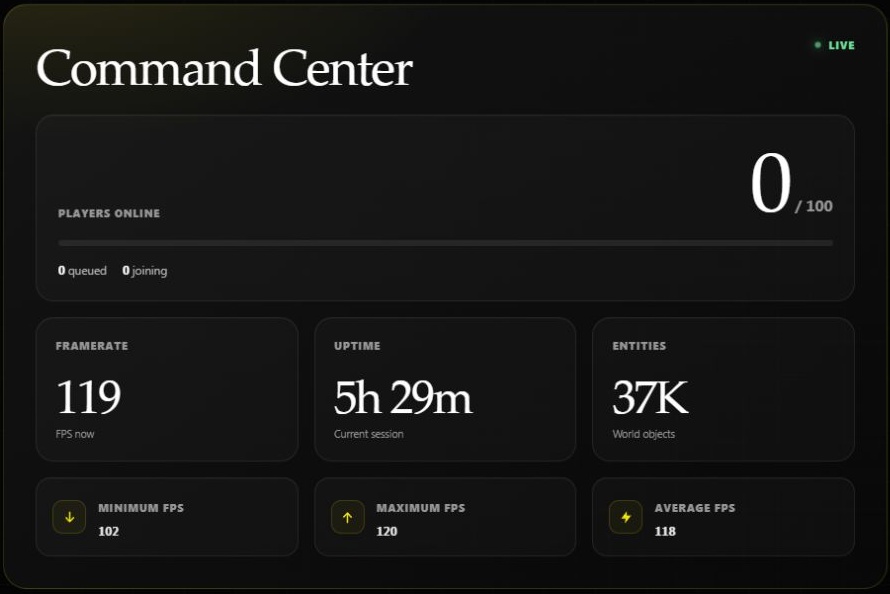
Live information from Helios Bot Testing. Your values will change as the server runs.
If the server is offline or information is missing, check Server Connection. Selecting a different game server changes the selected-server tools, but does not make shared Discord settings apply to just that server.
Shared settings
Shared Helios systems shows the currency name and switches for player unlinking, online-only linking, nickname changes, Market, and Battle Pass. These settings apply to the Discord community, so check who else uses them before saving a change.
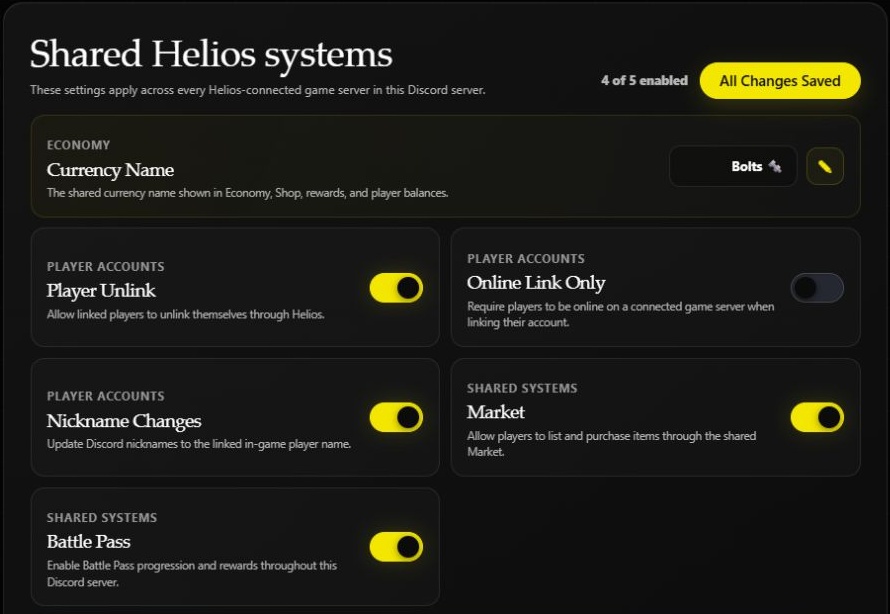
The Role Syncing button checks configured link and platform roles. Below it, Shared setup and admin tools provides shortcuts to balances, roles, channels, and other settings. Follow Owner Setup for the relevant setup guide. For currency and payouts, see Economy Settings.
Roles and cooldowns
Custom Auth Roles → Configure manages role mappings for the selected game server. It requires the Discord server owner or an Administrator and Premium. Review Custom Auth Roles before changing roles or in-game access.
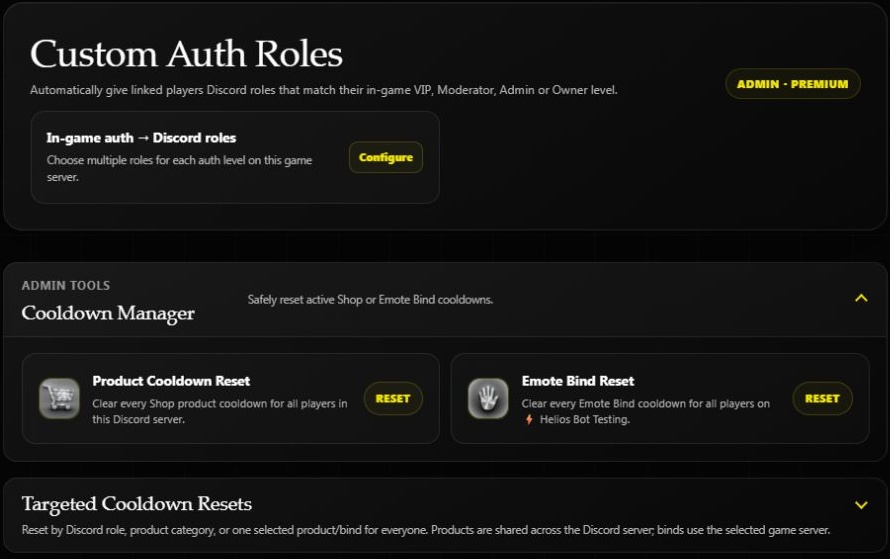
Expand Cooldown Manager to review its reset choices. Product Cooldown Reset clears Shop product waits for all players across the Discord community. Emote Bind Reset clears bind waits for all players on the selected game server. Targeted Cooldown Resets offers smaller choices, such as a role or product category.
A reset clears existing waits; it does not change the normal cooldown for the next use. Read the target and confirmation before applying a reset. For individual players and step-by-step options, see Cooldown Manager.
Send one console command
- Open your game server in the dashboard.
- Choose Overview → Send Command.
- Enter a game-server console command, such as
status. - Check the selected server, then choose Send Command.
- Read the server's response and check the result before retrying.

An unsubmitted informational example from Helios Bot Testing.
Send Command runs immediately on the selected game server. It is not a preview and does not target every connected server. Enter console commands here, not Discord slash commands.
An empty or brief response does not prove a change failed. Check the live result before repeating commands that give items, add kit contents, or change settings.
Scope and safety checks
- Discord
/batchwithout a server targets every enabled connected game server in the Discord community. Dashboard batches target only the open game server. /sayrequires one server and sends your linked player name with the message./kit grabreads kits and posts a file; applying the exported commands later makes changes.- Discord Replace ALL Kits deletes all destination kits, including kits absent from the source.
- A batch or kit copy can partly succeed. Check what already changed before retrying.
Never paste passwords, private codes, or connection details into command boxes or public Discord messages.
Other admin tools
For guided setup, use Emote Binds, Shop, Player Tools, and Tickets. Those guides explain their own permissions, confirmations, and server scope.