Helios Rust Console Bot Documentation
/cmd group management
Create reusable Command Groups on the Helios dashboard, add commands in order, and use them with schedules or player binds.
- Last reviewed
- Tested on
- Helios Bot Testing dashboard
- Maintained by
- Helios RCE
Overview
A Command Group saves one or more Rust Console server commands under a name. Reuse it with Timed Commands, Emote Binds, Shop products, or Battle Pass rewards.
Groups belong to your Discord server and can be reused across its game servers. The feature running a group determines the target server and whether a player is available.
Creating a group does not run it. Add its commands first, then choose how it should be triggered.
Find an existing group
Open Automations → Command Groups and use Search Command Groups. Search by a group name, a command label, or part of the saved command text. For example, searching say can find announcement groups even if their group name does not mention chat.
With several search words, a group must match all of them somewhere in its name or commands. Search ignores capital letters. Showing … of … Command Groups tells you how many groups match. Use Clear search when no groups match, or empty the field to see everything again.
Searching only filters the list. It does not run, rename, or remove a group. If Helios says the groups changed while loading, refresh the page before editing.
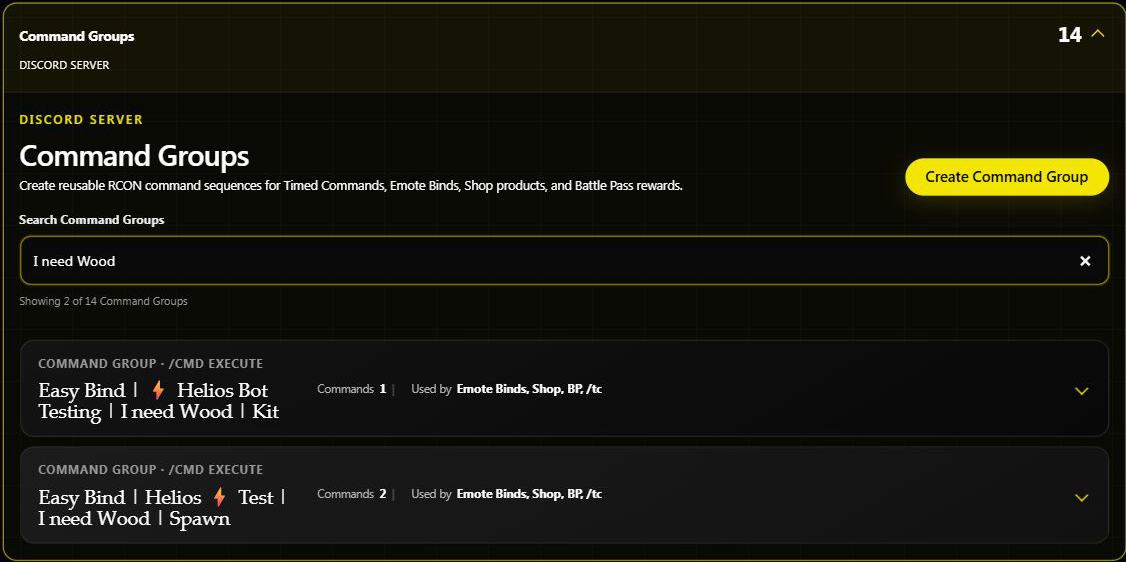
A search example from the live dashboard. No group was created, edited, or run for this screenshot.
Dashboard example: event reminder
1. Create the group
Open the dashboard, choose Manage Server, then Automations → Command Groups → Create Command Group.
Enter Event reminder as the Group name, choose Create, and wait for the success message.
2. Add the command
Expand Event reminder and choose Add Command.
| Field | Value |
|---|---|
| Command Group | Event reminder |
| Command label | Announce event |
| Execution position | 1 |
| RCON command | Copy the command below |
say Community event starts in 10 minutes. Join us at the arena!
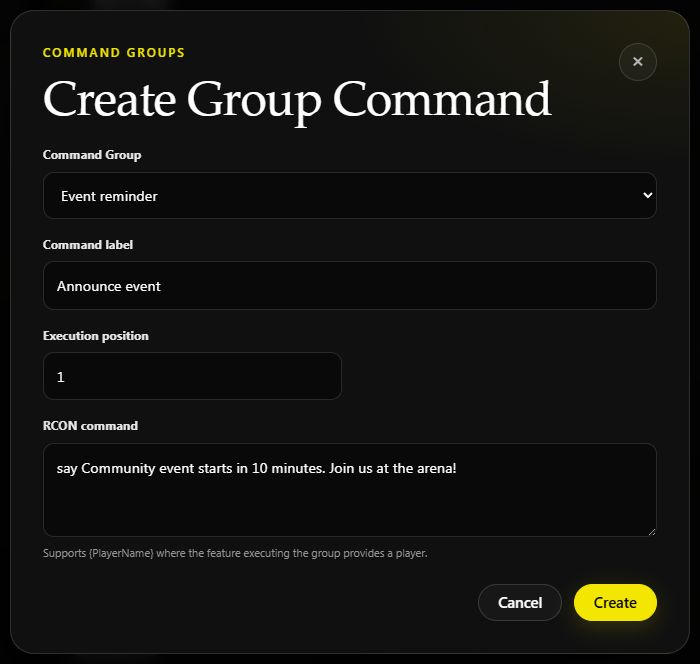
Choose Create to save. Add each additional command separately, using positions 2, 3, and so on for the order you want.
3. Review the saved result
Expand the group again. It should show Commands 1, the Announce event label, and the full command text.
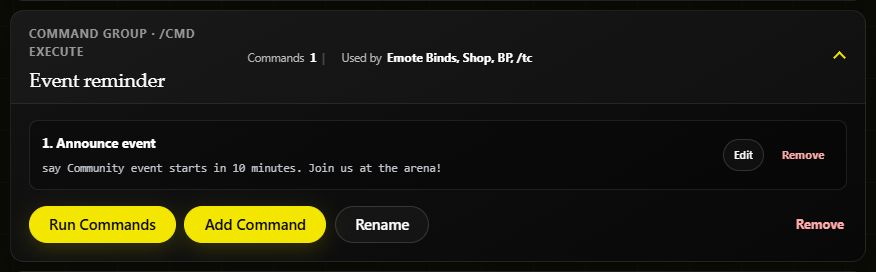
Saved example captured on Helios Bot Testing. The command was not run for this screenshot.
Run Commands executes the group on the game server you are currently managing. Check the selected server first, then use it to test and review the success/error message. For this example, the expected result is the announcement in game chat.
4. Put it on a schedule
Follow the Friday event reminder example to run this group every Friday at 7:50 PM.
The group holds what to run; the Timed Command sets when and where to run it. Editing a group's commands changes what its existing users will run next.
Player-triggered examples
For a group triggered by a player, such as an Emote Bind, use player placeholders when the action supports them.
Give a kit
Create a group named starterkit and add:
kit givetoplayer "starter" "{PlayerName}"
Replace starter with a kit that exists on the target server. To include extra supplies, add another command at position 2:
inventory.giveto "{PlayerName}" "bandage" 5
Spawn a rowboat near the player
Create a group named spawn_rowboat and add:
spawn rowboat {PlayerPositionX}+2,{PlayerPositionY}+1,{PlayerPositionZ}
This offsets the spawn by 2 on X and 1 on Y. Test the bind in a clear area to check the placement.
Placeholder Support
| Placeholder | Value supplied by a supported player-triggered action |
|---|---|
{PlayerName} | The triggering player's name |
{PlayerPositionX} | Player X coordinate |
{PlayerPositionY} | Player Y coordinate |
{PlayerPositionZ} | Player Z coordinate |
{PlayerPos} | Combined player position, where supported |
Keep the braces and spelling exactly as shown. Position components support offsets such as {PlayerPositionY}+5.
Timed Commands do not supply a player. Test a player-dependent group through the bind or reward that will actually use it; a manual run is not a substitute for that test.
Attach a group to a bind
- Create the group and add its commands.
- Use
/bind add-cmdto choose the group and the in-game trigger phrase. - Trigger the bind in game with one test player.
- Use
/bind edit-cmdwhen an existing bind should point to another group.
For an ordinary kit, item, spawn, or teleport bind, the Emote Binds dashboard guide walks through the dedicated editor.
Edit or remove
Sell a group as a reward
Use Sell a Command Group in the Shop to attach a non-empty group to a product. Normally, buying saves it in /bag; an applicable immediate-use setting runs it at purchase instead.
Bag rewards refer to the saved group, so editing its commands can change what previously purchased, unused rewards will run. If delivery partly fails, review the successful commands before repeating the group. A manual Run Commands test does not provide the same player context as using a shop reward.
Check existing users before deleting
Expand the group and use Edit beside a command to change it. Rename changes the group name. Remove beside a command deletes that entry; Remove at the bottom deletes the group.
Before deleting a group, update any binds, rewards, shop products, or timed commands that depend on it.
Commands Covered
| Discord command | Purpose |
|---|---|
/cmd group add | Create a named group |
/cmd add | Add a command, label, and execution position |
/cmd edit | Change a command's label or position |
/cmd remove | Remove one command |
/cmd list | Review a group's commands |
/cmd execute | Run a group on the chosen server, or all servers if omitted |
/cmd group remove | Delete a group |
For a single manual command, see /cmd execute and send. Always select server: when a Discord command should affect only one server.
Requirements
You need permission to manage the server, a connected Helios server for execution, and valid RCON commands. Check that referenced kits or entities exist and that any player placeholders are supported by the feature running the group.